
Move your data · Module 10
Syncing with Shopify
This is where the work pays off: your enriched product sheets go to your store, all the way to publication on your public website, then stay up to date there, by hand or automatically depending on your setting. This module covers the Shopify prerequisites, the connection, field mapping, publishing and monitoring.
15 min read
The principle
cocoPIM remains the source of truth: you enrich in the PIM, and the connector pushes the product sheets to Shopify: titles, descriptions, variants, prices, images, custom fields. The flow is one-way: the PIM writes, Shopify receives. And the sync is idempotent, a technical word for a simple guarantee: sending the same product ten times does not create ten duplicates, it updates the same Shopify product. So you can sync without worrying.
Source of truth
cocoPIM
- enriched products + images
- status per channel:
- Published · Archived · Error
The connector translates
Sync
- native fields + metafields
- images without duplicates
- stock: only if enabled
On the Shopify side
Shopify Admin
- products, variants, metafields
Online Store
- visible if “Published”
- removed if “Unpublished”
Prerequisites: giving cocoPIM access to your store
First prerequisite, on the cocoPIM side: the Shopify connector is included from the Pro plan. Then on the Shopify side: to write to your store, cocoPIM must be explicitly authorized, with precise permissions, no more, no less. Since January 1, 2026, Shopify no longer lets you create a “custom app” from a store’s admin. The way to go: you create a small app in your Shopify organization’s Dev Dashboard, you install it on your store, then you give cocoPIM its two credentials, the Client ID and the Client secret. cocoPIM uses them to obtain an access valid for 24 hours and renews it on its own: there is nothing to republish or declare at Shopify, and no cocoPIM app to install. The six permissions to grant, and what they allow:
- read_products + write_products: read and write product sheets, that is titles, descriptions, variants and custom fields (metafields).
- read_publications + write_publications: list your sales channels and publish or hide products on them; this is what lets “Sync” and “Unpublish” control visibility on your public website.
- write_files: send your images (main image + gallery).
- write_inventory: stock. cocoPIM only uses it if you turn on “CocoPIM manages stock on this channel”, but the permission is requested from the start.
The steps, once per store:
Open the Dev Dashboard of the right organization
Go to dev.shopify.com/dashboard with the account that manages the Shopify organization that owns your store. This is the key point: the app and the store must belong to the same Shopify organization, otherwise Shopify will refuse to grant access.
Create the app
Click Create app and name it “cocoPIM”: you will always know what it is for. In the URLs section, keep the suggested URL and uncheck “Embed app in Shopify admin”: cocoPIM displays nothing in Shopify and expects no redirect.
Grant the six permissions (access scopes)
On the same screen, under Access, enter the six scopes listed above in the Scopes field, separated by commas: the complete list right away, even if you do not plan to manage stock yet.
Release the version
Click Create app, then Release in the window that opens: as long as the version is not released, Shopify does not apply the chosen scopes.
Install the app on your store
On the app’s Overview page, click Install app, choose the store to connect, then confirm with Install. Shopify then opens the app’s URL: this is normal, simply close that tab. Without this installation, Shopify will answer that it cannot find the app.
Copy the Client ID and the Client secret
Still on the Overview page, the Credentials box gives the Client ID and the Client secret (copy button to the right of each field). Treat the secret like a password: store it in your password manager, never share it by email.
Connecting your store
Open the channel’s Sync tab
In Catalog → Channels, open your e-commerce channel (module “Categories, channels, languages & currencies”) then its Sync tab. All the Shopify settings live here, in six sub-tabs: Connection, Where to publish, Metafields, Taxonomy, Send, History.
Paste your app’s credentials
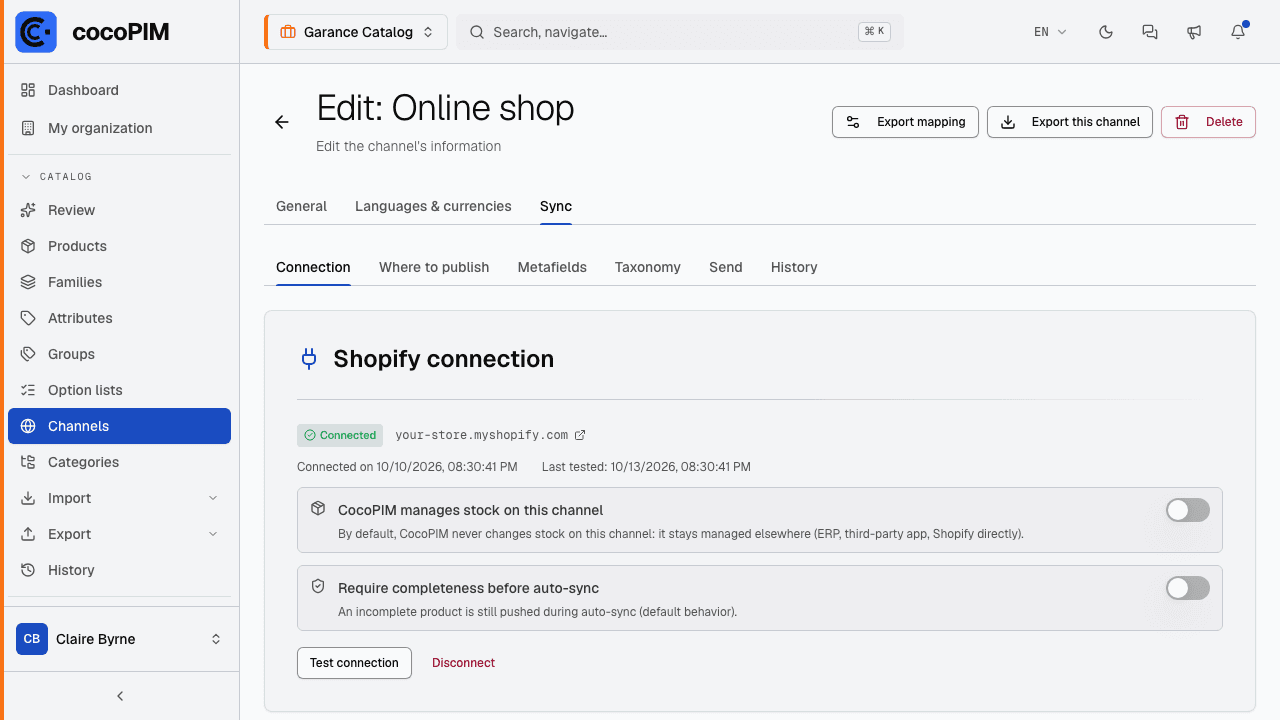
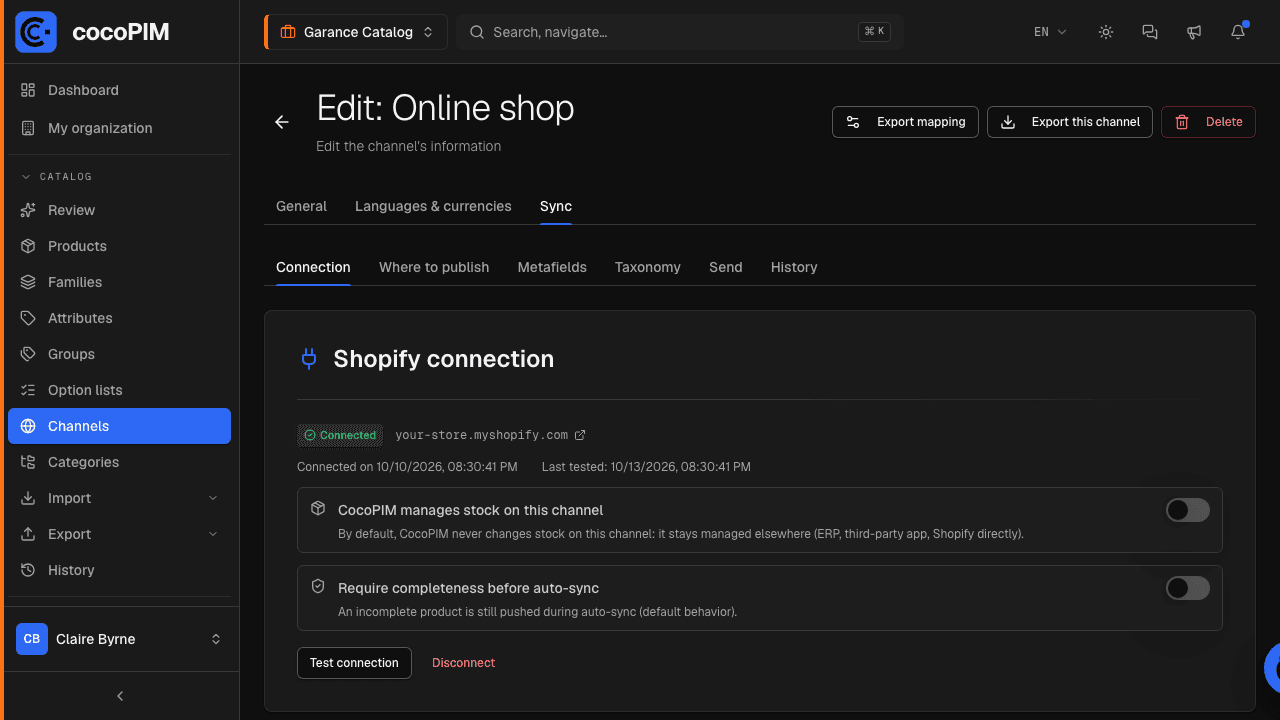
In Connection, enter the Shopify domain (…myshopify.com, without https://), leave “Client ID and Client secret” selected, paste the two values then click “Connect”. cocoPIM checks the credentials with Shopify before saving anything: if something is wrong, a plain-language message says what to fix. The Client secret is stored securely and encrypted, and is never shown again. For an app from before 2026, choose “Admin access token” instead.
Check, then stay in control
Test connection confirms that cocoPIM is indeed talking to your store. You can disconnect at any time: your products remain intact in Shopify, your mappings are kept, and reconnecting picks up where you left off.
The 24-hour token is managed by cocoPIM: it is renewed before it expires, with no action on your part. If a connection is refused, or if a test fails later, the message displayed says what to do:
- “Shopify does not recognize this Client ID, or the app is not installed on this store”: check the Client ID and install the app on the store from the Dev Dashboard.
- “Shopify rejected the Client secret”: copy it again from Overview → Credentials. If you had it renewed in Shopify, click Reconnect and paste the new one.
- “…are not part of the same Shopify organization”: recreate the app in the Dev Dashboard of the organization that owns the store.
- “Access … is missing”: add the scope mentioned to the app, release a new version and accept it on the store, then try again.
Where to publish: choosing your sales channels
A Shopify store has several sales channels (“publications”): the Online Store, but also a point of sale, an app… The Where to publish sub-tab lists those of your store and lets you check the ones on which your “Published” products will be made visible. With no selection, cocoPIM publishes to the Online Store.
Mapping: saying what to send where
Some things go out with no setup: the Shopify title is the product name (in the channel’s language), and your variants arrive with their axes, without mapping anything. Everything else is decided in the Metafields sub-tab, in two cards.
1. Shopify native fields. For each standard field of the Shopify product, you choose the cocoPIM attribute that feeds it:
- product side: Description, Vendor, Product type, Tags, SEO title, SEO description;
- variant side: Price, Compare-at price (the struck-through price), Barcode;
- for a price, you also specify the currency to send, that of your Shopify store. If the product has no price in that currency, the field is not sent;
- a field left on Default keeps the standard behavior (the description and the price go out if your attributes have the expected codes; tags and SEO are not sent).
2. Metafields. For everything else (material, certifications, technical sheet), cocoPIM feeds Shopify’s custom fields:
- map a PIM attribute to a metafield key; the Shopify type is chosen automatically (recommended) or by hand, and you can pin the field in your Shopify admin;
- the Sync schema button creates the definitions in your Shopify admin, to run again after each new mapping, with no risk of duplicates;
- only mapped attributes are sent: an unmapped attribute never leaves the PIM. An attribute already assigned to a native field is not offered a second time, and media attributes or product-link attributes cannot become metafields.
Optionally, the Taxonomy sub-tab matches your cocoPIM categories with categories of the Shopify taxonomy (built-in search, in English like the taxonomy itself, for example “candle”, “cushion”): your products arrive already classified in your store. Without this matching, the product type is used for classification.
Publishing on your website, product by product
Sending a product to the Shopify admin is one thing; making it visible on your public store is another. Everything is controlled from the product sheet’s Diffusion tab, which lists your connected channels:
- Sync: sends the up-to-date product sheet and makes it visible on the sales channels chosen in “Where to publish” (the Online Store by default), and the channel status changes to Published;
- Unpublish: takes the product off sale. It is archived on the Shopify side, never deleted, and the status changes to Archived. It is reversible: a new “Sync” puts it back online;
- if it fails, the status changes to Error, with the reason in the history. This status is set by the system: it cannot be chosen by hand.
The “External link” column opens the product in the Shopify admin: the right reflex to check what actually arrived. Sync remains available once the product is published, to resend a modified product sheet without waiting for the automatic sync.
A Validated product goes online from its first send, whether it goes out through the automatic sync or through “Send the catalog”. The bulk send, for its part, takes the whole space: a product still in draft in cocoPIM then arrives as a draft in Shopify, off your public store, and goes online at the send that follows its validation. A product you have unpublished stays archived, whatever the number of sends, and even if a send fails in the meantime: only “Sync”, from its product sheet, puts it back online.
One last case: a product archived in cocoPIM is never online. The automatic sync takes it off sale. That removal is not a decision on your part: restore the product, validate it, and it comes back online by itself at the next send.
Images and stock: two behaviors to know
- Images follow, without duplicates. Your main image becomes the featured image of the Shopify product, the gallery follows in the PIM’s order. Visuals are only sent once: resyncing never creates duplicates, and removing an image on the PIM side removes it from Shopify at the next cycle.
- Stock is NOT sent, by default. If an ERP or Shopify itself manages your inventory, cocoPIM does not touch it. If the PIM is your only source of stock, turn on “CocoPIM manages stock on this channel” in the Connection sub-tab, knowing that it will then overwrite the Shopify levels at every sync.
Syncing: by hand, automatically or in bulk
- By hand, product by product: the product sheet’s Diffusion tab lists your connected channels, each with its status, the date of the last send, a link to the Shopify product and the Sync and Unpublish buttons.
- Automatically: this is a channel setting, off by default. Check Automatic sync in the channel’s General tab. From then on, every “Validated” product you save goes to the store, and a catch-up runs every night for anything that might have been missed. A draft product never goes out on its own; an archived or deleted product is taken off sale. The Require completeness before auto-sync setting (Connection sub-tab) also holds back incomplete product sheets for this channel.
- In bulk: the Send sub-tab and its Send the catalog button resend all the products of the space; those missing from the store are created, the others updated. This is the move for the first send, or for bringing things back in line after a mapping change. The send runs in the background and can take several minutes.
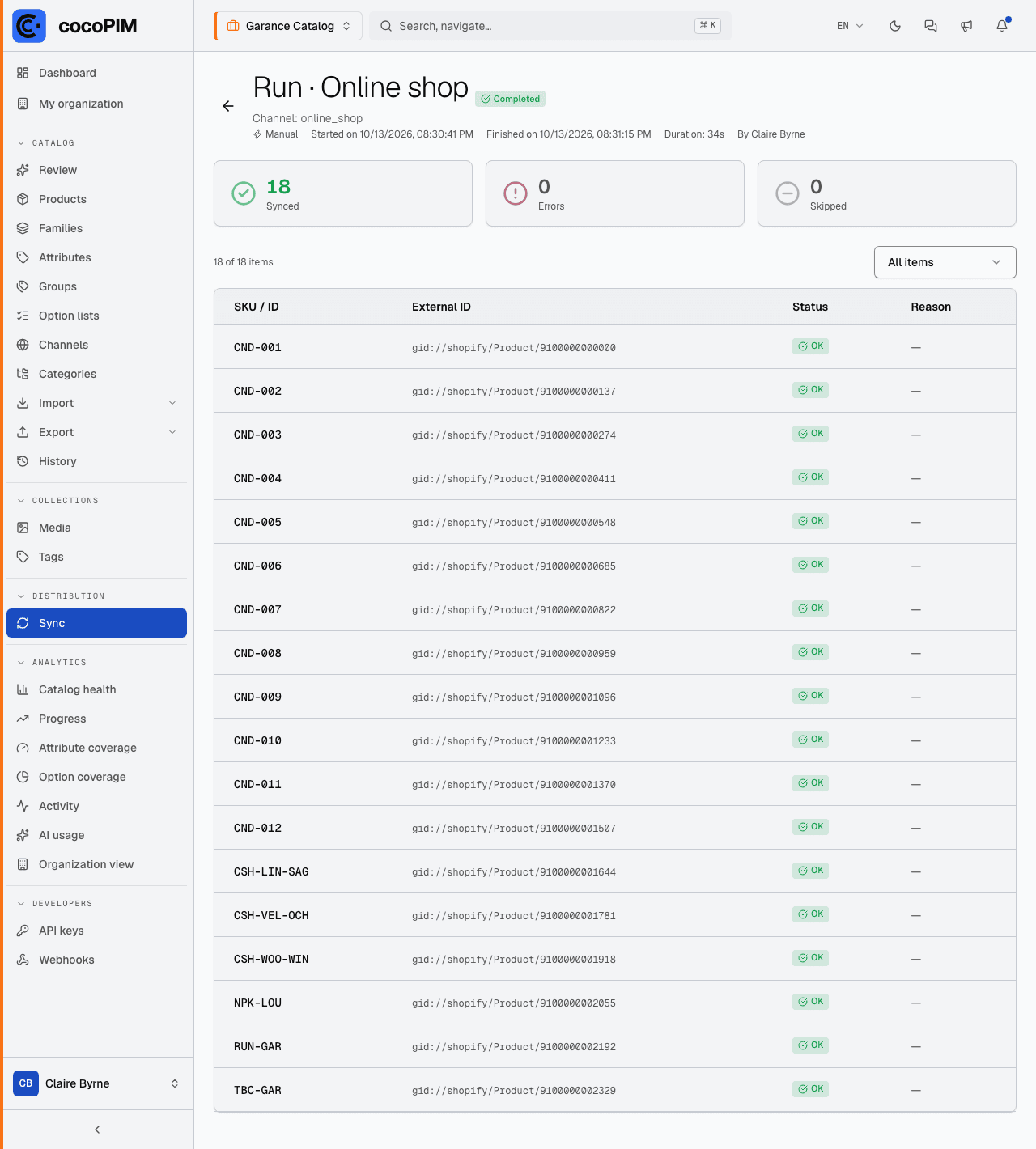
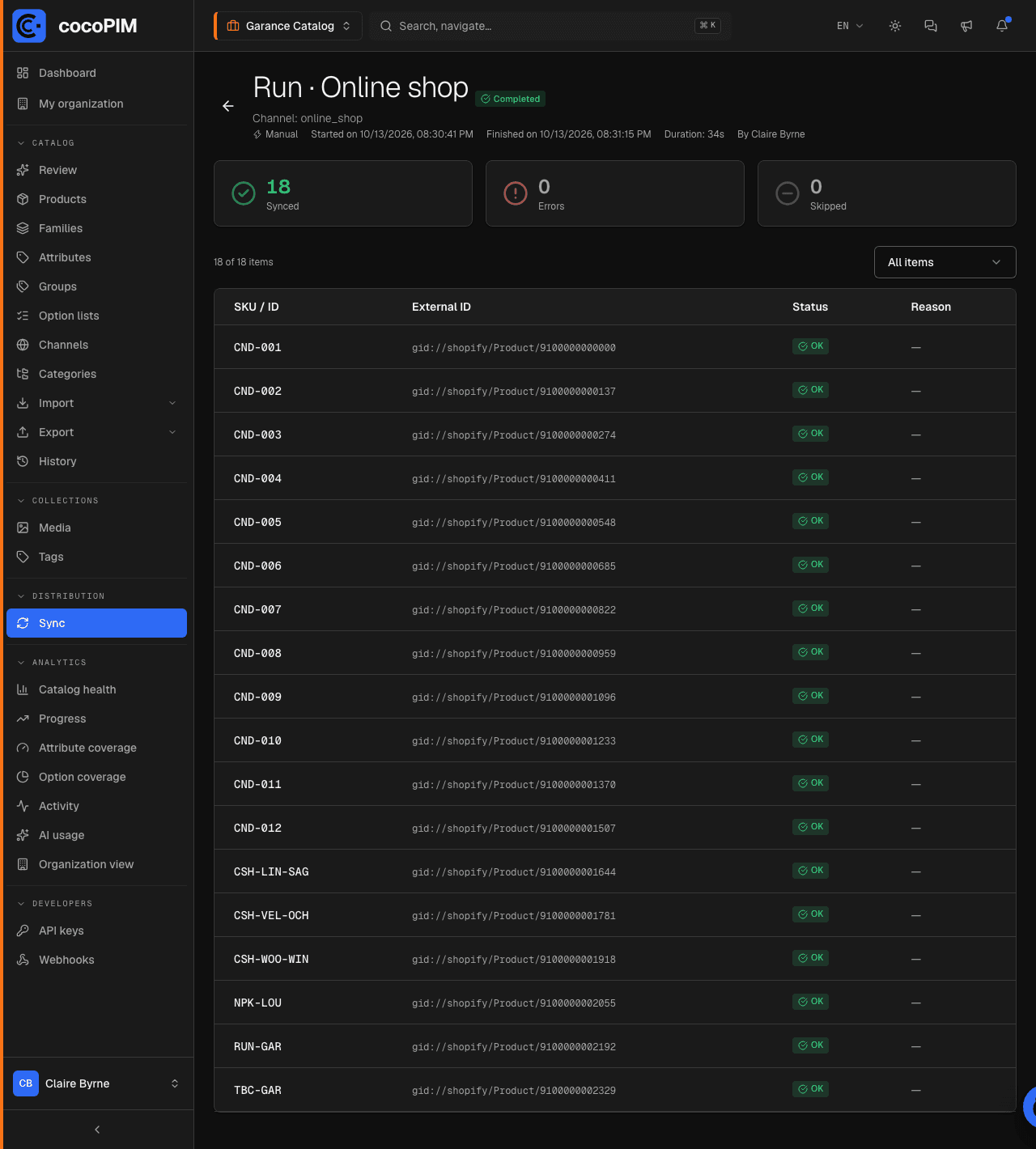
- Monitoring: each run leaves a detailed log in Distribution → Sync (all channels, filterable by channel, status and trigger) and in the channel’s History sub-tab (products sent, successes, failures and reasons, including “unresolved image” warnings when a referenced visual no longer exists). There is no completion notification: this is where you check.
What about other platforms?
Shopify is cocoPIM’s native distribution connector. For any other platform, the CSV/Excel exports targeted by channel (previous module) already feed any website or marketplace that accepts a file, and the API (module 14) lets you connect the rest.
In the other direction, if your products are born in your Odoo ERP, the Odoo connector brings them into cocoPIM without a file: that is what the Importing from Odoo module covers.