Go further · Module 13, deep dive
Analytics, screen by screen
The Analytics menu has six screens. Each one answers a specific question: where does the catalog stand, is it improving, which attribute or option is being neglected, how does the team work, where does the AI quota go. This guide walks through them, from the big picture to the detail.
14 min read
Who sees what
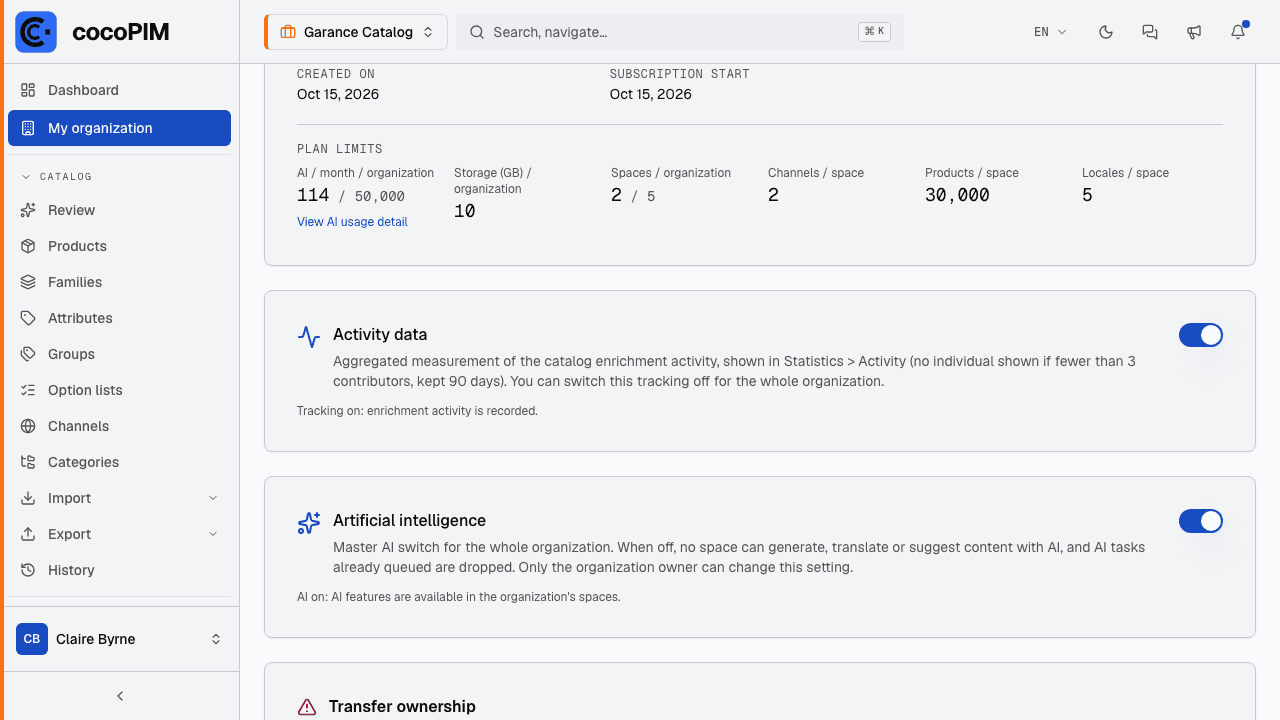
Each screen has its own view permission: an entry only shows up in the menu if your role grants access to it. The default roles (Catalog manager, Contributor, Viewer, Publisher, Analyst) open the first five screens. AI usage is reserved for the organization owner, who can open it to other roles, space by space (see Administering your space).
The figures cover the current space (the one chosen at the top of the interface), except AI usage, which covers the whole organization.
Catalog health: the big picture
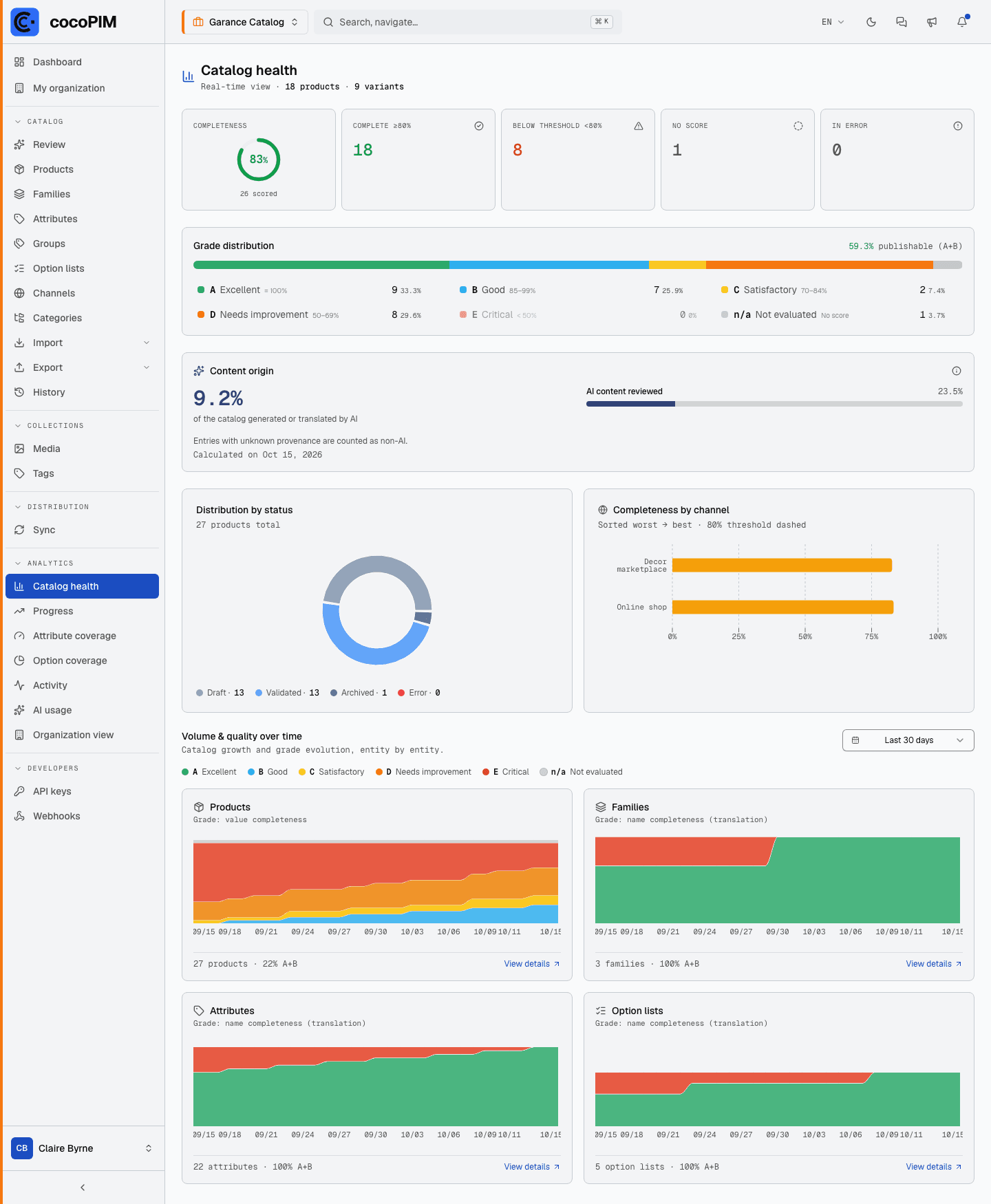
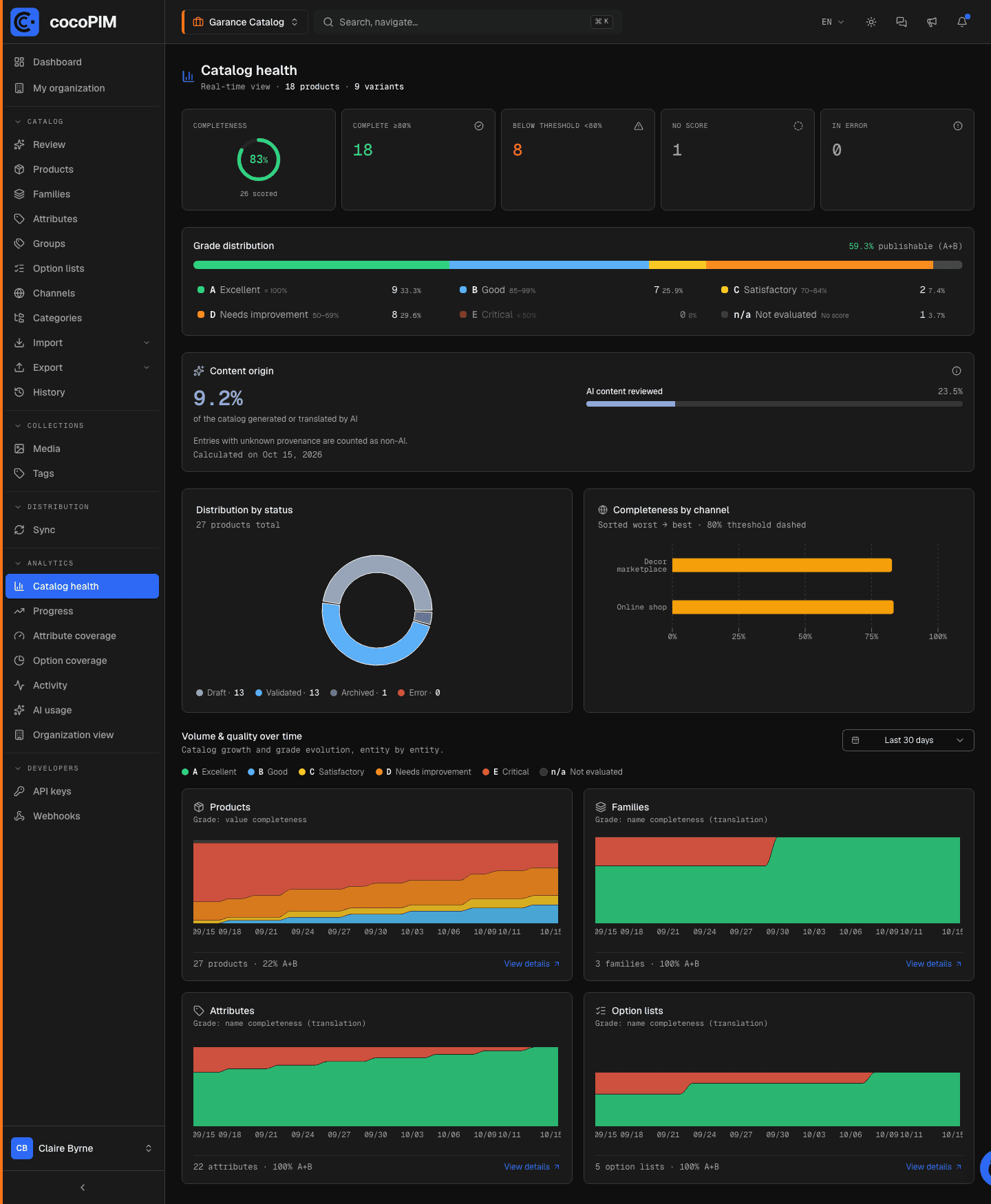
Analytics → Catalog health is your Monday-morning screen. At the top, five indicators: the average completeness, then the number of products that are complete (80% and above), below threshold, with no score and in error. Clicking one of the last four opens the list of the products concerned, already filtered.
- Grade distribution: the A to E bar sums up the quality of the catalog. A (100%), B (85 to 99%), C (70 to 84%), D (50 to 69%), E (under 50%). The percentage of “publishable” products (A + B) is shown next to it; each segment opens the products with that grade.
- Distribution by status: drafts, validated, archived, in error.
- Completeness by channel: channels sorted from the least to the best filled, with the 80% threshold as a dashed line; you see right away which channel is not ready.
- Volume & quality over time: four small curves (products, families, attributes, option lists) over 7, 30 or 365 days. A marker flags an unusual change from one day to the next (a bulk import, a batch deletion); each card leads to the detail screen.
- Content origin (owner only): the share of the catalog written or translated by AI, and the share of that content already reviewed by a human.
Progress: is it moving forward?
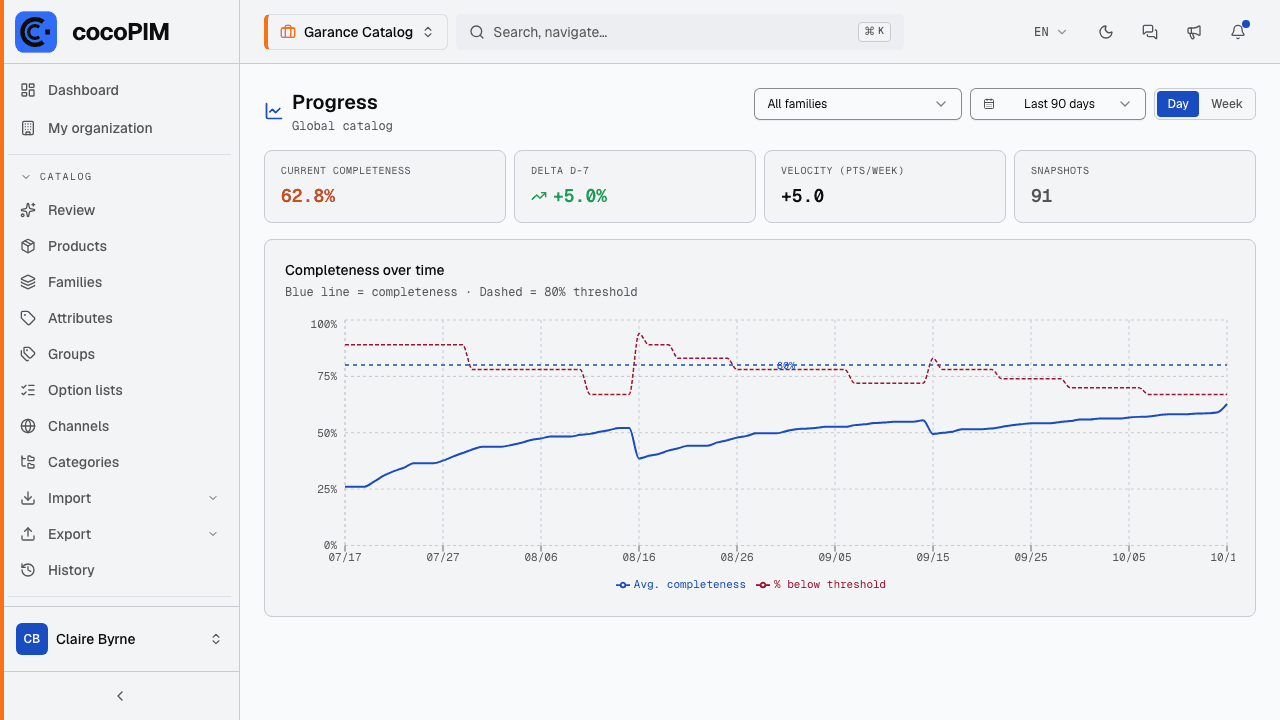
Analytics → Progress plots how the average completeness and the share of products below the threshold evolve. Choose the period (30 days, 90 days, 6 months, 1 year), the step (day or week) and, if needed, a single family to follow a specific workstream. Four figures sum up the curve:
- Current completeness: the latest point;
- Delta D-7: the gain (or loss) over one week;
- Velocity: the completeness points gained per week, on average, enough to estimate when the catalog will reach the threshold;
- Snapshots: the number of daily snapshots over the period.
Attribute coverage: find the workstream
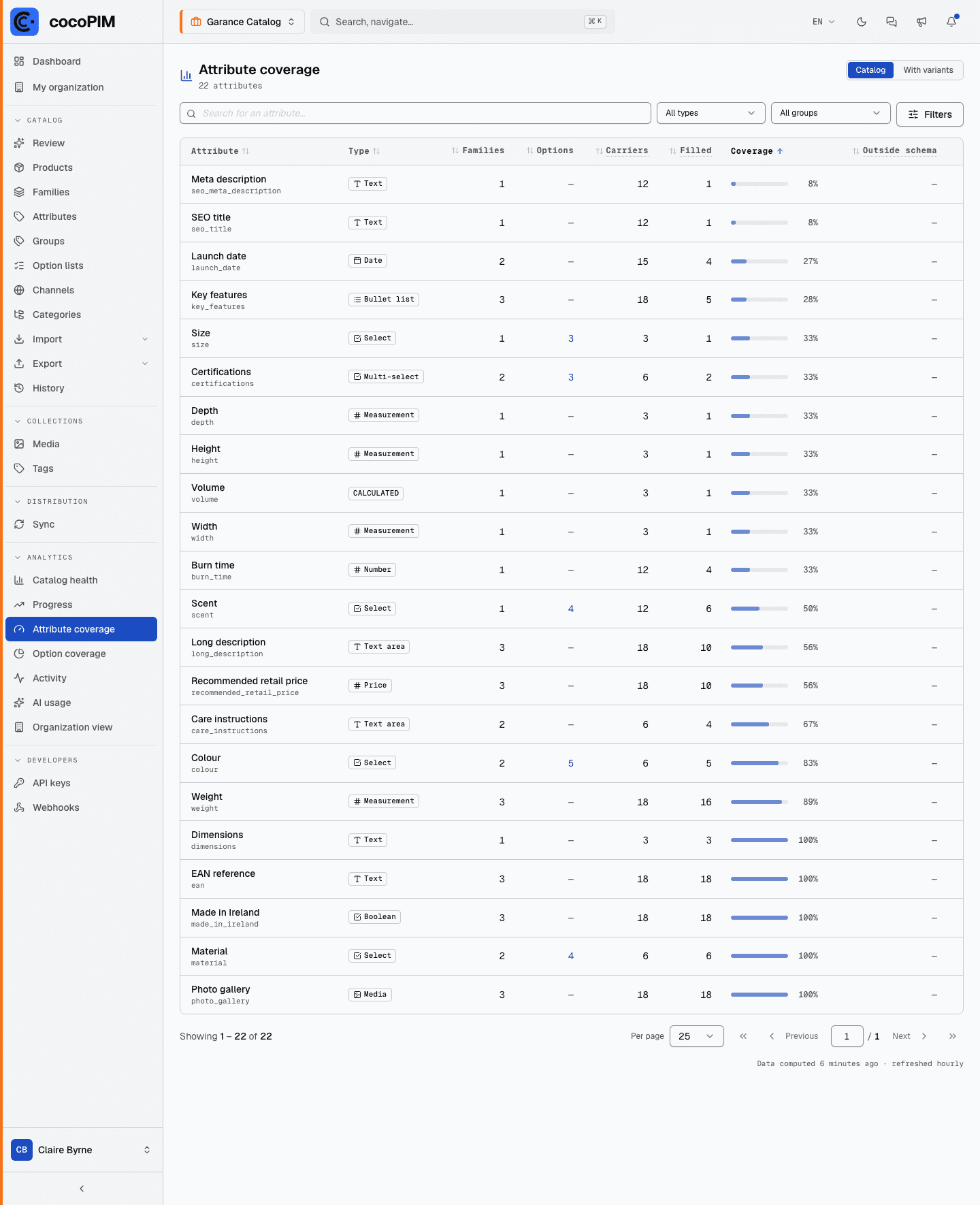
Analytics → Attribute coverage lists your attributes with, for each one, the number of carriers (products whose family contains the attribute), the number of products where it is filled and the coverage rate. Sort by coverage: the attribute at the top of the list is your workstream. Filters by type, attribute group or property (translatable, unique, read-only…) narrow the list down; the With variants tab also counts the variants.
- A Dead badge flags an attribute that no family uses: attach it, or delete it.
- The Outside schema column counts the products that still carry a value for an attribute removed from their family. These values are purged automatically after 30 days; a banner reminds you and lists the products concerned.
- For a list-type attribute, a link opens its coverage option by option directly.
Option coverage: the values actually in use
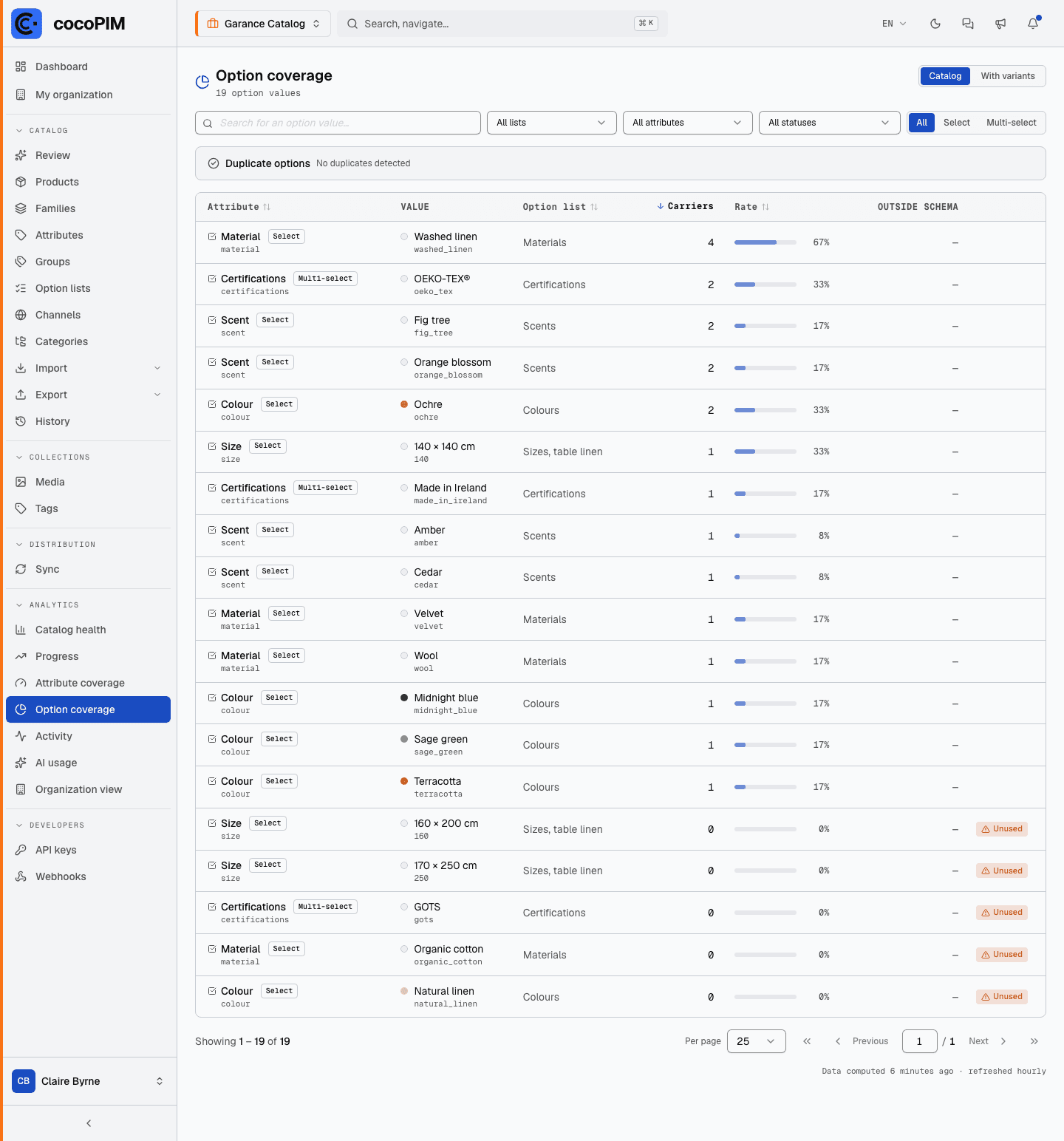
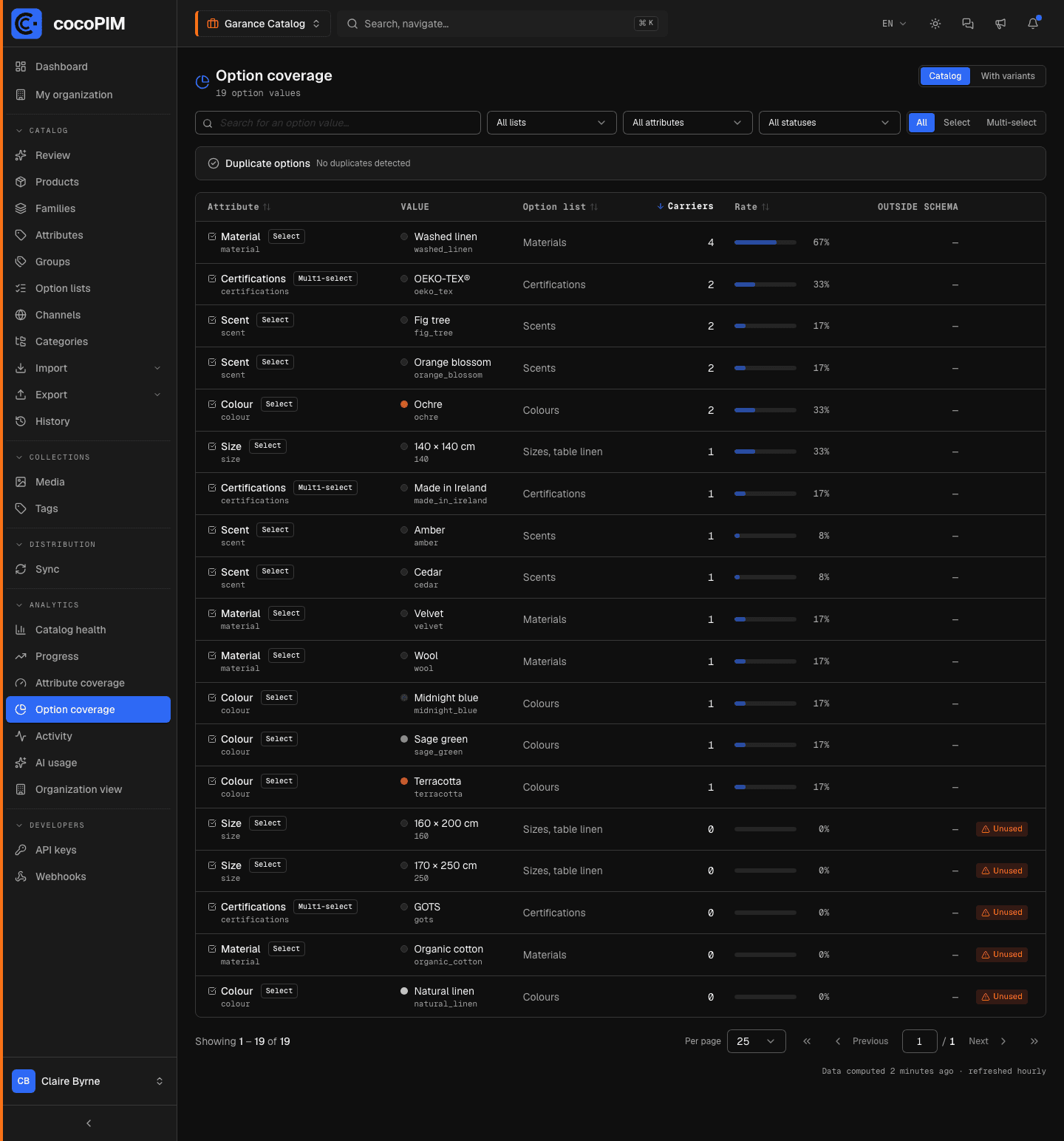
Analytics → Option coverage applies the same logic to option lists: for each value (“Washed linen”, “Organic cotton”…), how many products carry it. Filter by list, by attribute or by status to isolate:
- unused values, often duplicates or leftovers from an old import;
- disabled values still carried by products;
- values removed from their list but still present on product records.
The Duplicate options panel spots near-identical values within the same list (same code once normalized, or same label in one language) and opens the list editor so you can merge them.
Activity: the team’s pace
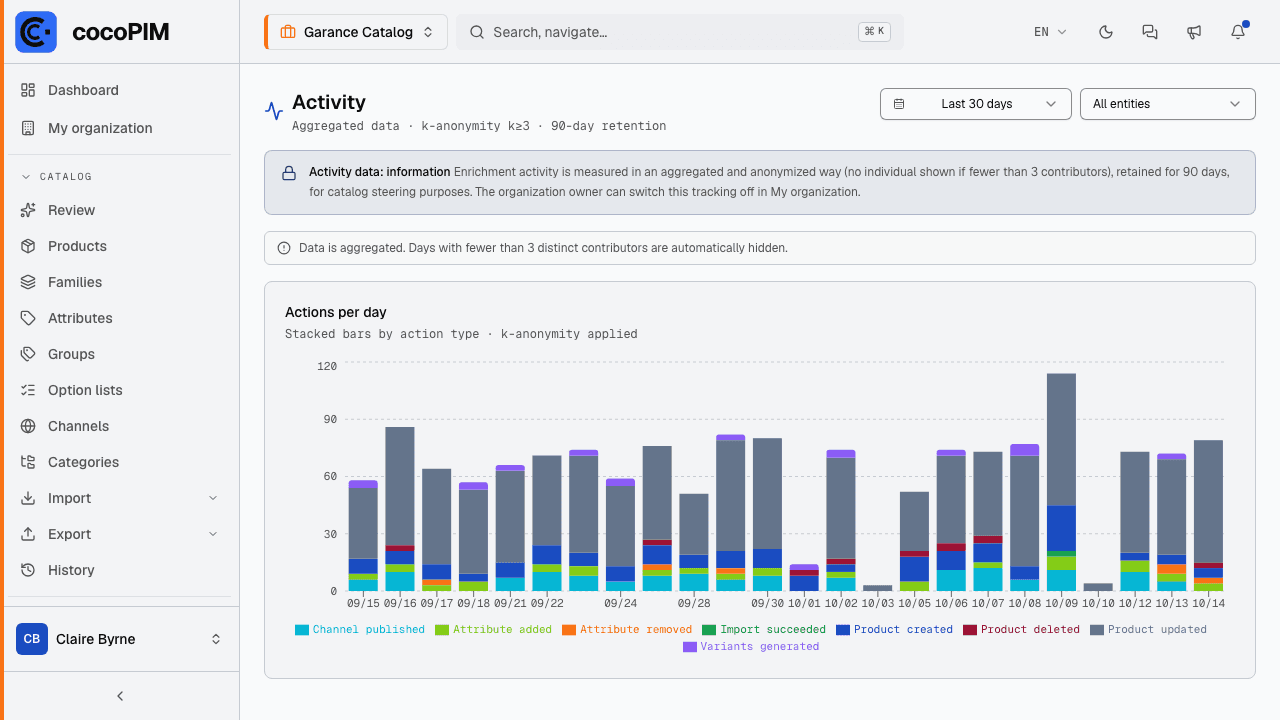
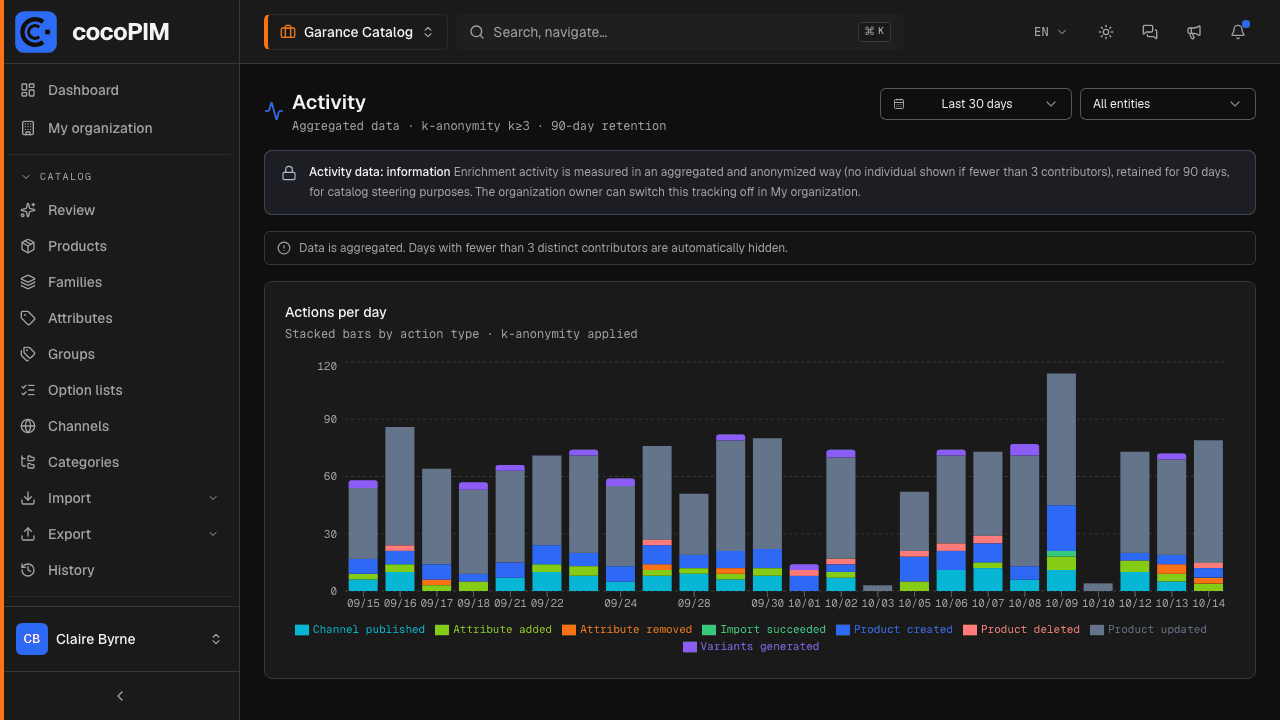
Analytics → Activity shows the volume of work day by day: products created, updated, deleted, attributes added to a family, channel publications, imports… Choose the period (7 to 90 days) and, if needed, a type of item (products, families, attributes, channels, imports).
This screen measures the activity of the team, never that of one person: no name appears on it, and a type of action is only shown for a given day if at least three people contributed to it. A small team will therefore see partly empty days. That is by design. The data is kept for 90 days.
AI usage: where the quota goes
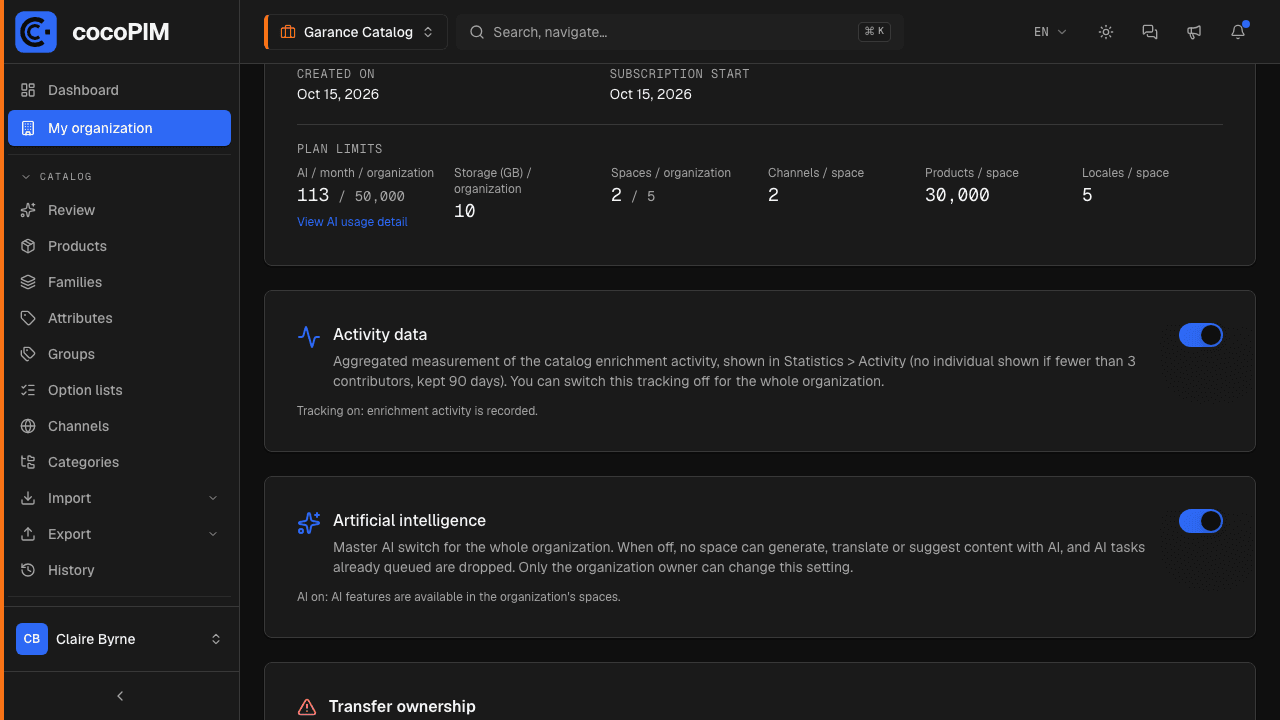
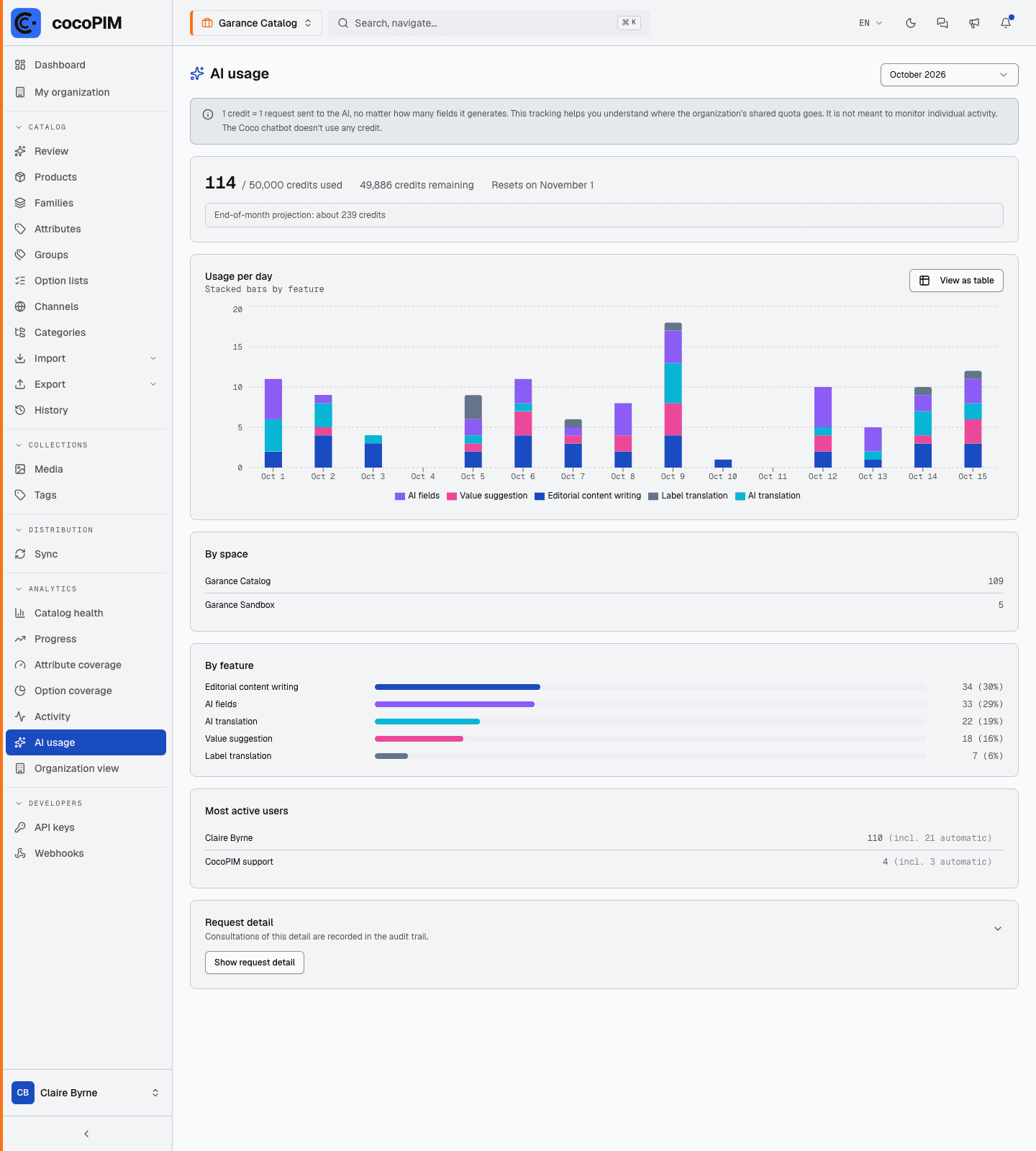
The AI assistance features draw on a monthly quota shared by the whole organization. Analytics → AI usage shows how it is being used. One credit is one request sent to the AI; the Coco chatbot does not use any.
The month at a glance
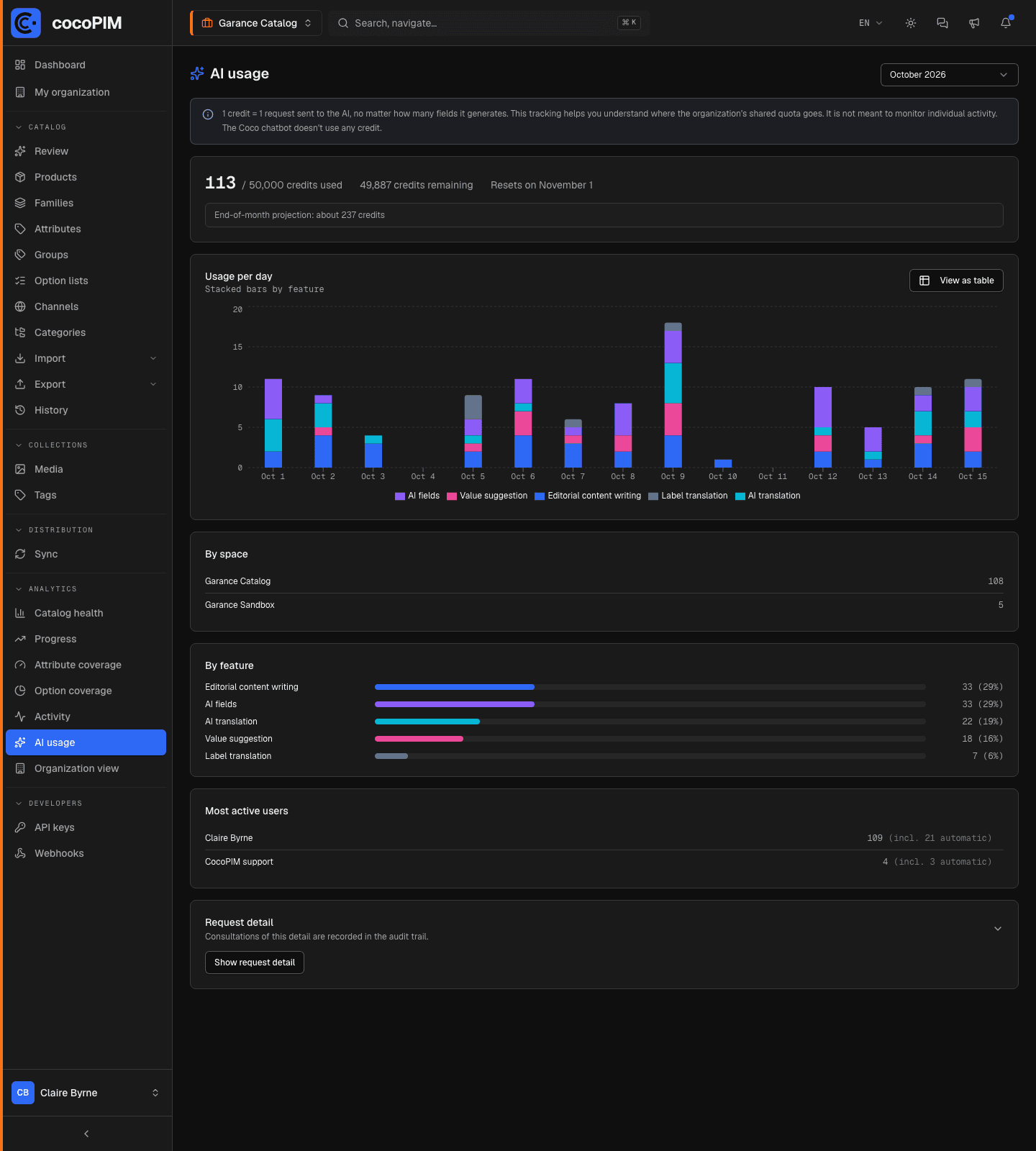
Pick a month among the last twelve. For the current month, the header shows the credits used out of the quota, those remaining and the reset date (the 1st of the month). From the 5th onward, an end-of-month projection extends the current pace and warns you if the quota is likely to be exceeded, giving you time to adjust usage or change plans.
- Usage per day: bars stacked by feature (editorial content writing, value suggestion, translation, AI fields, label translation), with a table view for screen readers;
- By space: if the organization has several spaces;
- By feature: credits and share of each AI feature;
- Most active users: the ten biggest consumers, showing the share triggered automatically (an AI field recomputed when a product is saved is counted to the person who saved it, marked “automatic”). Clicking a name filters the detail.
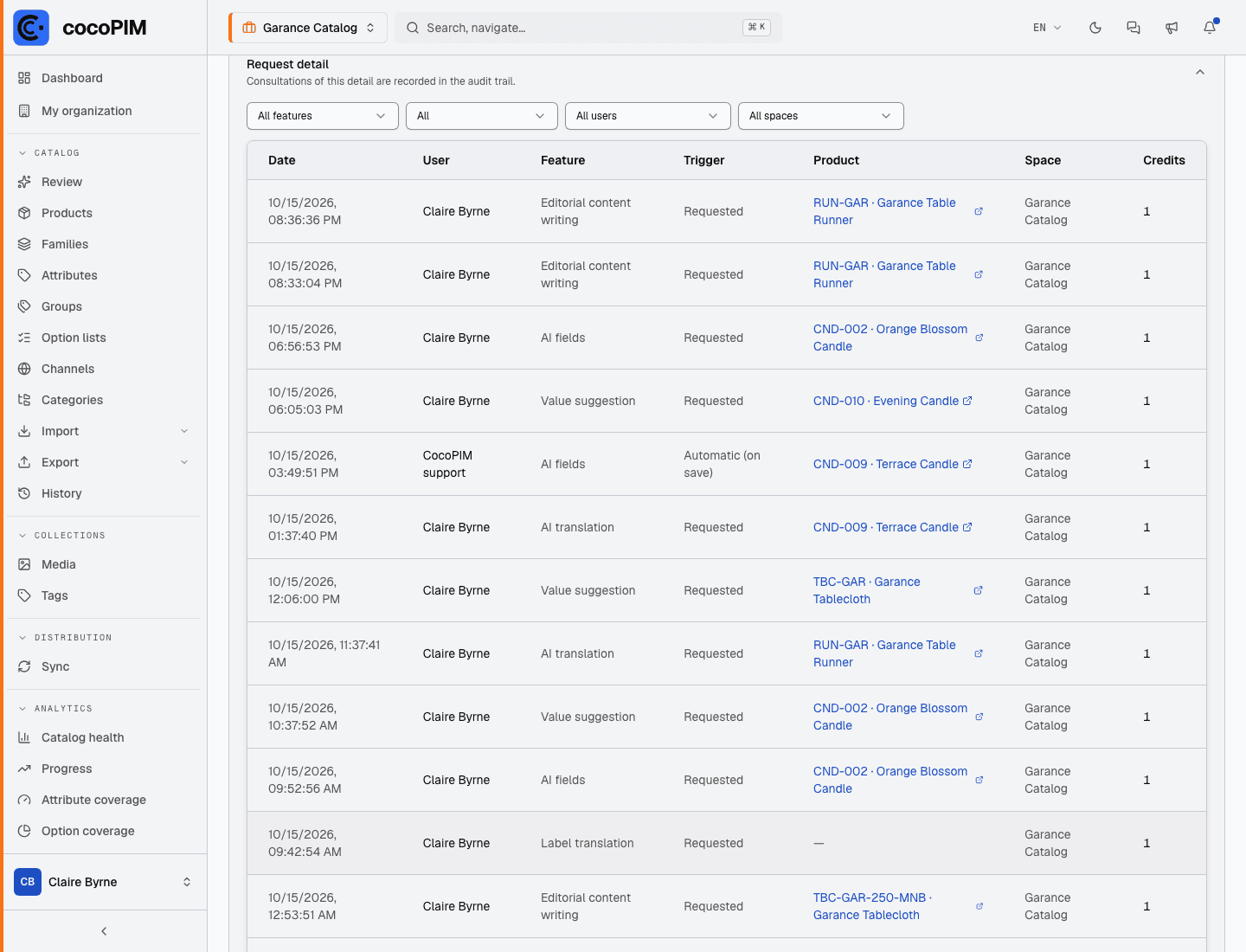
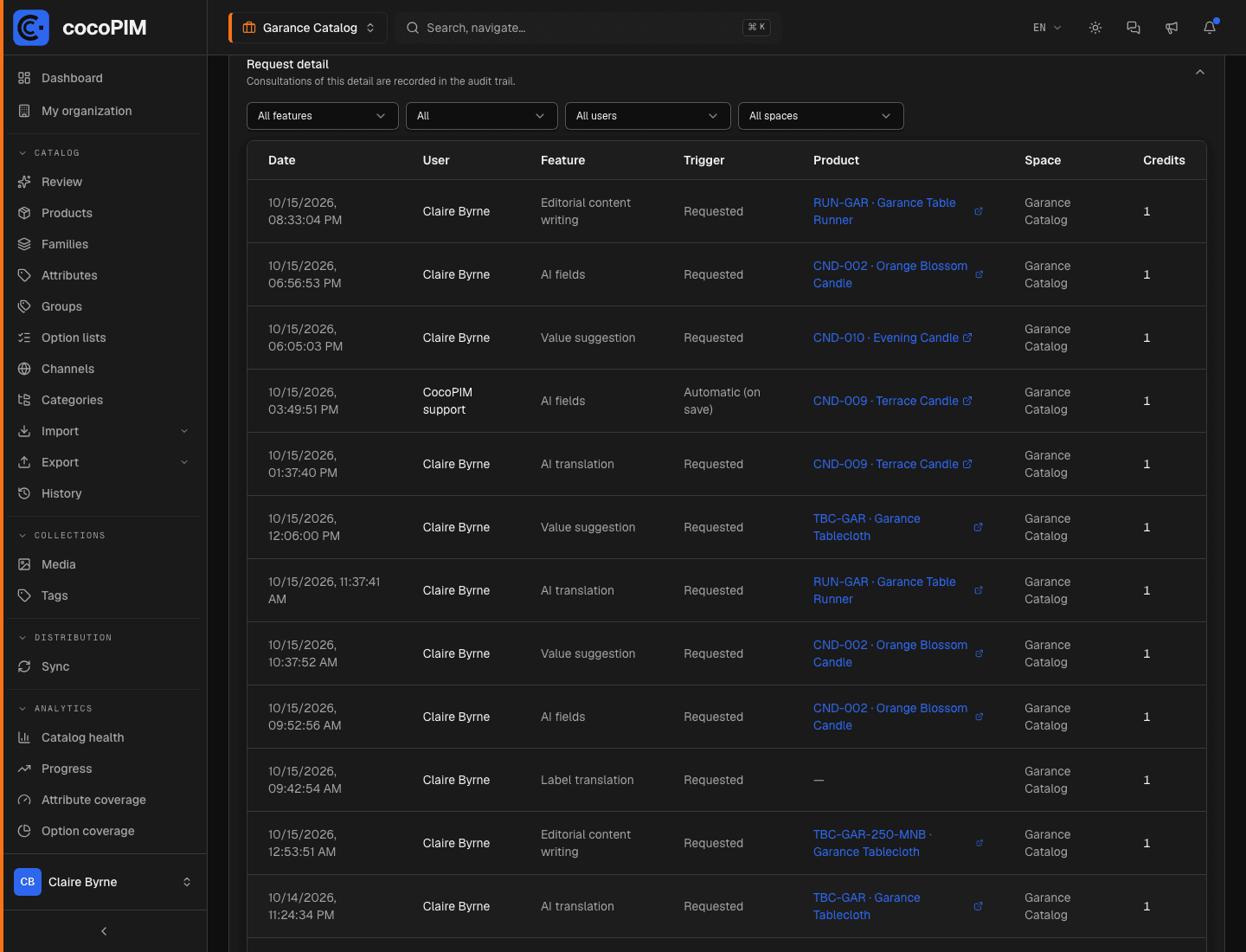
The request detail
Collapsed by default, the request detail lists every credit: date, person, feature, trigger (requested or automatic), product and space concerned. It can be filtered by feature, trigger, person and space. No text sent to the AI or produced by it appears there.