Go further · Module 12
Calculated fields & AI fields: fields that fill themselves
A volume worked out from three dimensions, a title that combines the name and the material, a tagline that echoes what the product already says: part of your data entry can be inferred from the rest. cocoPIM can now fill these fields for you, by calculation or with AI.
14 min read
The sources: attributes already filled in
Calculated field: the machine calculates
height × width × depth
volume: “32,400”
- Recalculated whenever a source changes
- Read-only (“Calculated” badge)
- Costs nothing
AI field: the AI writes
Instruction: “Write a warm tagline”
“A terracotta linen tablecloth that dresses up the table…”
- Generated only if the field is empty
- Editable: what you type always has the final say
- 1 AI credit per product, then review
A real value on the product
- Exports, Shopify, the API and completeness read it like any other value: no difference at the end.
Two new attribute types
In the attribute type picker (Catalog → Attributes → New attribute), two newcomers join the types from module 4: Calculated field and AI field. Both work on the same principle (you choose sources among your existing attributes, and the field produces a text from them), but with two opposite philosophies, to pick according to the need:
- The calculated field is a machine: same inputs, same result, always. It is recalculated on every change to a source, it is fully read-only (nobody can overwrite it, not by hand, not by import, not through the API) and it consumes nothing.
- The AI field is a writer: it writes a text from an instruction and your sources, only when the field is empty. It stays editable (your entry always has the final say), and each generated text goes through the review queue from module 11. It consumes 1 AI credit per product.
The calculated field: no more copying values around
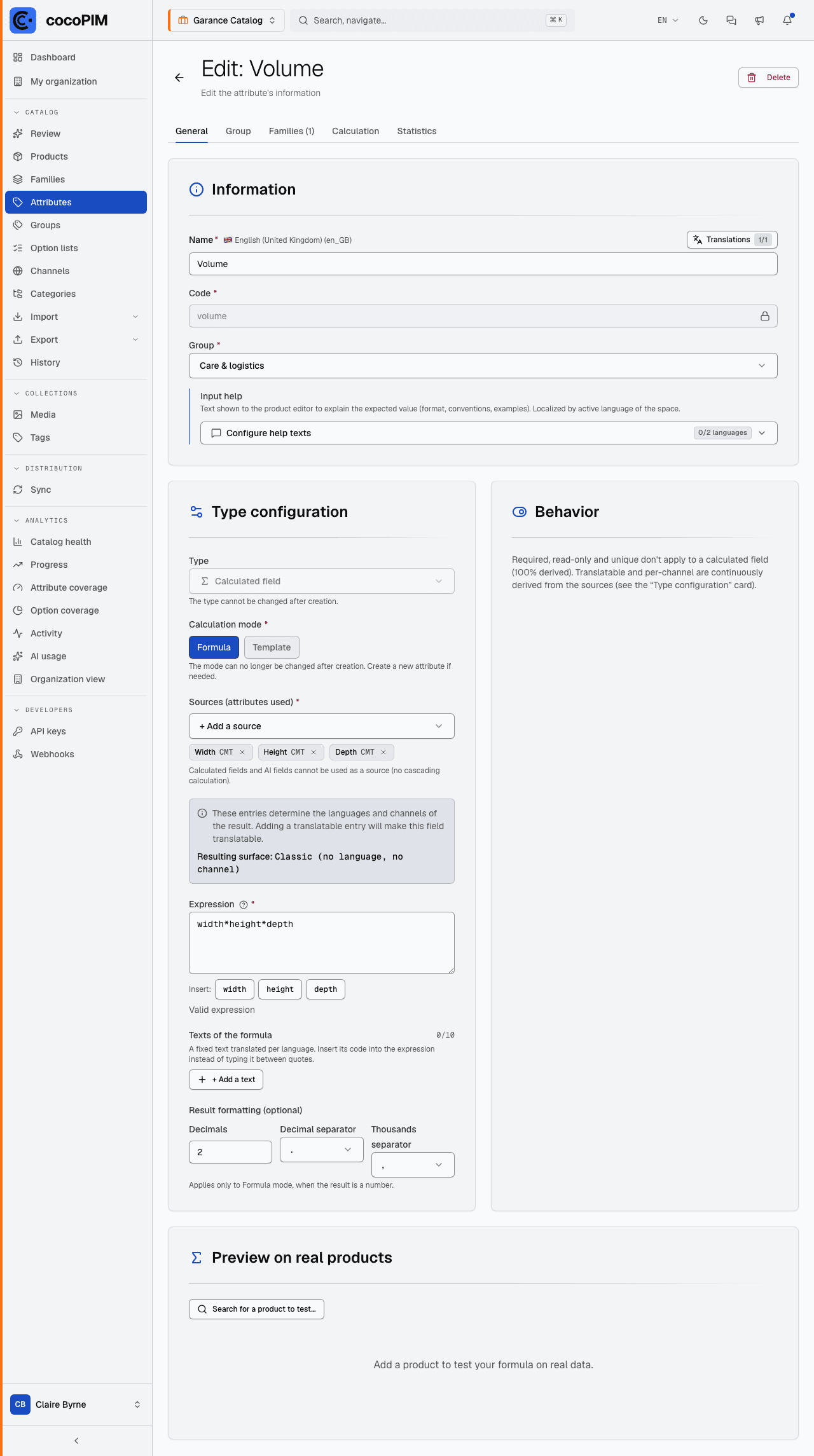
When you create it, you choose a calculation mode, which is final, like the type:
- Formula, for calculations: you write an expression like height * width * depth, inserting your attributes with one click (the Insert: chips). The result can be formatted (decimals, separators).
- Template, to assemble text: you write a template like {{ name }} · {{ material }}, {{ colour }} and each product fills in its blanks.
Expression examples
No need to memorize them: the small ? next to the Expression (or Template) field shows them while you type, adapted to the chosen mode. Just replace the example codes (height, material…) with those of your own attributes.
Formula mode: an expression that returns a value. Source codes are written bare; the + both adds numbers and joins text.
Simple calculation
height * width * depthResult followed by a unit
(height * width * depth) + " m3"Text aggregation
name + " · " + materialDepending on a condition
weight > 10 ? t_heavy : t_standardFallback value when the source is empty
ean ? ean : "Not specified"
No functions, no external calls: operations, comparisons and the ? : condition only (“if … then … otherwise …”). An empty source yields an empty value: plan a fallback if it can be missing.
Template mode: a fill-in-the-blanks text. Everything outside {{ }} is written as is, each {{ code }} is replaced by the source’s value.
Text aggregation
{{ name }} · {{ material }}, {{ colour }}Sentence written around the values
Table runner in {{ material }}, colour {{ colour }}.Fallback value when the source is empty
{{ ean | default: "Not specified" }}Uppercase
{{ material | upcase }}First letter uppercase, the rest lowercase
{{ material | capitalize }}Text truncated to 120 characters
{{ description | truncate: 120 }}
Only {{ }} and six filters are available: upcase, downcase, capitalize, default, strip, truncate. The {% if %} and {% for %} blocks are not supported; for a condition, use Formula mode.
Create the attribute, write the formula
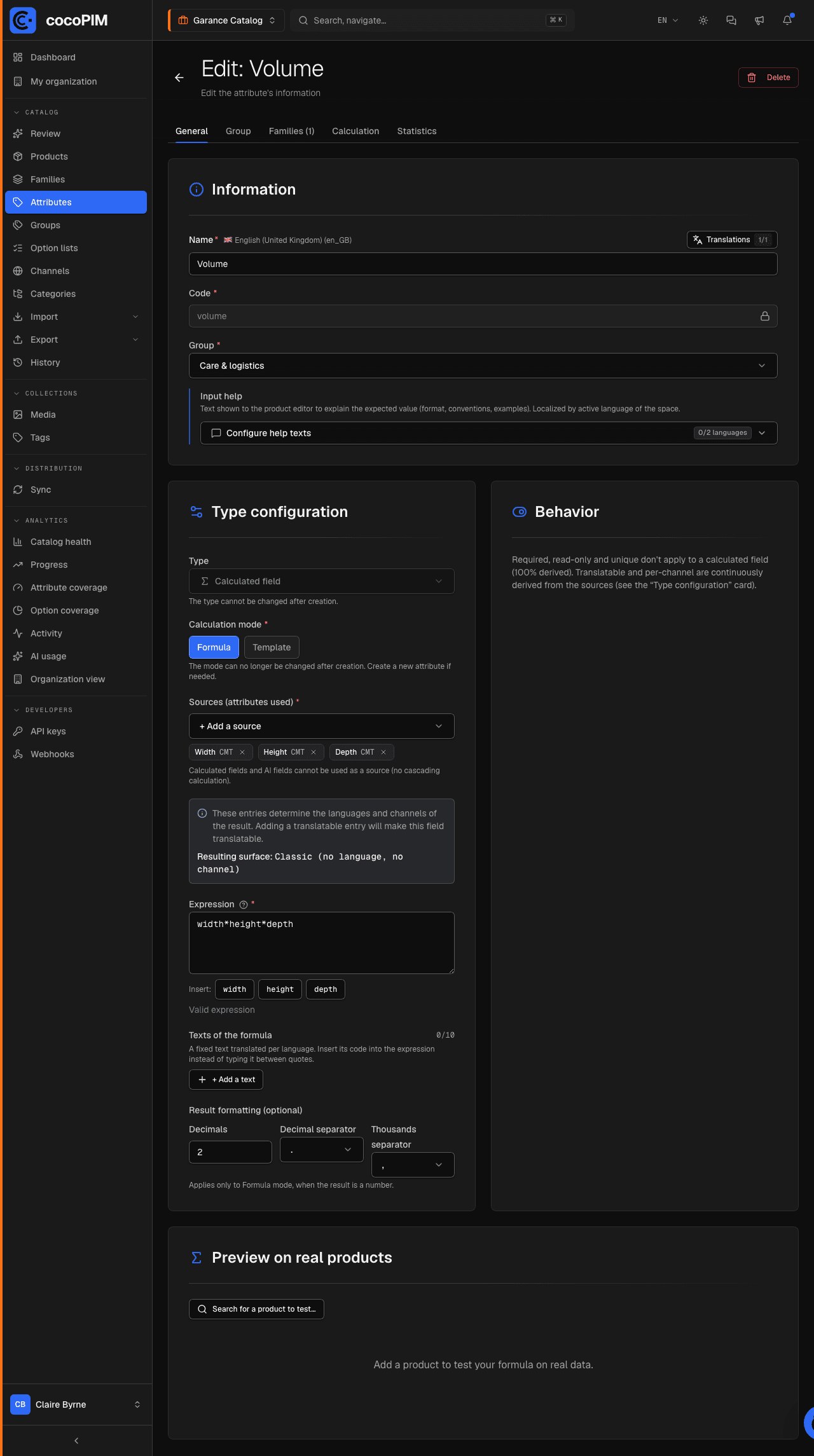
Type Calculated field, Formula or Template mode, then the formula itself: sources are inserted with one click, and validity is checked as you type.
Test it on real products
The preview on real products (up to 5) shows the exact result, language by language, channel by channel, including the “missing sources” case, so you see both behaviors before saving.
Save, then calculate the catalog
cocoPIM shows the number of eligible products and offers to launch the initial calculation on the whole catalog; you can also run it again later, per family or for everything, from the attribute’s page.
Adding the field to a family after creating it? As soon as it is added (on its own or with its whole group), cocoPIM asks you Calculate this field for the family? with the number of products concerned: one click on Launch now fills the existing products of that family. Without this calculation, they would stay empty until their next save, and the product page would only show a “not saved” estimate.
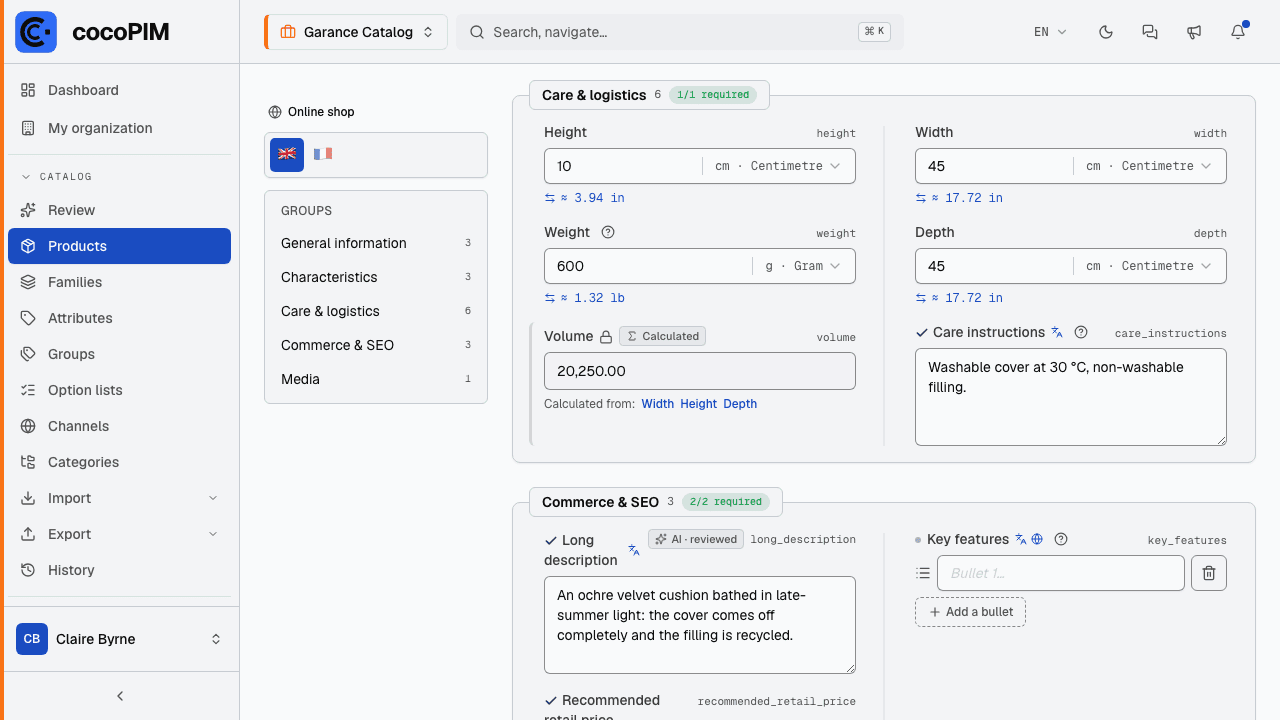
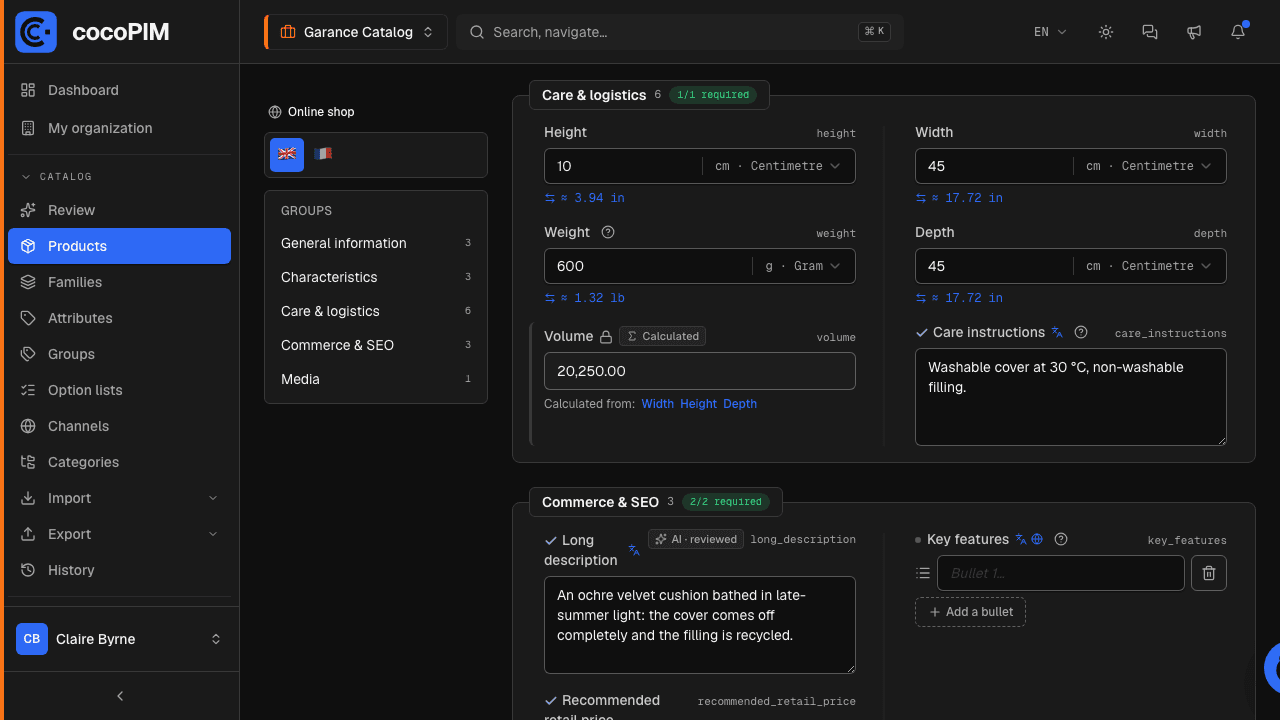
On the product page, the field carries the “Calculated” badge with the Calculated from: list (links that take you to the source fields). And while you edit a source, a live estimate shows you the future value before you even save (dotted border, “not saved” mention).
Four safeguards are worth knowing:
- an empty source: in Formula mode, no calculation at all (a partial volume does not exist); in Template mode, the text is built with a blank where the value is missing. Either way, nothing breaks;
- a calculation error never blocks you: the product saves normally, the field stays without a value, and a message tells you what to fix. The administrator has a screen listing the products in error per formula;
- sources are protected: you cannot delete an attribute used by a formula (cocoPIM lists the calculated fields concerned); its page also gains a Calculated fields tab showing who uses it;
- measurements always come in the reference unit: an entry in inches on an attribute in centimeters is converted on save, so a width*height*depth formula never mixes centimeters and inches without knowing it. The result is consistent whatever unit the user typed.
Once written, the calculated value is a value like any other: exports, Shopify sync, the API and completeness read it without telling it apart from a manual entry. Only writing is reserved for the machine: on import, the matching column is in fact rejected at the column mapping step, never halfway through.
The AI field: writing what is missing
The AI field is defined with an instruction (“Write a warm, factual description of the product.”) and inputs: the attributes the AI must use as raw material. The instruction is added to the brand context you set up in module 11: your space’s tone and vocabulary apply here too. A calculated field can be used as an input; another AI field cannot.
For languages, the AI field inherits from its inputs just like the calculated field: if one of them is translatable (or is an option list, whose labels exist per language), the text is written directly in each language. And if none of them is, the Generate one value per language box on the attribute screen lets you require it anyway: useful for a tagline whose output language does not depend on the inputs.
On top of your inputs, the AI always receives the product’s identity card, in the language of the text to write: its SKU, its name, its family (name and code) and its status (label and code). An instruction can therefore rely on them without declaring them as inputs:
Basic instruction (the one suggested by the screen)
Write a warm, factual description of the product.Instruction that adapts to the family
Write a one-sentence tagline. For the “candles” family, highlight the scent; otherwise, the material.
The golden rule: “only if empty”. An AI field that already has a value (generated, reviewed or entered by hand) is never overwritten. A manual entry freezes the value for good; clearing the field (an explicit action) makes it eligible again. And if you fill the field by hand when creating the product, the AI does not step in: your text is kept as is.
Generation is triggered in three ways:
- when a product is saved: all AI fields left empty are generated at once, in the background, for a single AI credit per product (all languages and all channels included, each language written directly, no “generate then translate”);
- from the product page: the Generate (1 credit) button on the field, with the cost shown in the label;
- in bulk from the attribute: with the count of eligible products, an estimate ≈ N AI credits and your remaining quota shown before you launch. An import, on the other hand, never triggers generation: no nasty surprise at 5,000 rows.
Each generated text is marked “Generated by AI” and automatically joins the review queue (Catalog → Review), the approval workflow you already know for descriptions and translations. A failed generation is not retried on its own: you stay in control, and a total failure is not counted against your quota.
On the product page, during generation, the field shows AI generation in progress… then fills itself as soon as the text is ready. If the field stays empty, the reason is shown just below, for example Automatic generation paused after a recent failure (24 h): after a failure, saving the product no longer restarts generation for 24 hours, so as not to burn your credits. The Generate (1 credit) button restarts it when you decide.