
Get started · Module 2
Getting started with cocoPIM
In this module, you create your account, discover how cocoPIM organizes your work (organization, spaces) and take a tour of the interface. By the end, you will find your way around everywhere.
12 min read
Creating your account
Enter your email
Go to the cocoPIM sign-up page and enter your work email. cocoPIM immediately sends you a 6-digit code, valid for 10 minutes. The Discovery plan is free, with no credit card and no end date.
Enter the code you received
Type the code in the tab you left open: it proves the address is really yours, and nothing is created before that. If an account already exists for this address, cocoPIM tells you so and offers to log you in or to reset your password.
Create your account
Fill in your name and your company name, and choose your password. cocoPIM creates your organization and your first space, then takes you to your organization’s address. To log in: your password, then a 6-digit code sent by email. This double check protects your account without asking anything more of you.
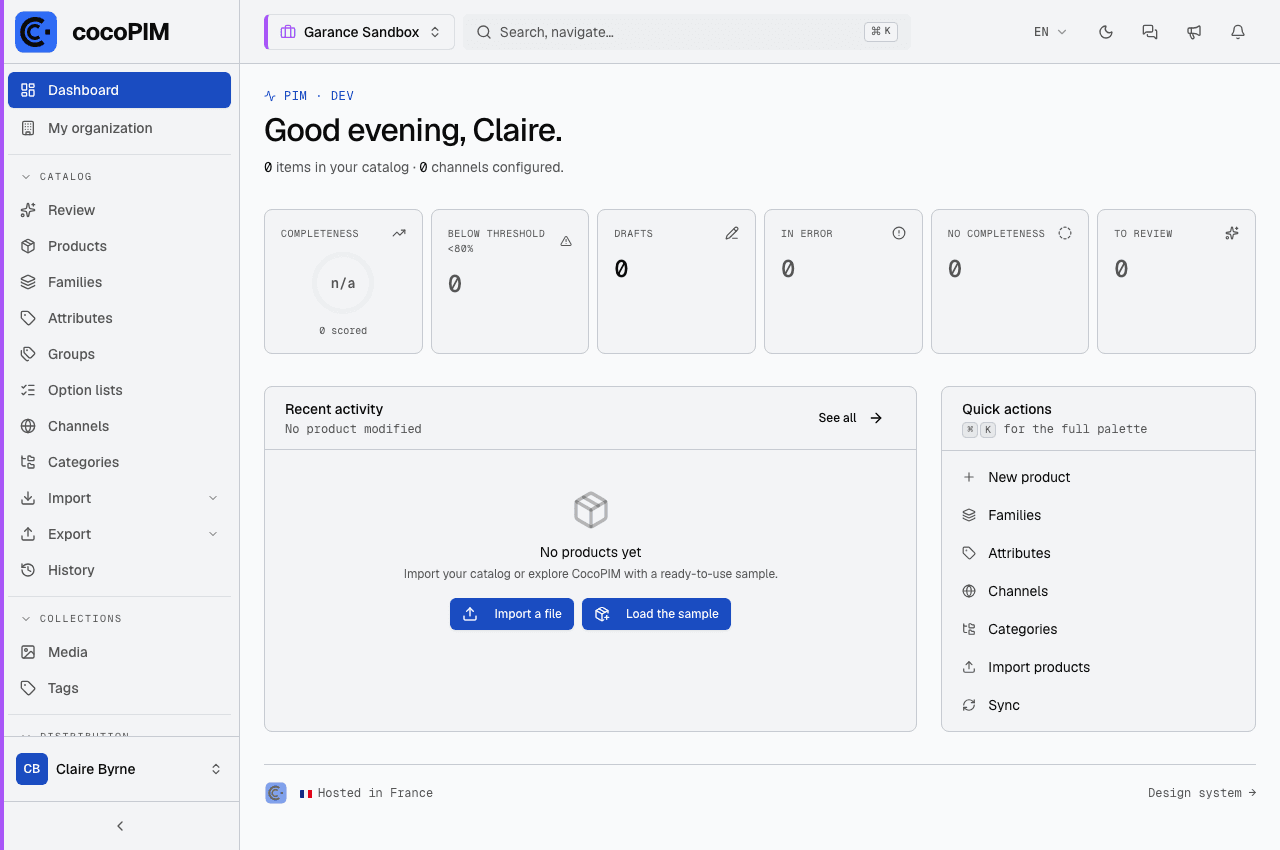
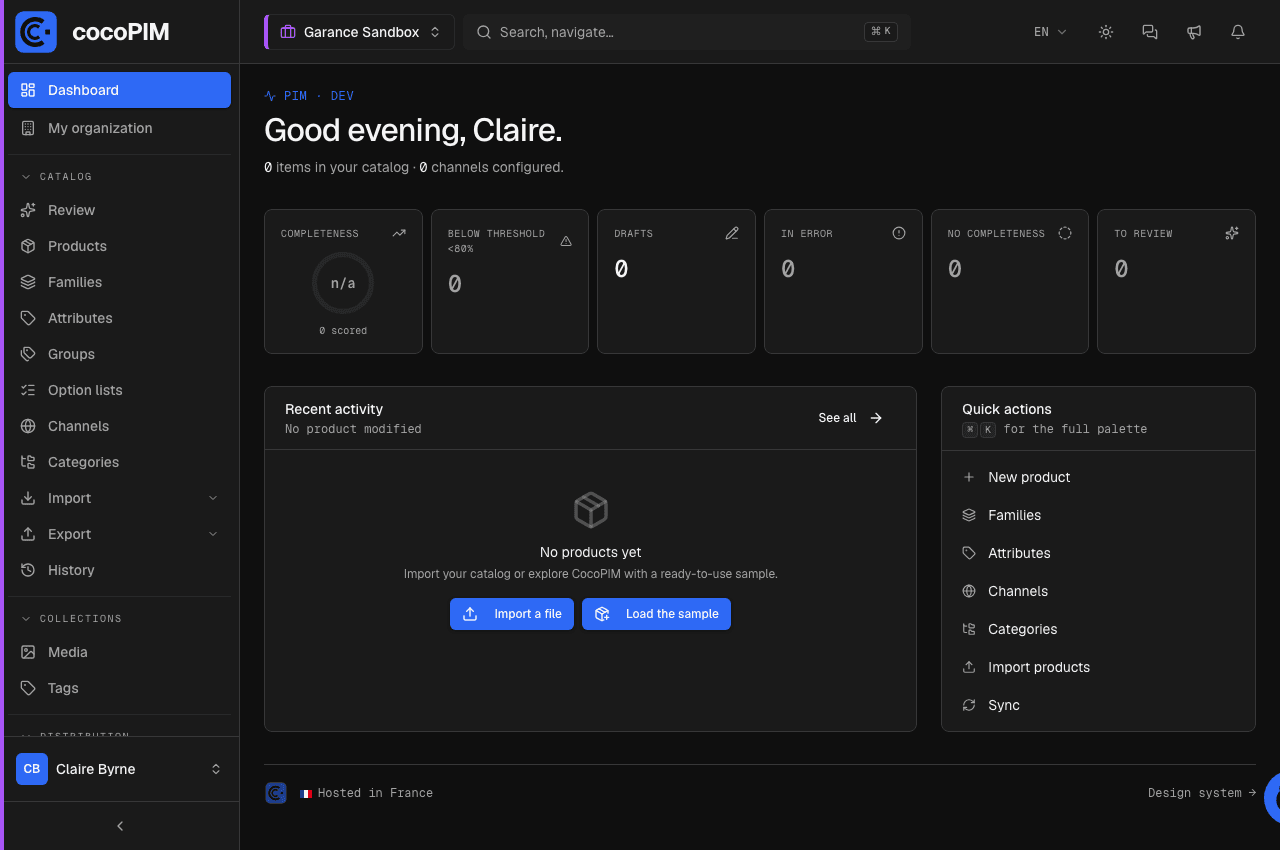
Organization and spaces: two nesting dolls
cocoPIM arranges your work on two levels that you need to tell apart from the start:
Organization: Garance Home
subscription plan · users · shared AI budget
Space “Garance Catalog”
- products · families · channels
- active languages & currencies
- = production
Space “Garance Sandbox”
- same capabilities, separate data
- to test without risk
- (optional, depending on the plan)
- The organization is your company. It holds your subscription plan, your users and your overall quotas.
- The space is a self-contained catalog inside the organization: its own products, its own families, its own channels and languages. A very small business will do just fine with a single space; a multi-brand company will create one space per brand, or a test space next to the production space.
The switcher at the top of the interface lets you change organization (if you belong to several) and space. Everything you do (creating a product, importing a file) happens in the currently selected space: get into the habit of checking where you are before you act.
A tour of the interface
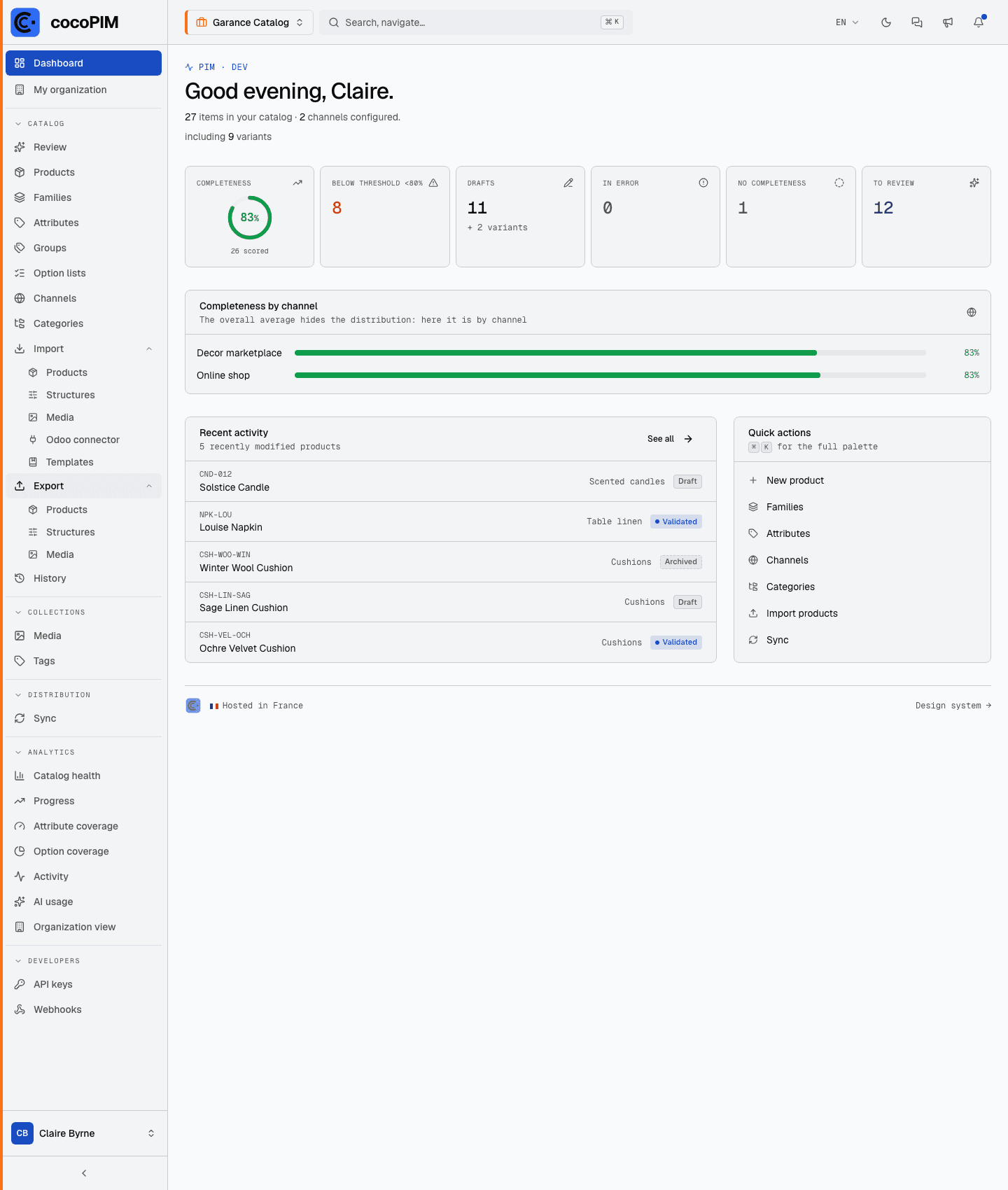
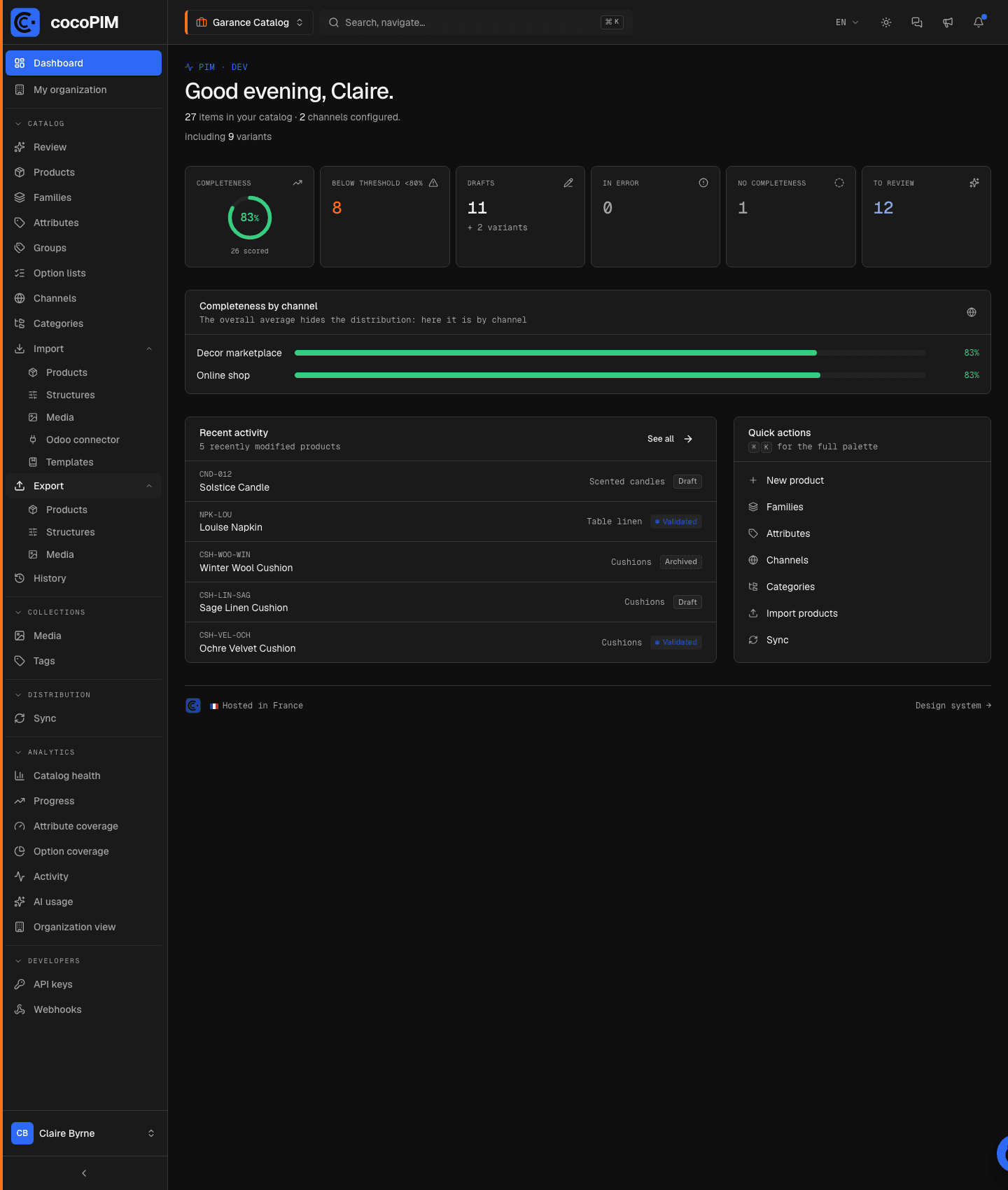
The left side menu is your map. It groups the screens into seven sections:
- Dashboard, the overview: number of products, completeness, drafts, AI content to review, recent activity, quick actions.
- My organization, just below: your plan, your spaces, your roles, your users and the SSO login, each in its own tab.
- Catalog, the heart of it: Products, Review (AI content waiting for approval), Families, Attributes, Groups (of attributes), Option lists, Channels, Categories. Just below, file exchanges: Import, Export and their History.
- Collections, your media library: Media and Tags.
- Distribution, sending to your connected channels: Sync (the history of what was sent to Shopify).
- Analytics, steering your catalog: Catalog health, Progress, Attribute coverage, Option coverage, Activity, then, depending on your permissions, AI usage and Organization view.
- Developers: API keys and webhooks.
Four habits to pick up right away
- Universal search. The ⌘K (or Ctrl+K) shortcut opens a palette that does it all: type “families” to open that screen, “new product” to create a product page. And from two characters on, it also searches inside your catalog: products, families, categories, attributes and media, with direct access to the item found. The fastest way to get around.
- CoCo, the built-in assistant. The bubble at the bottom right of the screen opens CoCo, which answers your how-to questions (“how do I create a variant?”) based on this documentation, free of charge, without touching your AI quota. We present it in detail in the “Requests & support” module.
- The notification bell. At the top right, it lets you know when an import finishes, when an export is ready to download or when a sync has run. No need to stay in front of the screen while something is processing.
- The interface language. cocoPIM is available in English and French, set from the user menu, Preferences. Not to be confused with the languages of your catalog, which we will cover in the “Categories, channels, languages & currencies” module.
Your preferences: landing in the right place every morning
The Preferences page (user menu) does more than set the interface language: it remembers your default working context, as a cascade (the organization, then the space, then the channel, then the editing language). Once set, this cascade opens every session right where you work: Nora, who always enriches the “Online shop” channel in English, never has to pick her context again when she arrives in the morning.
Preferences is also where you turn on two-factor authentication: a 6-digit code generated by an authenticator app (Google Authenticator, Microsoft Authenticator…) strengthens your login, with backup codes provided when you turn it on. Recommended as soon as your catalog becomes a business asset.