
Build your catalog · Module 4
Families & attributes: the foundation
This is the most important module of the training. Before creating a single product, you decide WHAT to say about your products, once and for all. Well structured, your catalog enriches itself; poorly structured, it takes months to fix.
18 min read
The idea in 30 seconds
Picture pre-printed index cards. For your shoes, the card has boxes for “Shoe size”, “Material”, “Color”. For your bags, boxes for “Volume”, “Material”, “Color”. In cocoPIM:
- each box is called an attribute;
- each pre-printed card template is called a family;
- each product belongs to a family, and therefore inherits its boxes to fill in.
You define the families once. After that, creating a product = choosing its family + filling in the boxes. Impossible to forget a piece of information: the structure asks you for it.
Option lists: the reference lists
- “Colours”: Terracotta · Ochre · Midnight blue
- “Materials”: Washed linen · Organic cotton · Velvet
Attributes: the typed fields
- Material (dropdown list → “Materials” list)
- Dimensions (measurement, cm) · Price (price, EUR) · Photo (media)…
Family “Table linen”: the product template
- brings the attributes together, sorted into groups
- defines what is required, channel by channel
Products: the pages to fill in
- Garance Tablecloth (TBC-GAR) · Louise Napkin (NPK-LOU)…
- each product inherits the fields of its family
Attributes: 15 types to describe everything
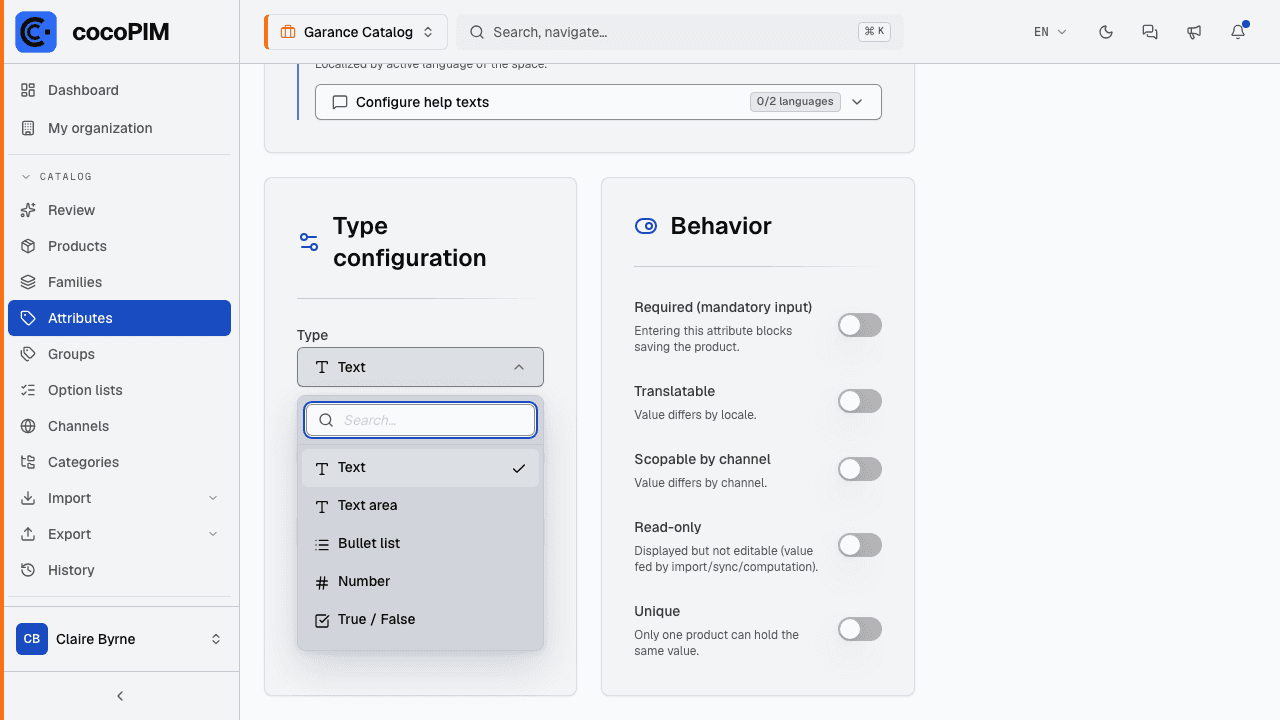
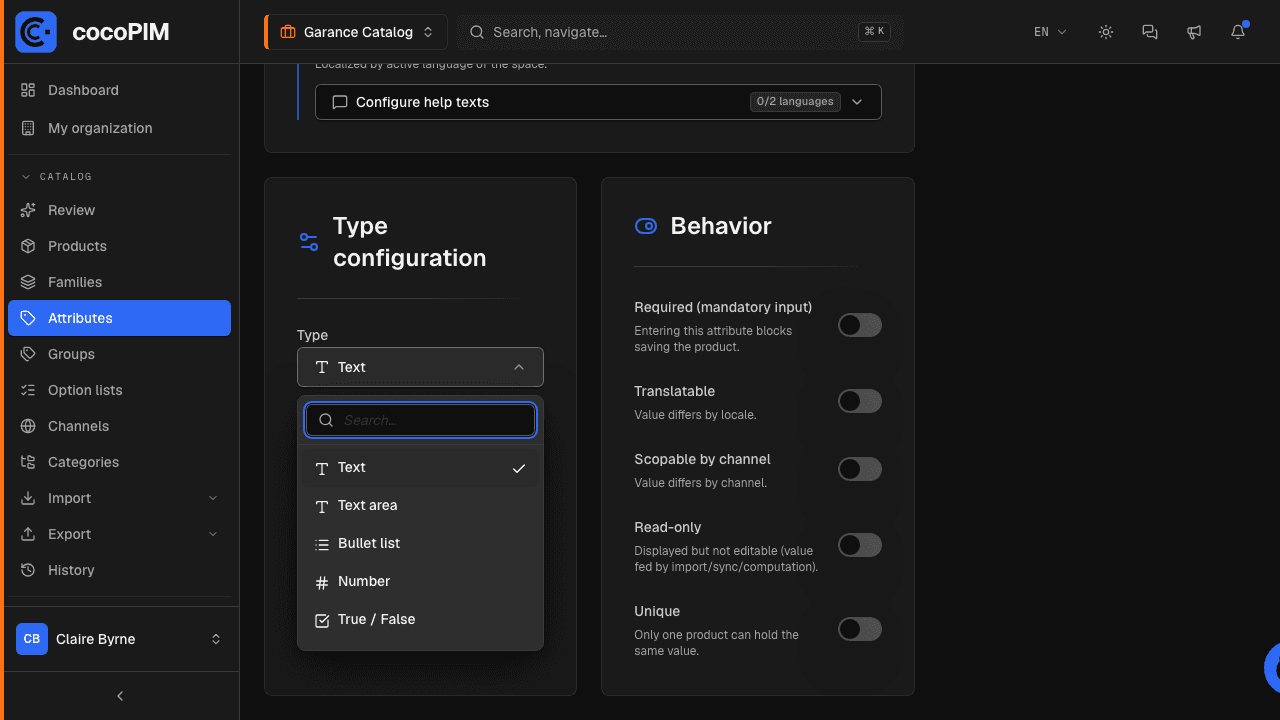
An attribute has a type, and the type determines what can go in it. That’s what makes a PIM more reliable than a spreadsheet: a “Weight” attribute of the measurement type will never accept the value “blue”. The 15 cocoPIM types:
- Text and Text area: a name, a short or long description.
- Bullet list: a list of key features (“bullet points”), widely used by marketplaces.
- Number: a quantity without a unit (number of pieces, of drawers…).
- True / False (boolean): “Made in Ireland?”, “Fragile?”.
- Date and Date + time: launch date, availability.
- Dropdown list and Multi-select: a choice from a closed list (one color / several certifications). The possible choices come from an option list (see below).
- Media: a photo, a PDF, a visual linked from the media library.
- Price: an amount that can exist in several currencies.
- Measurement: a value + a unit (2.5 kg, 45 cm, 230 V). The attribute’s default unit is its reference unit: enter a value in another unit (inches on an attribute in cm) and it is converted automatically on save. A single unit in the database, data that is always comparable. And a language set to “Imperial” shows the conversion when reading (module 3). Twenty-one dimensions are covered: the physical ones (mass, length, volume, area, time, temperature, energy, power) and the technical ones found on high-tech product sheets (current, voltage, charge, frequency, pressure, data size and data rate, rotational speed, angle, luminous flux, luminance, sound level, image resolution). A help button in the editor lists each dimension with its units.
- Product relationship: a link to other products (“compatible accessories”, “spare parts”, “frequently bought together”). Optionally, a quantity per linked product (whole or decimal) for bills of materials and bundles: “4 × M6 screws, 1 × bracket”.
- Calculated field: a field that fills itself in from other attributes (a volume derived from three dimensions, an assembled title). Recalculated automatically, read-only. Covered in detail in module 12.
- AI field: a text written by AI from an instruction and your attributes, only when the field is empty. Editable, and reviewed like everything else. Also covered in detail in module 12.
The options that change everything
When creating an attribute, four checkboxes deserve your attention:
- Required: the information is essential. Without it, the product can’t be saved (and an incomplete import row is rejected). Keep it for what is strictly necessary (see the “The two requireds” section below).
- Translatable: the value exists in each language of the catalog (a description); unticked, it is the same everywhere (an EAN code). Only available for text, text area and bullet list attributes.
- Scopable by channel: the value can differ by channel (a long title for your website, a short title for the marketplace).
- Unique: two products can’t have the same value (internal reference, EAN code). Only available for text attributes that are neither translatable nor scopable by channel, and permanent: this choice is locked when the attribute is created.
Three settings that save time during data entry
- Input help: a (translatable) help text displayed under the field in the product sheet. “Net weight, packaging included, in grams” saves a lot of back-and-forth with the team.
- Default value: for number, true/false and select attributes, a value pre-filled when each product is created. At Garance Home, “Made in Ireland” is pre-ticked to Yes: you only untick it for the exceptions.
- The range (min–max): number, date, price and measurement attributes can carry a range rather than a single value, for example a price range, an availability period (“from March 1 to September 30”), a temperature range.
The two “requireds”: the one that blocks, the one that measures
This is THE subtlety of this module, and the number one source of confusion among beginners. cocoPIM distinguishes two notions that many tools mix up:
“Hard” required (on the attribute)
- ❑ the “Required” box ticked when creating the attribute
- • blocks saving the product if empty
- • automatically applies to every channel
- • also rejects incomplete import rows
- Example: EAN reference (no product without an EAN, anywhere).
Required for completeness (family × channel)
- ❑ ticked in the family, channel by channel
- • never blocks data entry (progressive enrichment)
- • lowers the completeness score of the channel concerned
- • can differ from one channel to another
- Example: HD photo (required for the Online shop, not for print).
Simple rule: keep hard-required for the information without which the product makes no sense (identifiers); everything else goes through completeness.
The attribute’s required flag is a lock: it blocks saving and applies automatically to all channels. The completeness requirement, on the other hand, is set in the family, channel by channel: it never blocks data entry (your team can enrich progressively), but it lowers the channel’s completeness score as long as the field is empty. This second requirement is the one that drives the percentages and the A–E grades you will see in the “Creating & enriching products” module.
Option lists: your in-house reference lists
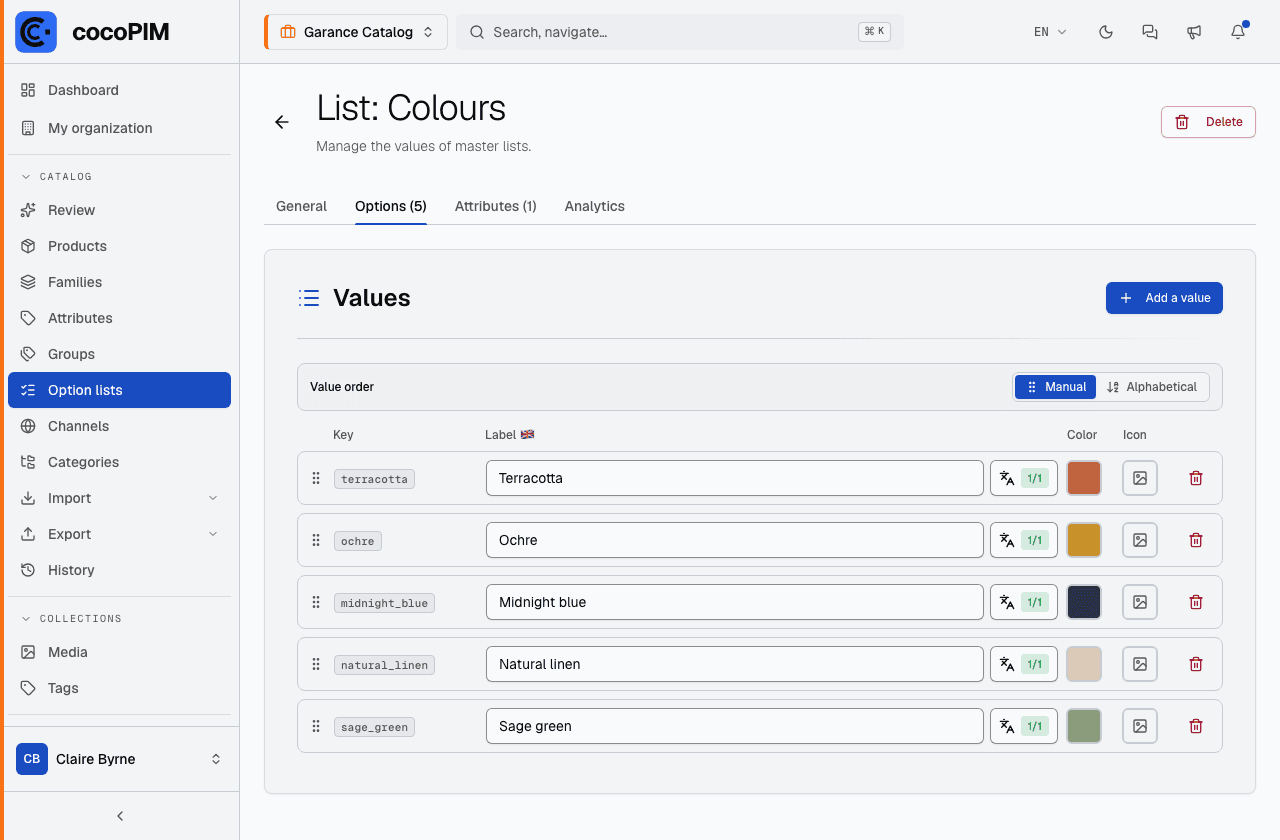
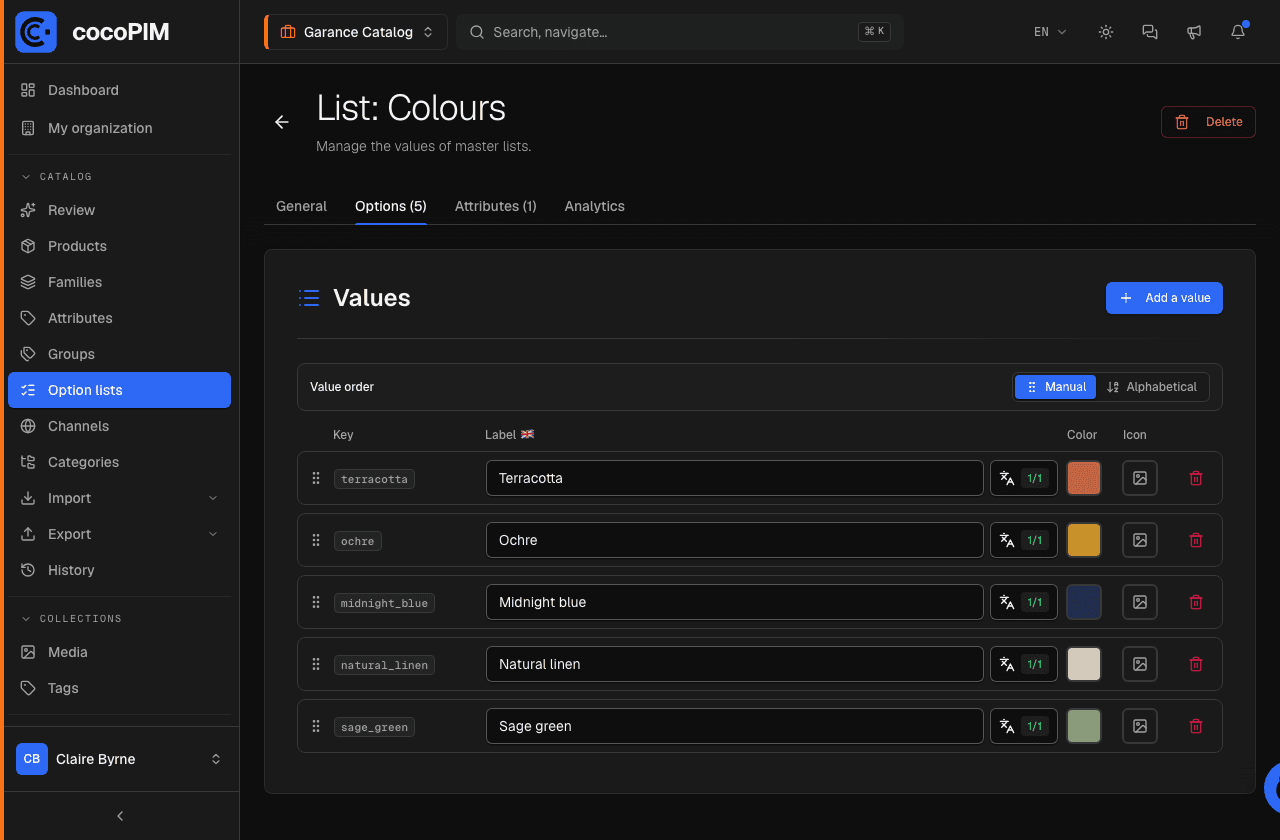
For select attributes (single or multiple), the allowed choices live in a reusable option list: a “Colours” list, a “Materials” list, a “Certifications” list. Each option can be translated, get a color swatch or an icon, and the display order can be set (manual or alphabetical).
It’s the definitive end of “Red”, “red”, “RED” and “rde” in the same column: the user picks, they no longer type.
In an attribute’s Options tab, two possibilities: an own list, whose values belong to this attribute only (tablecloth sizes, for example), or a shared list, reused by several attributes (“Colours”). The choice stays open as long as the own list is empty. Once it has values, it can no longer be replaced by a shared list (its values would be lost), but you can convert it (Convert to master · irreversible action): it becomes reusable by other attributes, with no way back.
Attribute groups: organizing the product sheet
When a family has 30 attributes, the product sheet gets long. Attribute groups (Catalog → Groups) organize the sheet into readable sections: “General information”, “Technical characteristics”, “Logistics”, “SEO”. Purely organizational, but your teams will thank you.
In practice: structuring your first family
List your information on paper
Take 3 representative products and list everything you say about them (website, catalog, labels). This list = your future attributes. Mark the ones that are essential for selling: they will be the “required” ones.
Create the option lists
In Catalog → Option lists, first create your reference lists (colors, materials…): you will need them in the next step.
Create the attributes
In Catalog → Attributes, create each attribute by choosing its type and its options (required, translatable, scopable by channel, unique). The technical code is generated from the name and is locked after creation.
Assemble the family
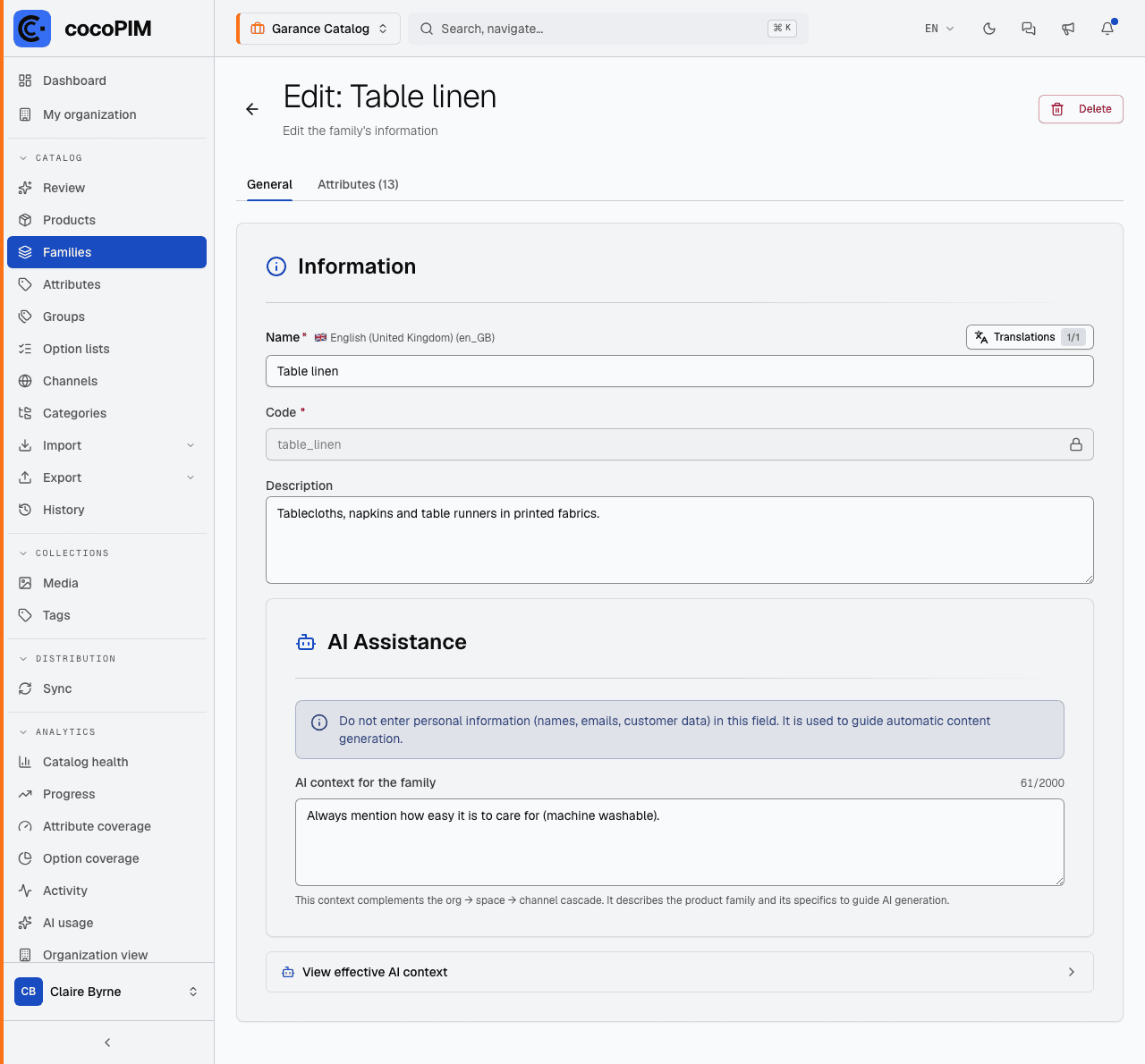
In Catalog → Families, create the family (e.g. “Shoes”) and assign its attributes, organized in groups. You can mark an attribute as required channel by channel: the HD photo can be required for the website but not for the printed catalog.
A label tailored to each family
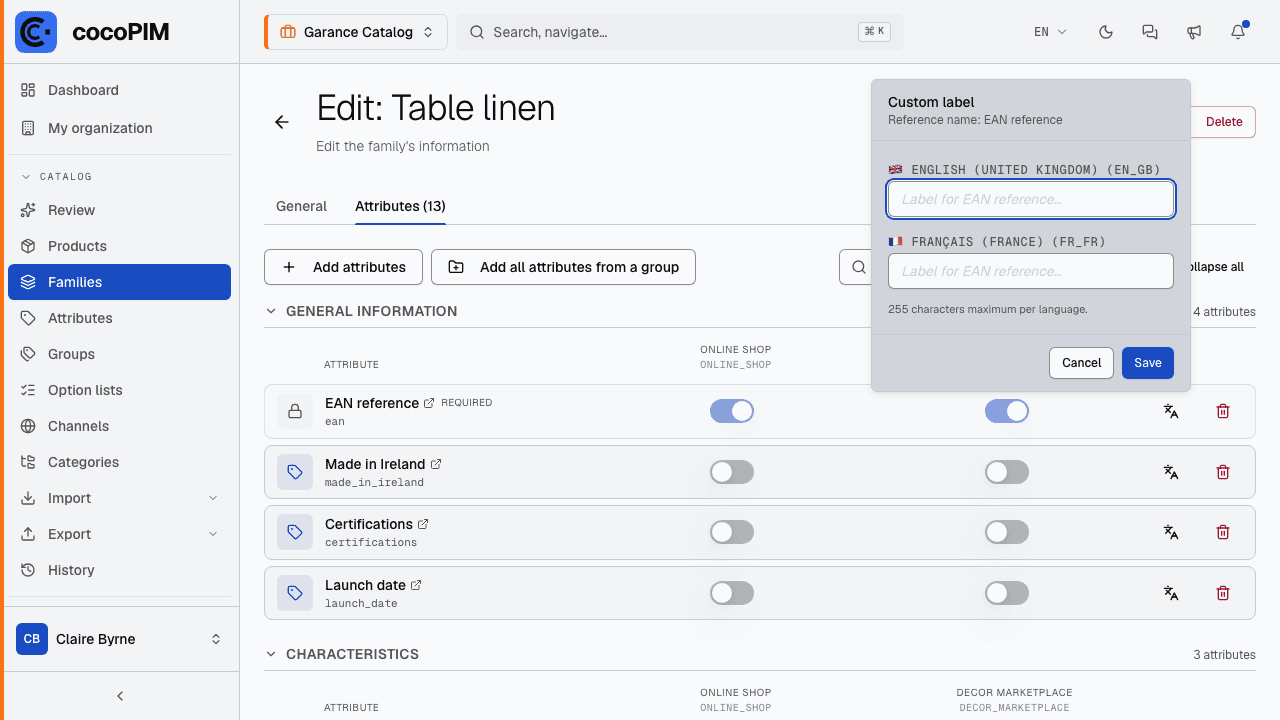
The same attribute can deserve a different name depending on the context: a generic “Capacity” attribute reads better as “Volume” for drinks and as “Net weight” for groceries. Rather than creating two attributes (and duplicating your data), customize its label family by family: in the family’s Attributes tab, the “Customize label” icon opens a small window with one field per language of your space. The product sheet then shows this label in the active input language, and falls back to the original name if you clear the customization. A badge flags the customized attributes in the list.
The reverse view also exists: in an attribute’s editor (Catalog → Attributes, Families tab), the Labels column flags with a badge the families that customize its label, with the flag of the languages concerned. Handy before renaming a shared attribute: you see at a glance in which families its name is already adapted.
And to maintain the structure without clicking item by item, the lists can work in bulk: select several families to add or remove an attribute in one go, or several attributes to delete them, with, before confirmation, the detail of the impact (families concerned, products still holding values) and the actual cleanup of orphaned values. Families, groups, channels, option lists and attributes can also be deleted from their editor, or in bulk from their list: tick, “Delete”, and the items still in use are refused one by one with the reason. The same selection opens sequential editing: the structure items follow one another, one by one, with “Save and continue”.