
Move your data · Module 8, deep dive
Importing from Odoo
Your products live in Odoo: references, prices, variants, categories, photos. Rather than exporting them to a file at every change, the Odoo connector brings them into cocoPIM and keeps them up to date, while you enrich your product sheets in the PIM. This module covers the prerequisites on the Odoo side, the connection, the placement of products and how to follow the synchronizations.
13 min read
The principle
It is the opposite direction of the Shopify connector: here, Odoo supplies and cocoPIM receives. Your ERP remains the master of management data (reference, barcode, price, variant structure); cocoPIM remains the master of everything that makes a sale (polished descriptions, translations, marketing attributes, added media). The connector never changes anything in Odoo: it reads, it files, it reports.
On the Odoo side
Your Odoo ERP
- references, barcodes, prices
- variants, categories, images
The connector reads
Sync
- scheduled or on demand
- read-only in Odoo
- only what has changed
On the cocoPIM side
cocoPIM
- products created as drafts
- enrichment never overwritten
Prerequisites: your Odoo and a dedicated account
On the cocoPIM side, the Odoo connector is included from the Pro plan. On the Odoo side, it works with versions 17, 18 and 19, on Odoo Online, on Odoo.sh or on an Odoo installed on your own servers or at your integrator’s.
Create a dedicated user
In Odoo, create an internal user reserved for cocoPIM (for example “cocoPIM”), without administration rights: read access to products is enough. You will always know what this account does, and you can cut it off without bothering anyone.
Generate its API key
On Odoo Online, first give this user a password specific to the database (Settings → Users & Companies → Users → Action → Change Password), as Odoo requires for its external API. Then, logged in as this user: Preferences → Account Security → New API Key. Copy it right away, Odoo does not show it again. On Odoo 19, a key lasts 3 months at most: note its expiry date, you will replace it from cocoPIM in two clicks.
Write down the database name
On Odoo Online, it is usually the start of your address (“mystore” for mystore.odoo.com). Otherwise, it appears in Odoo’s database manager, or your integrator gives it to you.
Connecting Odoo, in four steps
The connector is in Catalog → Import → Odoo connector. It is set up per space: one space receives the products of one Odoo. A wizard guides you through four steps.
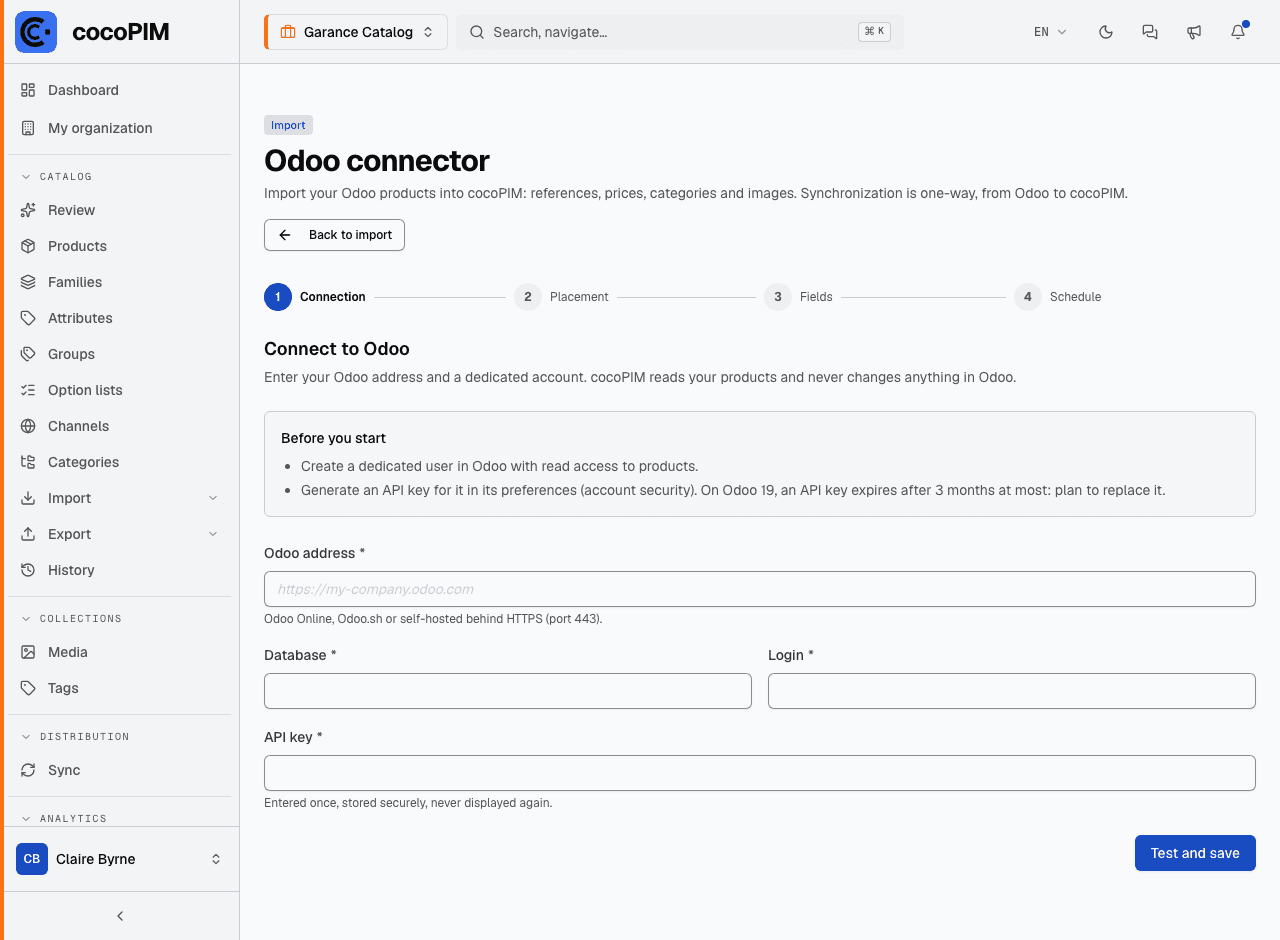
Connection
Enter the Odoo address, the Database, the Login of the dedicated user and its API key, then Test and save. cocoPIM checks the access and displays the Odoo version and the number of products found. The key is stored securely and is never shown again.
Placement
Choose the Target family: every imported product is created in it, as a draft. Set the filters (sellable products only, services included or not), the categories to import (“None” or “Internal categories”, the product categories of Odoo Sales) and the channel that receives them, then match Odoo’s languages with those of the space.
Fields
Link Odoo’s fields (barcode, descriptions, weight, volume, sales price) to the family’s attributes: obvious matches are suggested, and each row shows whether Odoo updates it or fills it at creation only. Turn on image import (main image of each product and of each variant) and map Odoo’s variant axes (colour, size…) to your list attributes. Map as many as needed: each product uses two at most, beyond that it is not imported. A list attribute that is still empty receives its values from Odoo. If it is missing, “Create attribute” on the axis row creates it in the group of your choice and adds it to the family: you then just pick it on the row. A box lists the unmapped axes and the number of products that would not be imported.
Schedule
Choose the frequency (every hour, every 6 hours, every day or manual only), turn on the synchronization, then start the first synchronization: it imports all the products, which can take a few minutes on a large catalog.
Your products already exist in cocoPIM?
If you have already imported your catalog from a file, the Odoo references exist in the space: by default, the connector reports them as conflicts rather than touching product sheets it did not create. Tick Match existing products by reference (Placement step): each product carrying the reference of an Odoo product is linked to it, and only Odoo’s fields are updated afterwards, your enrichment stays. The option only appears to users allowed to edit products.
Following the synchronizations
Once the wizard is finished, the page becomes a dashboard: connection status, last success, next run, and the list of latest runs with, for each one, the products read, created, updated and unchanged. Each run only reads again what has changed in Odoo since the previous one.
- Synchronize now: starts a run without waiting for the chosen frequency.
- Resynchronize everything: reads all products again from scratch, useful after a mapping change. Your enrichment is not overwritten.
- Edit placement, Replace the key (the new key is tested before being saved), Pause and Resume.
- Disconnect: the key is deleted, the synchronization stops, the products already imported stay in cocoPIM.
The details of a run list the products that could not be fully imported, with the reason: an unmapped variant axis, a reference already carried by another product, a value refused by your attribute (a barcode longer than the attribute’s rule, for example: the rest of the product is imported), an image that is not one. If Odoo refuses the key (expired or deleted), the connection switches to error and the person who set it up is notified by the notification bell.