
Build your catalog · Module 5
Creating & enriching products
The structure is in place: time for the products. In this module, you create your first product, you learn to read completeness (the compass of your enrichment work) and you discover bulk editing, to handle hundreds of products in one go.
17 min read
Creating your first product: two steps, on purpose
cocoPIM separates creation (ten seconds) from enrichment (the real work). At creation, you are only asked for the essentials (the SKU and the family) and the product is born with the Draft status. You then land in the editor, which knows the family’s structure and shows you the right fields to fill in.
New product: SKU + family
In Catalog → Products, click the create button (or type “New product” in the ⌘K palette). Enter the SKU (your internal, unique reference) and choose the family: it decides which fields the product has.
Give it its name
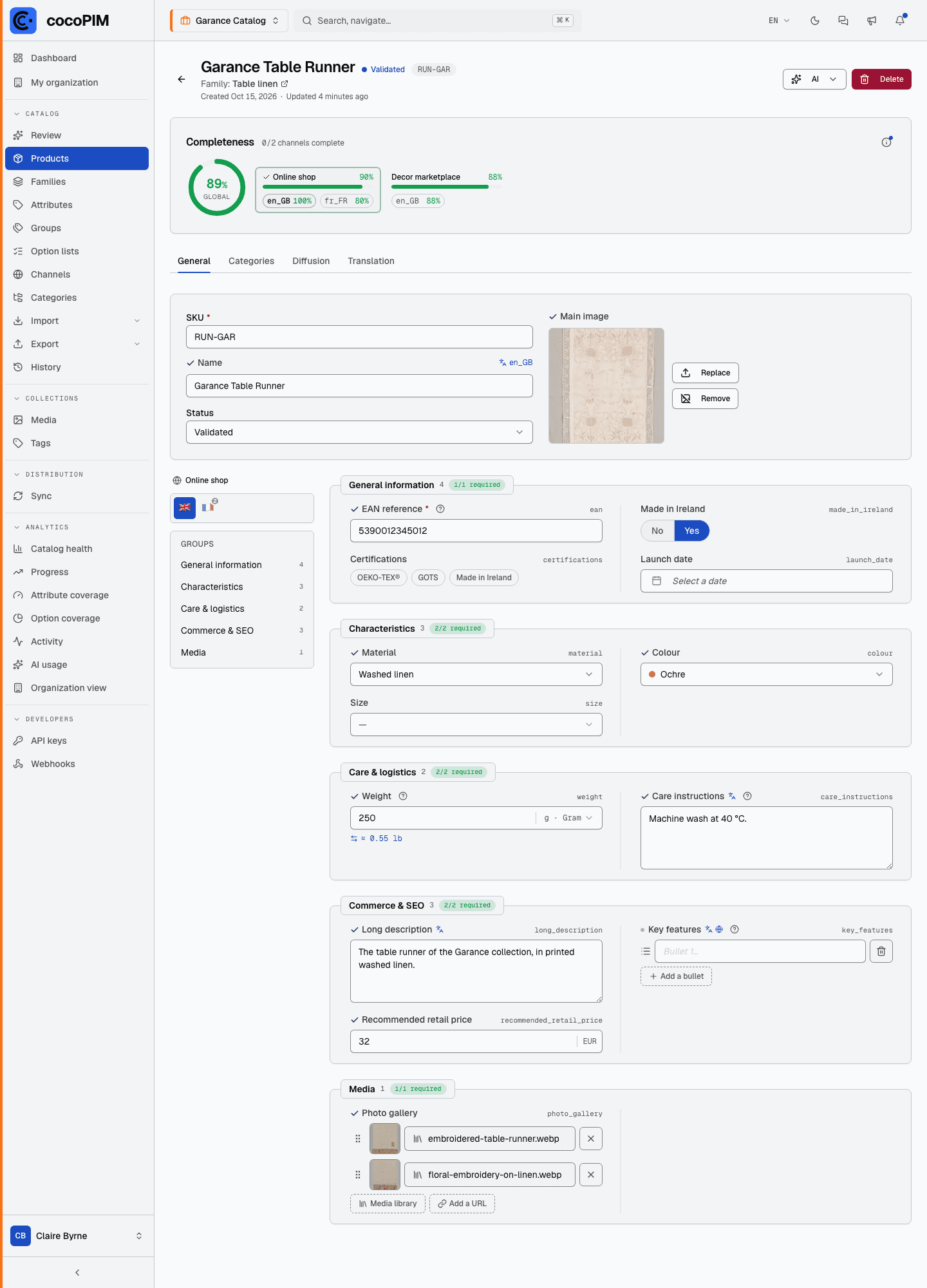
At the top of the product, the Name is the product’s main label, the one used in lists, in search and, by default, as the title sent to your channels. You enter it in each language of your space: “Garance Tablecloth” / “Nappe Garance”.
Fill in the attributes
The product shows the family’s attributes, arranged in groups. The language and channel selectors at the top of the product let you switch from one version to another for attributes that are translatable or that differ by channel. “Hard” required fields carry an asterisk.
Classify and illustrate
Attach the product to its categories (per channel), choose its main image in the media library (it is the thumbnail used everywhere) and link its other visuals.
Statuses: the product’s traffic light
Draft
- work in progress
- status of every new product
Validated
- ready to publish
- the only status published to channels
Archived
- no longer sold, product kept
- can be reactivated (seasonality, reissue)
“Error”: set by the system (automatic processing failed), to handle first
Every new product is born as a Draft, including those created by import or through the API. Moving to Validated is a deliberate act: you are the one declaring the product ready to publish. Archived keeps the product of an item you no longer sell (history, seasonality, possible reissue), and Error is set by the system when an automated process runs into a problem: it draws your attention.
Completeness: your compass
Completeness measures, as a percentage, how much of a product’s required attributes is filled in. It is first calculated per channel and per language: a product can show 100% for “Online shop · EN” and 58% for “Marketplace · FR”, which means exactly “some information required to publish this product in French on the marketplace is missing”. A channel’s languages are then averaged into a score per channel, and the channels into an overall score for the product.
cocoPIM shows you this same measure at three levels, from the broadest to the finest:
Overall completeness: all products, all channels
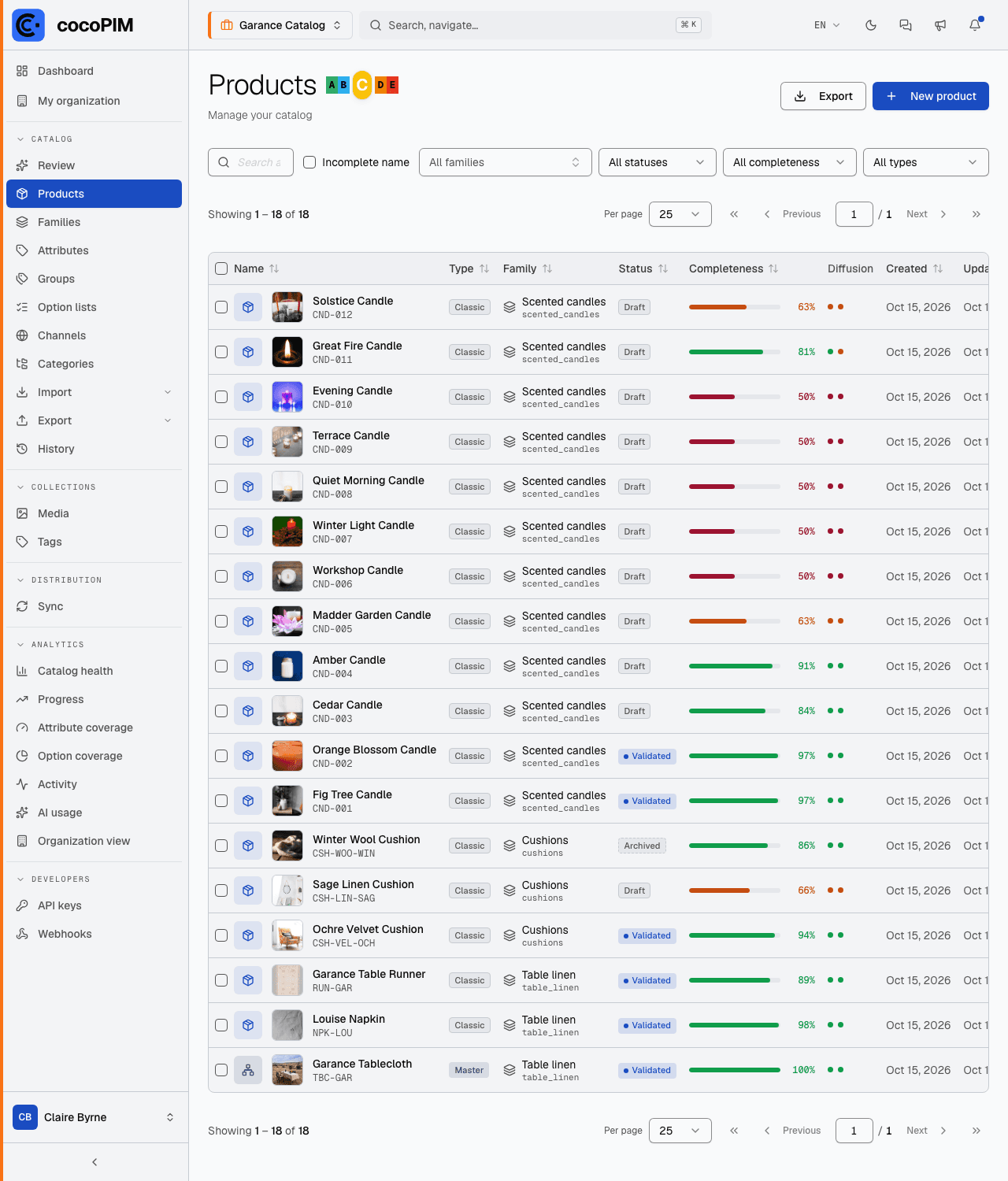
The A to E grade shown at the top of the product list sums up the catalog: it is the average of the overall scores of all the products in the list (applied filters count), all channels combined. A = 100%, B from 85%, C from 70%, D from 50%, E below. The same grade appears on the dashboard and in the analytics: one language everywhere.
Unit completeness: per product
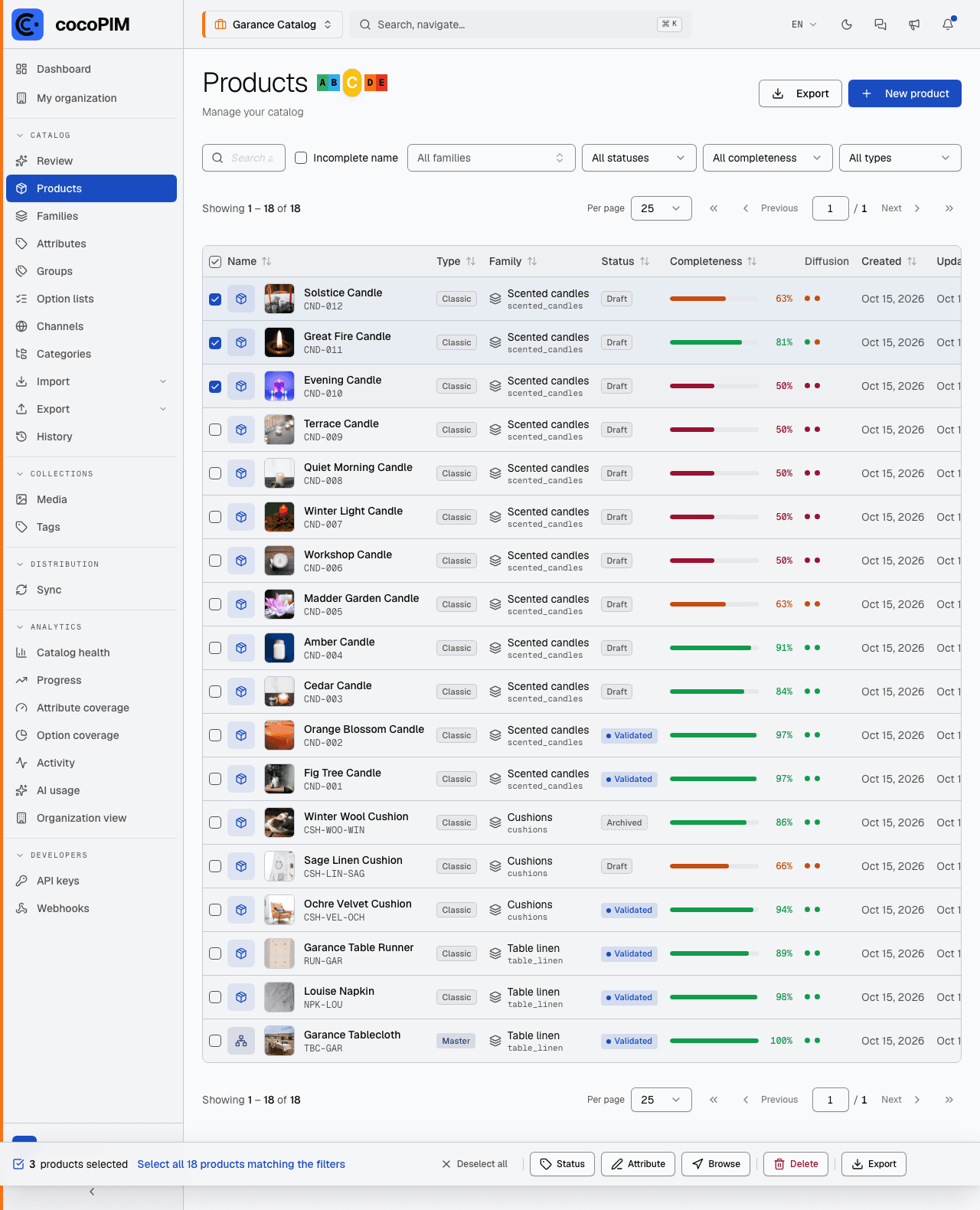
The Completeness column of the list (bar and percentage) and the ring at the top of the product give the overall score of one product: the average of its channels. It is the indicator for prioritizing enrichment work product by product.
Diffusion: per channel
The Diffusion column shows one dot per channel of the space, colored according to the product’s completeness on that channel: green from 80%, amber between 55 and 79%, red below, gray if the channel has no required attribute. The exact percentage appears on hover. On the product, the Completeness panel details each channel, language by language.
Bulk editing
Changing the status of 200 products one by one? No. From the product list, select several products and apply a grouped change:
- Status change: move a whole selection to “Validated” or to “Archived”;
- Attribute value: write the same value on the whole selection (e.g. “Warranty: 2 years” on an entire range);
- Sequential editing: go through the products one by one in a full-screen mode, without going back to the list, ideal for a review session.
- Deletion: permanently delete a selection, reserved for users allowed to delete products. Variants go with their parent product, and beyond 25 products cocoPIM asks you to type their number to confirm. To take products off sale without losing them, prefer the “Archived” status.
Every bulk operation ends with a detailed report: how many products were changed, which ones were skipped and why. And every change is recorded in the audit log. We come back to it in the “Managing your catalog” module.
Relationships between products
Thanks to relationship attributes (“Families & attributes” module), a product can point to other products: compatible accessories, spare parts, complementary products. These links are filled in directly on the product, like any other attribute, and travel with your exports and your API. At Garance Home, the tablecloth’s product points to “frequently bought with”: the matching napkins.
Who wrote what: where values come from
Every value on a product keeps track of its origin: manual entry, import, API, default value… or AI-generated. A discreet badge on the product reminds you of it: at a glance, you can tell what a human wrote from what a machine suggested, and what deserves a review. We come back to it in detail in the “AI day to day” module.