Go further · Module 16
Requests & support
A bug to report, an idea for a feature, a question about how to do something? Two resources are built into the app: CoCo, the assistant that answers how-to questions right away, and requests, a direct line to the cocoPIM team, with no email to dig out and no external portal.
8 min read
Your first reflex: CoCo, the built-in assistant
For a question about how to use the app, the fastest answer is often CoCo: the bubble at the bottom right of the screen opens a conversational assistant that answers in English as well as in French, based on this documentation. “How do I create a variant?”, “Why is my completeness score low?”: CoCo answers right away, free of charge, without touching your AI quota.
CoCo knows its limits: it only talks about using cocoPIM, and when a question goes beyond what it knows, it offers to forward your request to an advisor, with your explicit consent, never behind your back. For a bug, a feature idea or an ongoing exchange with the team, the requests described below remain the right channel.
Where it happens
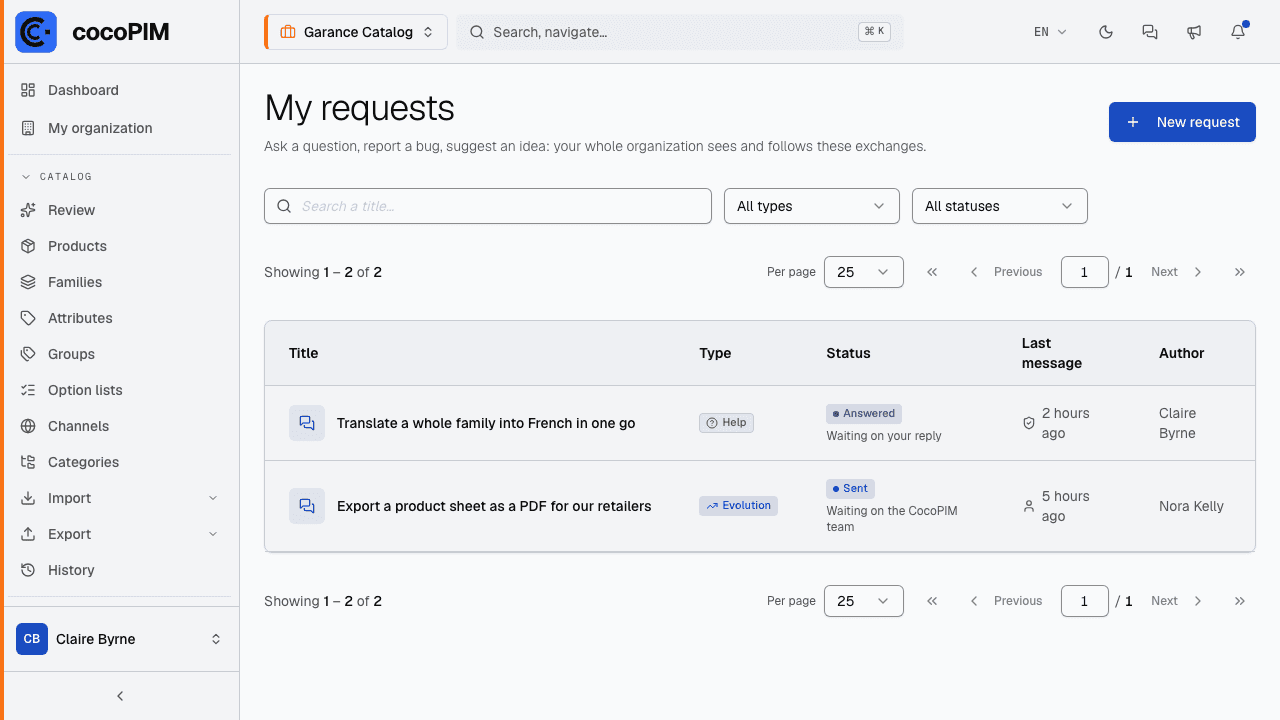
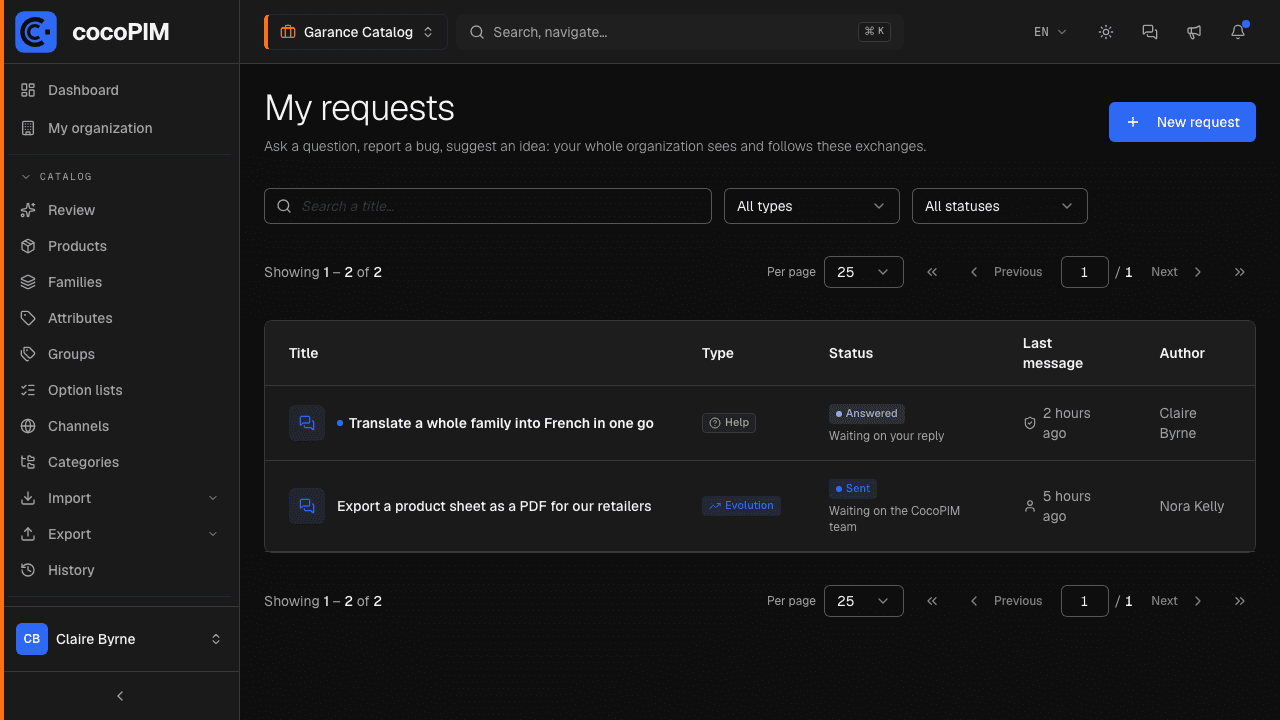
At the top right of the interface, next to the announcements speaker, the Requests icon (two speech bubbles) opens the My requests page: the list of every request from your organization, with its type, its status and the date of the last message. This channel is open to all users: no particular permission is needed to ask for help.
The four types of requests
- Bug: something does not work as expected (a screen that crashes, an incomplete export, a wrong calculation).
- Feature: something cocoPIM does not do yet and that you miss (a new connector, a new export format).
- Evolution: something that exists but could do better (one more column in a table, an extra filter).
- Help: a question about how to use the app (“how do I…”, a doubt about the right way to structure your data).
Creating a request
Open the form
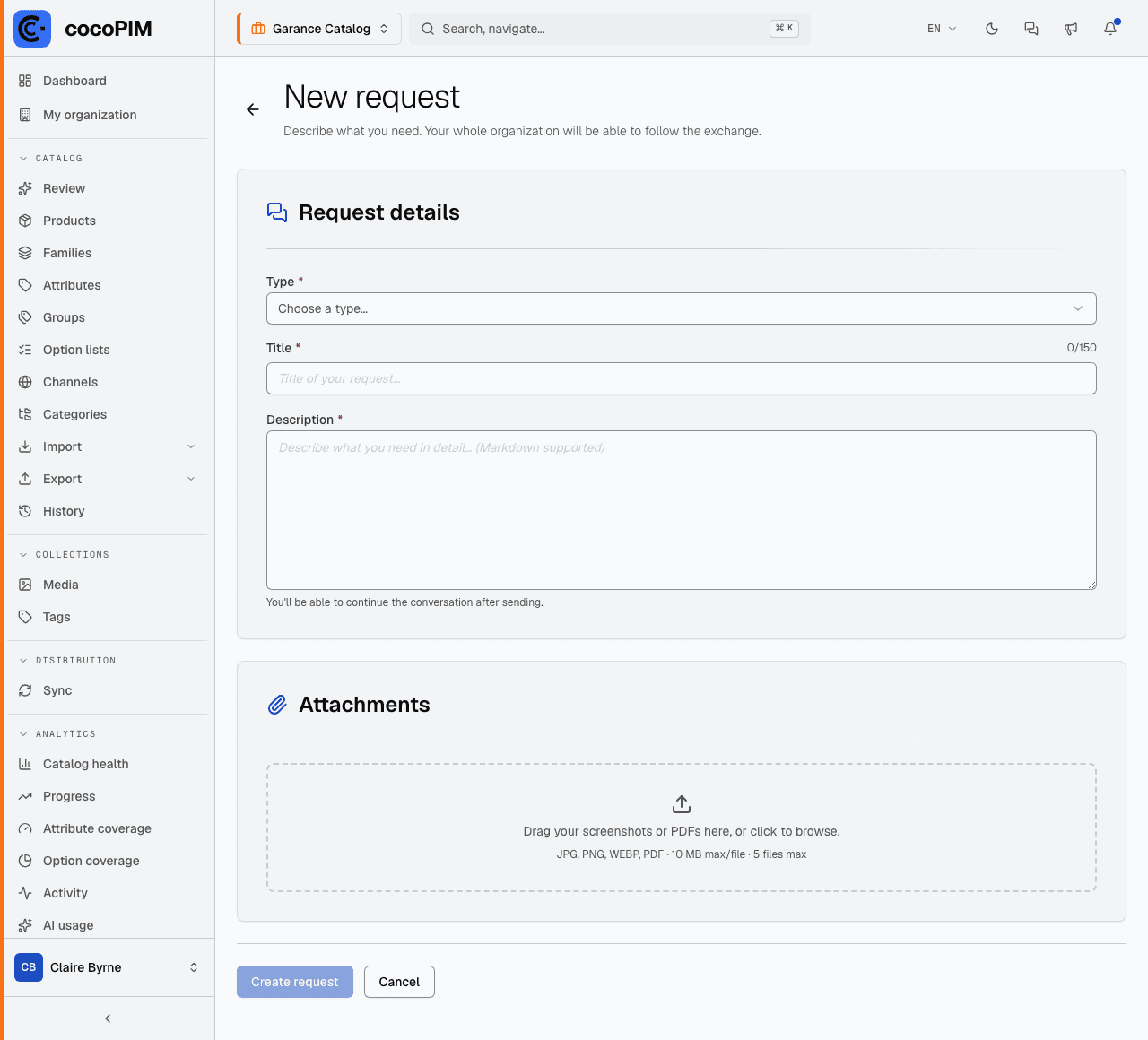
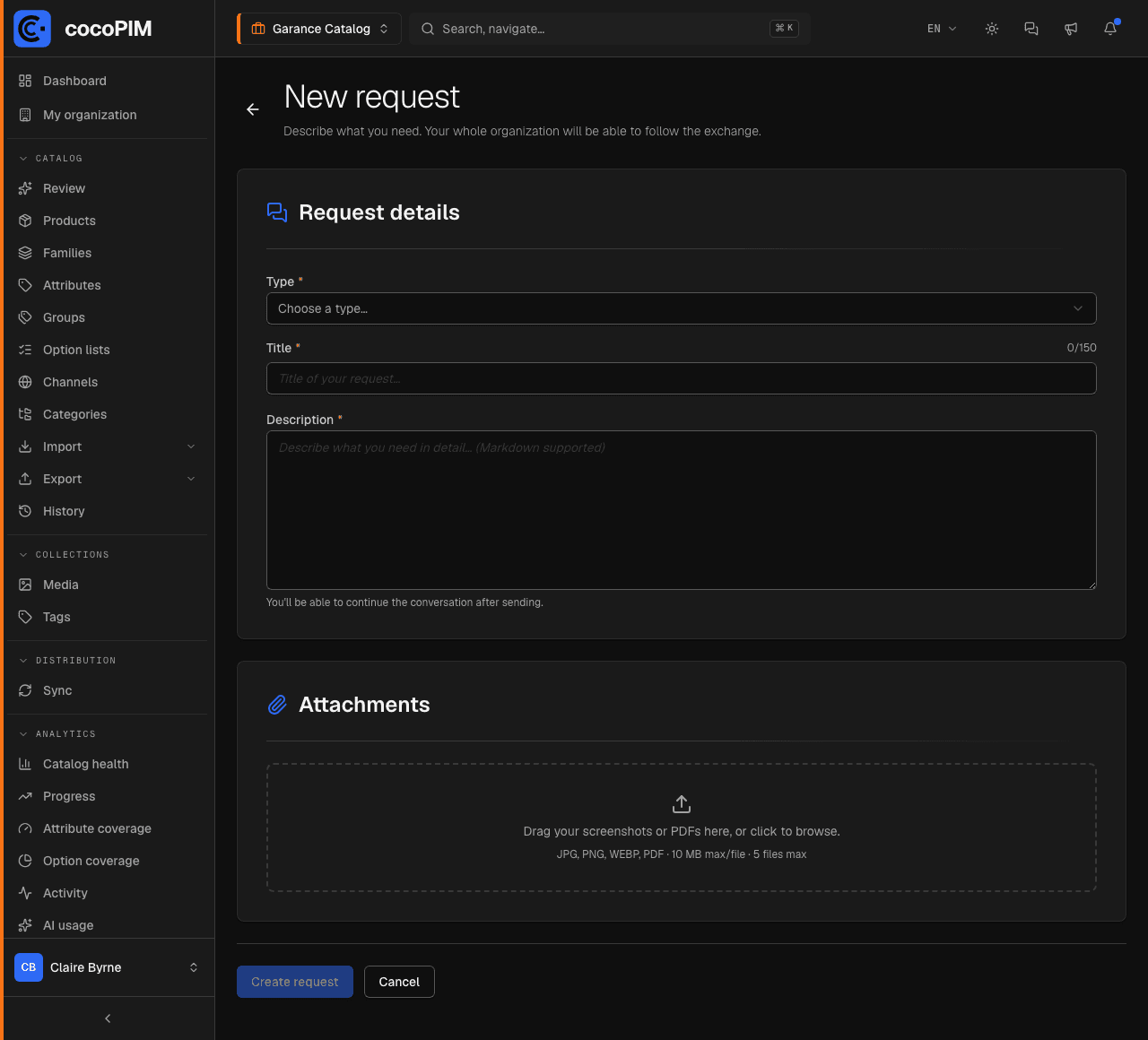
From My requests, click New request.
Choose the type
Bug, Feature, Evolution or Help. This choice helps the team route your request to the right person.
Give it a meaningful title
150 characters maximum. “The CSV export ignores the family filter” is better than “export problem”.
Describe what you need
The Description field supports Markdown (lists, bold, code). For a bug: what you did, what you expected, what happened.
Attach screenshots
The Attachments block accepts JPG, PNG, WEBP and PDF (10 MB maximum per file, 5 files per message). A screenshot is often worth ten lines of explanation.
Send
Create request: you can continue the exchange after sending, directly in the request’s thread.
Following the exchange
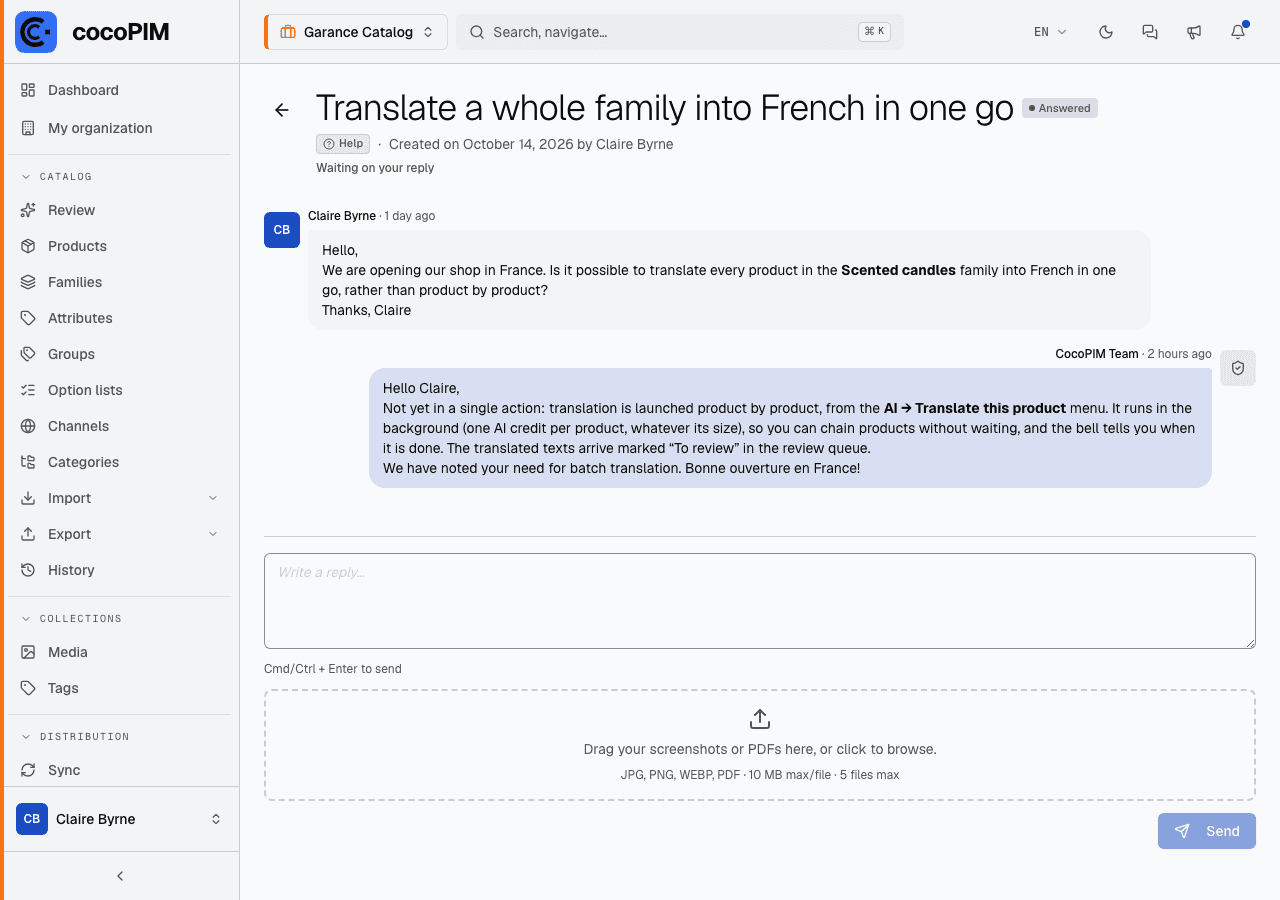
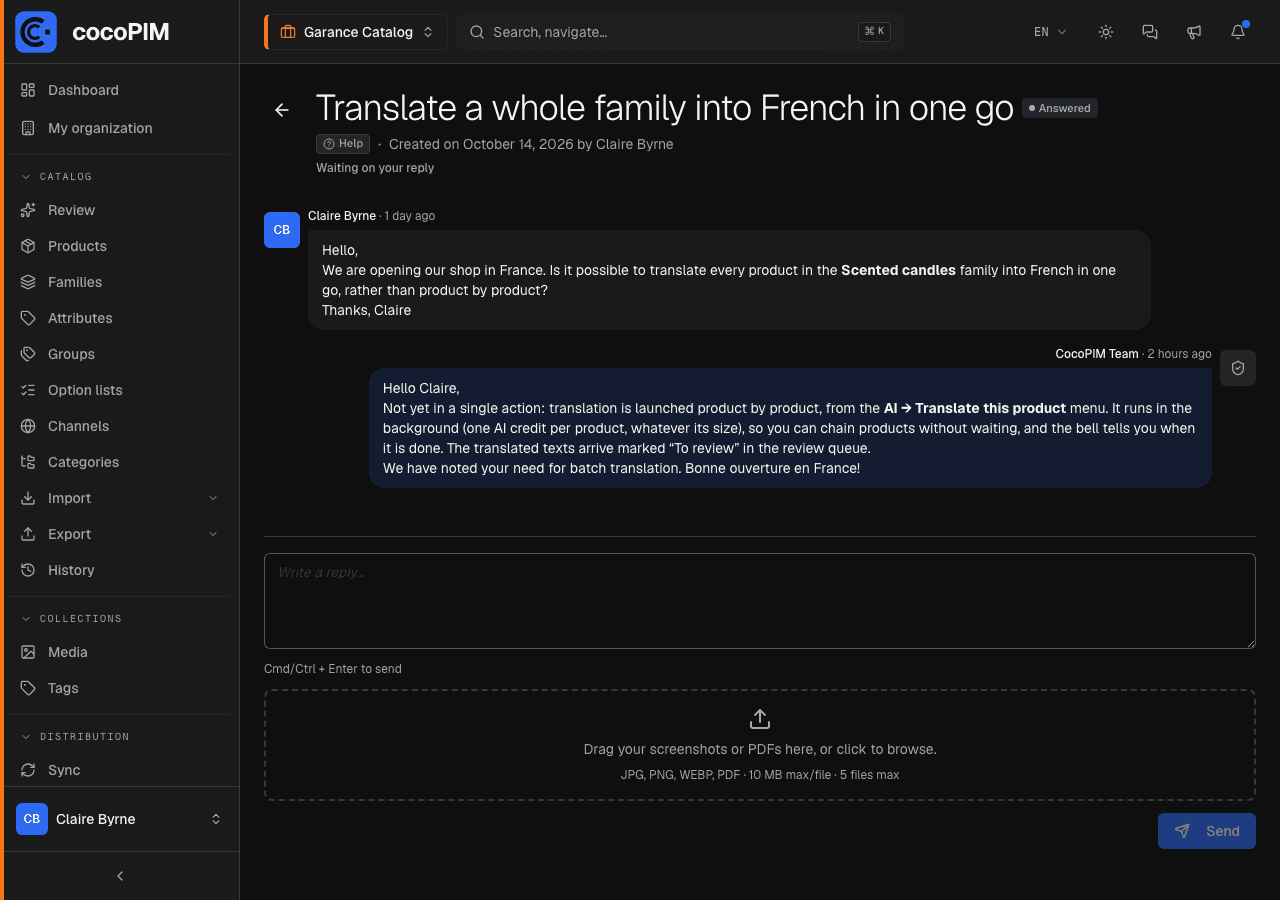
Each request is a conversation thread: your messages on one side, the replies signed CocoPIM Team on the other, with attachments possible on both sides. The status tells you where the request stands:
- Sent: the request has arrived and is waiting to be picked up;
- In progress: the team is working on it;
- Information requested: the team needs a detail from you, the ball is in your court;
- Answered: a reply is waiting for you in the thread;
- Resolved then Closed: the matter has been dealt with.
The list also shows who needs to act (Waiting on the CocoPIM team or Waiting on your reply) and a New reply badge flags the requests you have not read yet.