
Move your data · Module 9
Exporting your catalog
Your data belongs to you and must be able to leave as easily as it came in: to feed a partner, prepare a paper catalog, or simply check your work in a spreadsheet. Everything happens in Catalog → Export.
9 min read
Launching a product export
Choose the format
CSV or Excel to work in a spreadsheet, JSON to feed a technical tool.
Target what goes out
Filters are what make the export truly powerful (details below).
Launch it and collect the file
The export runs in the background; the notification bell lets you know when the file is ready to download from Catalog → History.
The filters available at launch:
- Channel: only exports the values and the scope of this channel, exactly what this channel “sees”;
- Family: only the products of one family; and the One file per family option delivers a ZIP archive with one file per family in scope, each with its own columns only;
- Product status: for example, only the “Validated” product sheets;
- Minimum completeness (for example ≥ 80%): only sufficiently complete product sheets go out;
- Include variants: with or without the variants.
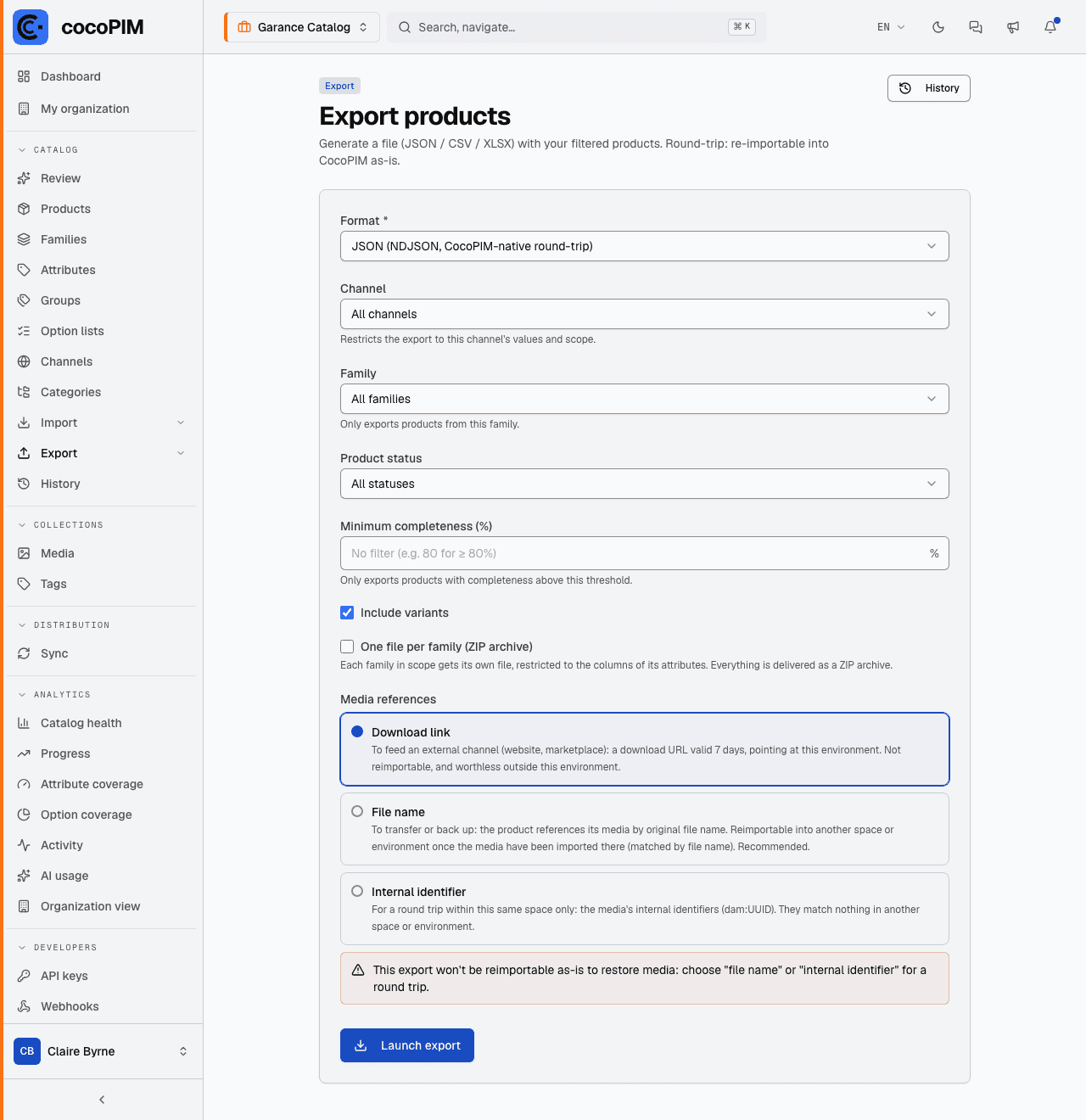
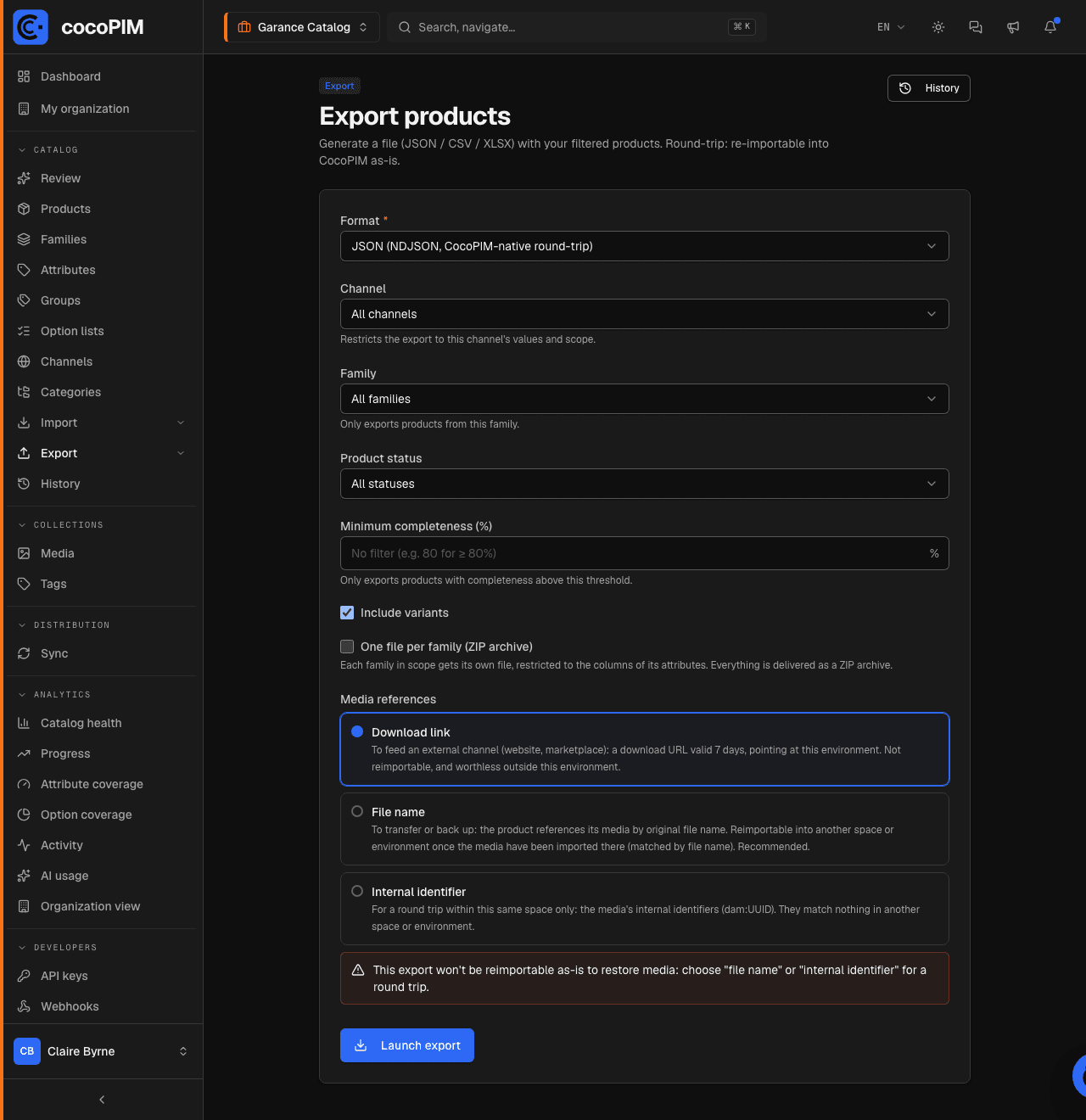
And your visuals are not left by the wayside: for each product, the export includes download links to its main image and its media, valid for 7 days, long enough for your partner to collect the files, without opening an account for them.
Exporting the structure (and re-importing it elsewhere)
As with import, export can also get the configuration out: families, attributes, groups, option lists, categories, channels (Catalog → Export → Structures). The full round trip is built in: what you export can be re-imported as is into another space. Typical use cases:
- duplicating the structure of a test space to production;
- saving a snapshot of your structure before a big reorganization;
- documenting your data model for a contractor.
History: the memory of your exchanges
Every import and every export leaves a trace in Catalog → History: who launched it, when, with what result, and the associated file. When in doubt (“what exactly was imported on Tuesday?”), the answer is there.