Build your catalog · Module 7
Media library: all your visuals in one place
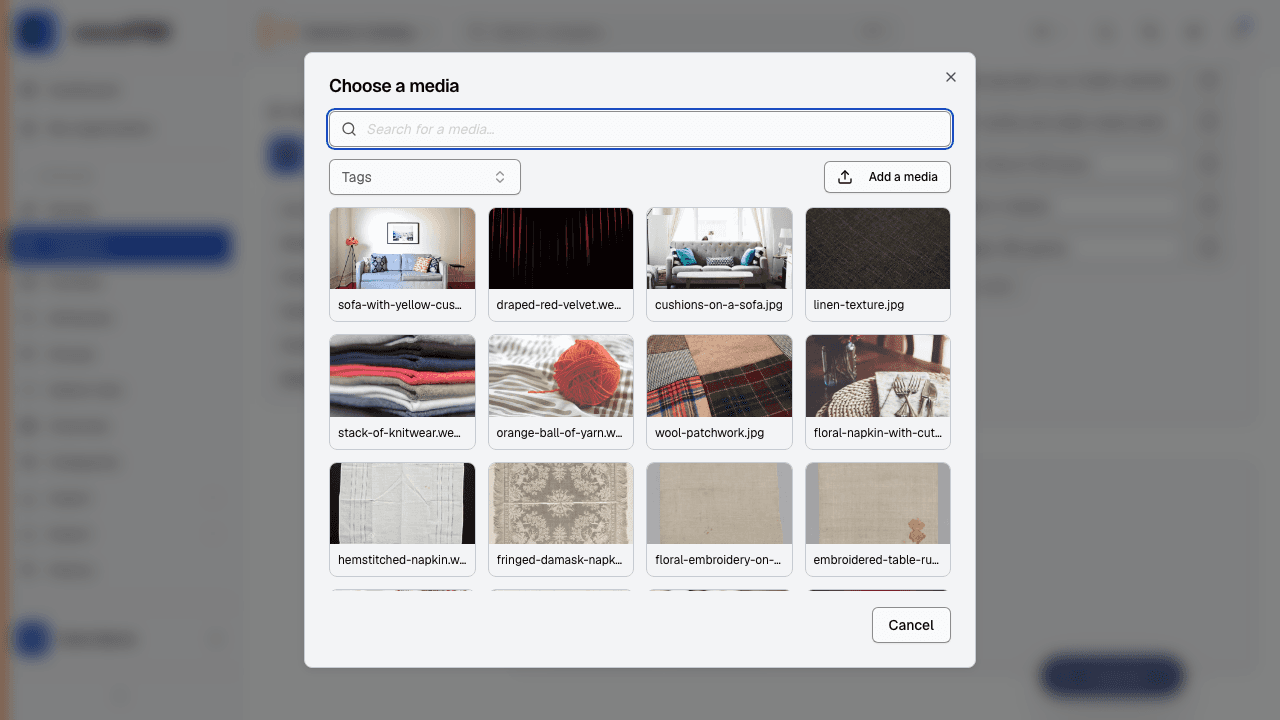
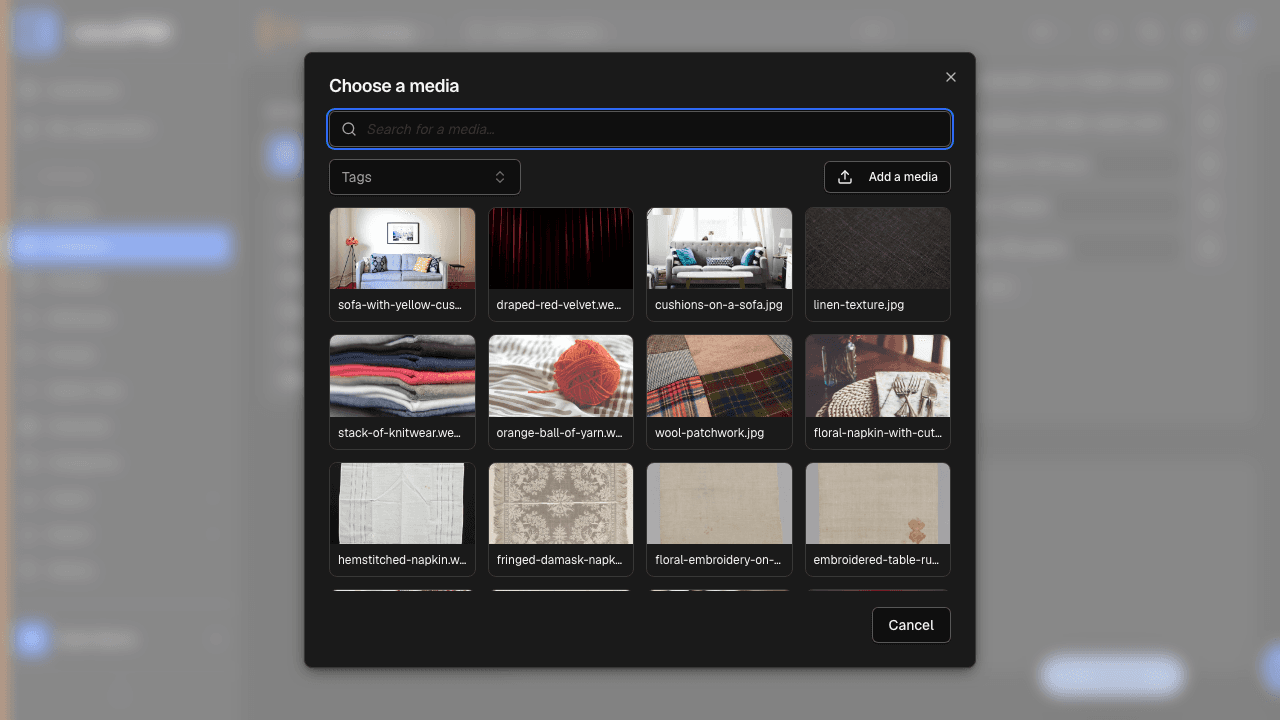
No more “Product_photos_2024_new” network folder: the media library centralizes images and documents, organizes them with tags and links them to your products. The same visual can serve ten products without existing in ten copies.
9 min read
Bringing your media in
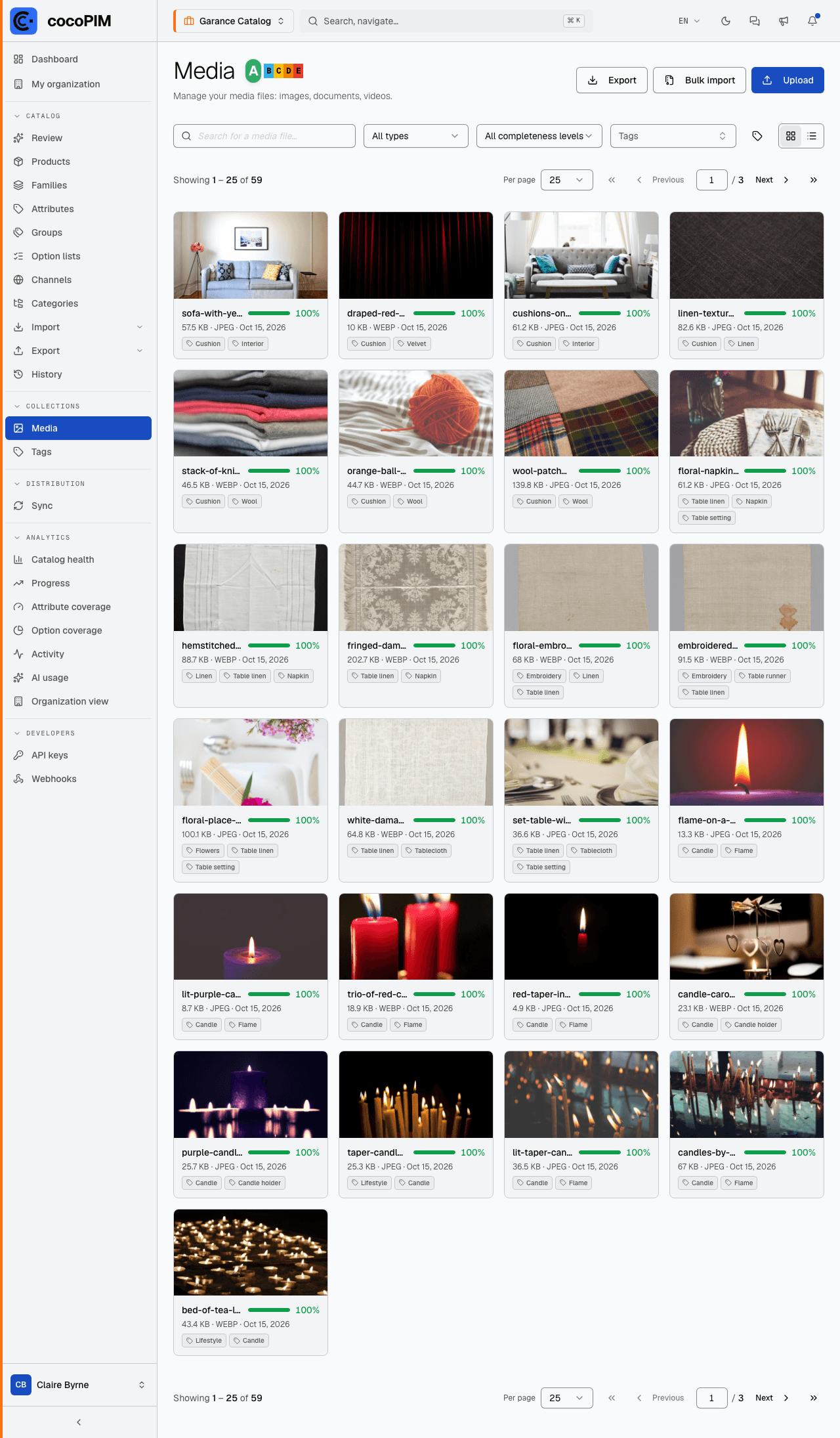
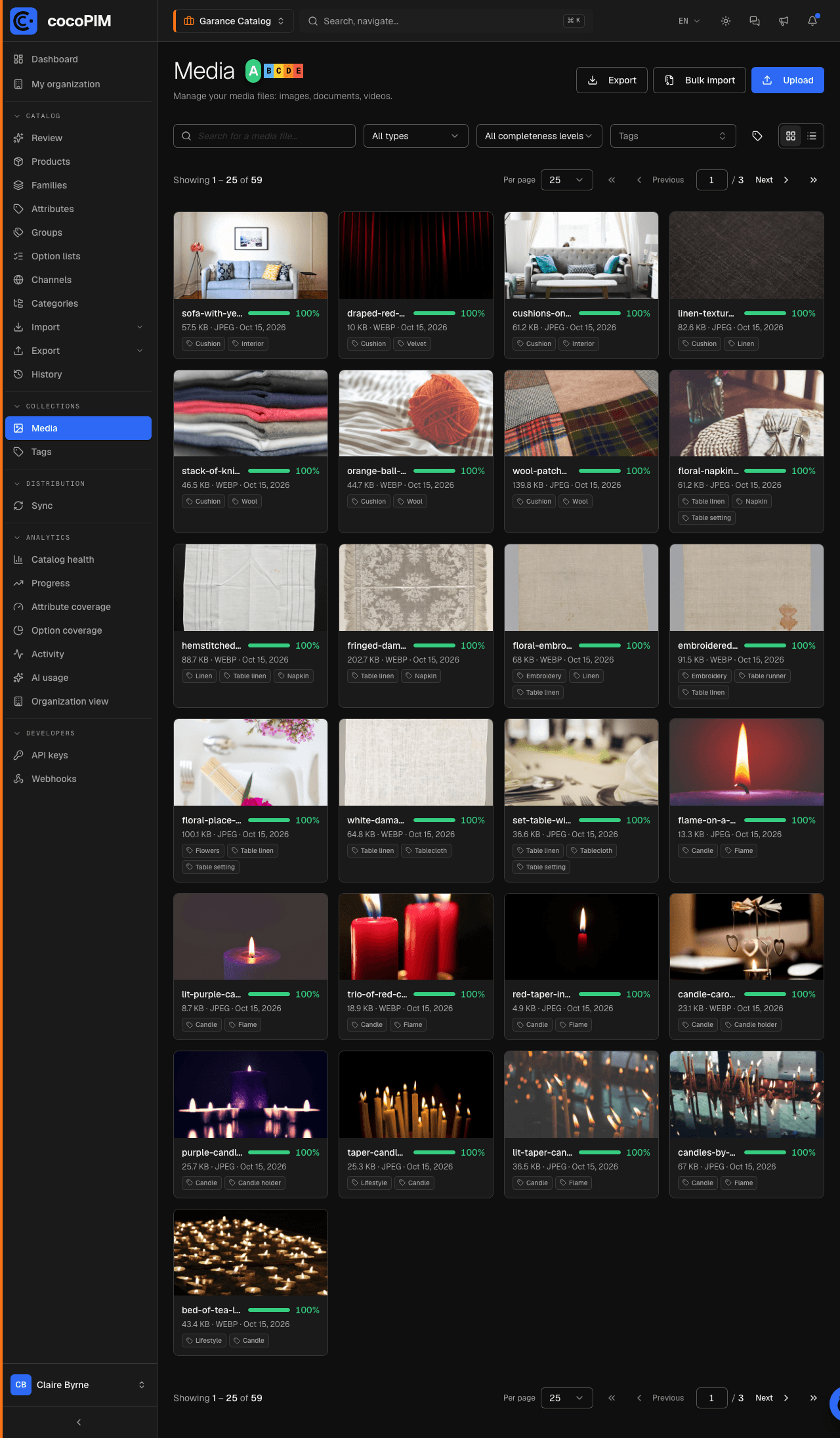
Head to Collections → Media. Two ways to feed the media library:
- Direct upload: drag and drop your files from your computer;
- Import by URL: paste the address of an online image (the visual provided by your supplier, for example); cocoPIM downloads it and stores it on its side. No more depending on an external link that can break.
On arrival, cocoPIM automatically reads the technical characteristics of images (width, height), handy for spotting, with a single filter, the visuals that are too small for your website. The list can be filtered by search, by file type and by tags: finding “all the summer packshots” takes two clicks.
Tags: organizing without folders
No folders in the media library; tags instead, more flexible: the same visual can carry “packshot”, “summer-2026” and “sale-campaign” at once, which no folder allows. Tags are managed in Collections → Tags: renaming, merging duplicates (“summer2026” and “summer-2026” combined into one), bulk application.
Linking media to products
The product’s main image
Each product can designate its main image, chosen from the media library: it is the thumbnail used in lists, on the dashboard and in your channels (on Shopify, it becomes the featured image). A variant without its own image automatically shows its master’s.
Media attributes
The family’s media-type attributes (e.g. “Photo gallery”, “Technical data sheet (PDF)”) are filled in by choosing a file from the media library, or by uploading it on the fly.
One media file, several products
The same visual (an assembly diagram, a certification logo) can be linked to as many products as needed. Replace it one day: all the products follow.
To the outside world
Media travel with your products during syncs (Shopify) and exports. A public export link also lets you share a media file with a partner without opening an account for them. To move the entire media library (migration, backup, sending to a partner), Import / Export offers a media export (files as a ZIP and metadata as JSON, CSV or Excel) and the reverse import, tags and links to products included.