
Go further · Module 15, deep dive
Setting up SSO
Your team signs in to cocoPIM with their company credentials, and cocoPIM stores no password. This guide takes you from the directory to the first successful sign-in, with a complete Google Workspace example and the security settings not to miss.
12 min read
The principle, in one minute
SSO (“single sign-on”) hands identity checks over to your company directory: Google Workspace, Microsoft Entra ID, Okta, Keycloak… cocoPIM speaks both standard protocols, OpenID Connect (recommended, the simplest to set up) and SAML 2.0. Three things to keep in mind before you start:
- SSO is included from the Growth plan; below it, the SSO tab does not appear;
- it is set per organization, by its owner, and applies to your organization’s address: https://your-organization.cocopim.fr;
- once activated, it is an additional way to sign in: the password stays available as long as you have not made SSO mandatory (last section).
Step 1: Prepare the directory (Google Workspace example)
On the directory side, you declare cocoPIM as an authorized application. You come away with three values: the issuer address, a client ID and a client secret. With Google Workspace, everything happens in the Google Cloud console, with an administrator account of your domain:
Create a project, then the consent screen
In Google Auth Platform, click Get started: application name (“cocoPIM”), support email, then (this is the important screen) the audience.
Choose the “Internal” audience
Internal restricts sign-in to accounts of your Google Workspace domain. This is the setting that closes the door: see the box below before choosing any other.
Create the OAuth client
Clients → Create client → Web application. Leave the JavaScript origins empty, and in Authorized redirect URIs paste the return address shown by cocoPIM (step 2): https://your-organization.cocopim.fr/api/auth/sso/oidc/callback, character for character, with no trailing slash.
Write down the ID and the secret
Google shows the Client ID and the Client secret. Keep the secret in your password manager: you will paste it only once into cocoPIM, which will never show it again.
Other directories follow the same logic: declare a web application, paste the return address into it, retrieve the issuer, the client ID and the secret. With Microsoft Entra ID or Okta, the issuer is specific to your directory: the door is closed from the start. With SAML, cocoPIM gives you the ACS URL and the application identifier to declare, and you give it the address (or the XML file) of your directory’s metadata.
Step 2: Fill in cocoPIM
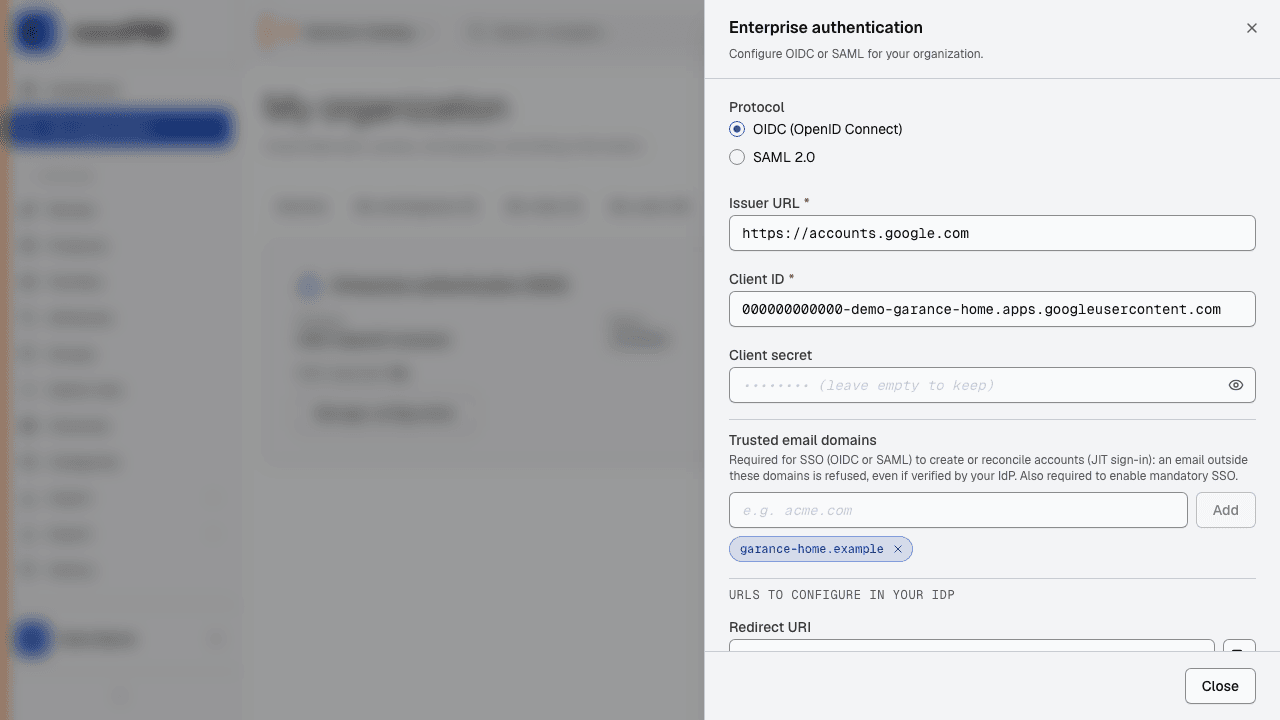
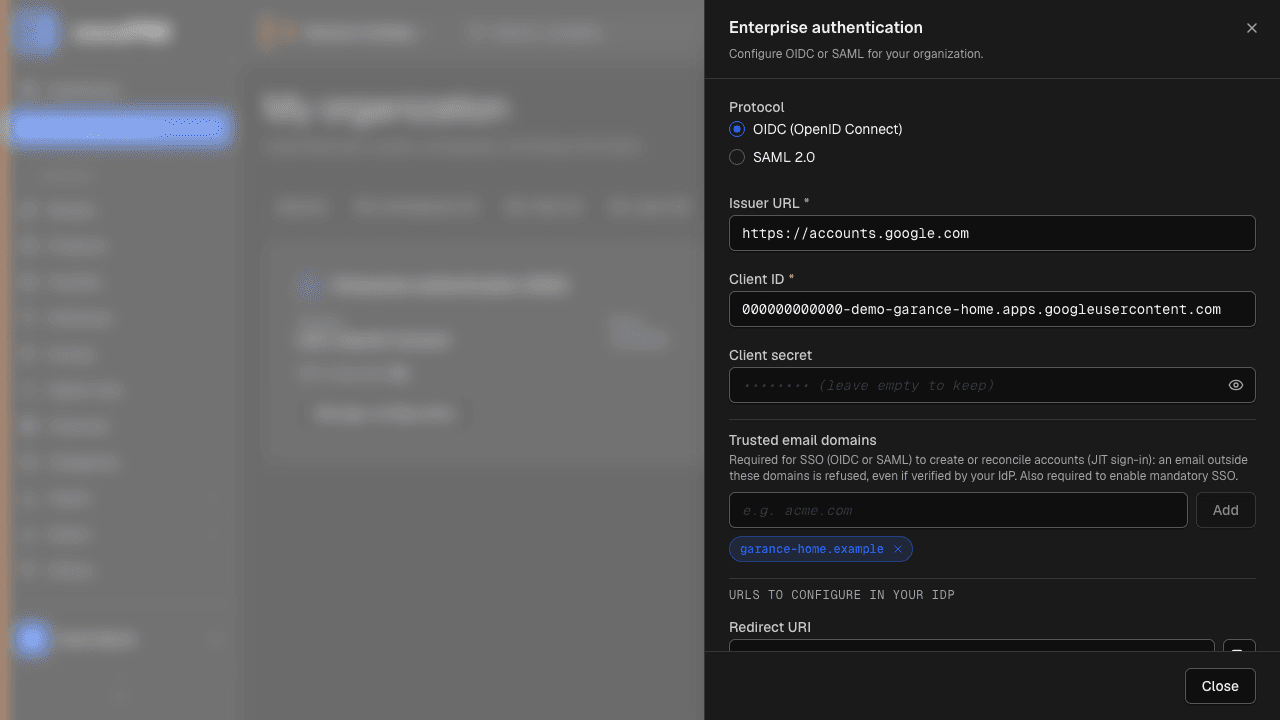
Signed in with the organization’s owner account, open My organization, the SSO tab, then Configure SSO.
- Protocol: OIDC (OpenID Connect) or SAML 2.0. Changing the protocol resets the configuration;
- Issuer URL: the address of your identity provider. For Google: https://accounts.google.com, with no trailing slash;
- Client ID and Client secret: the two values written down in step 1. The secret is encrypted and stored separately; it is never shown again (leave the field empty afterwards to keep it);
- Trusted email domains: required. Only addresses in these domains (for example your-company.com) can have an account created or link their existing account to SSO sign-in, even if the directory has verified their email. Without a domain, automatic account creation is blocked and SSO cannot be made mandatory;
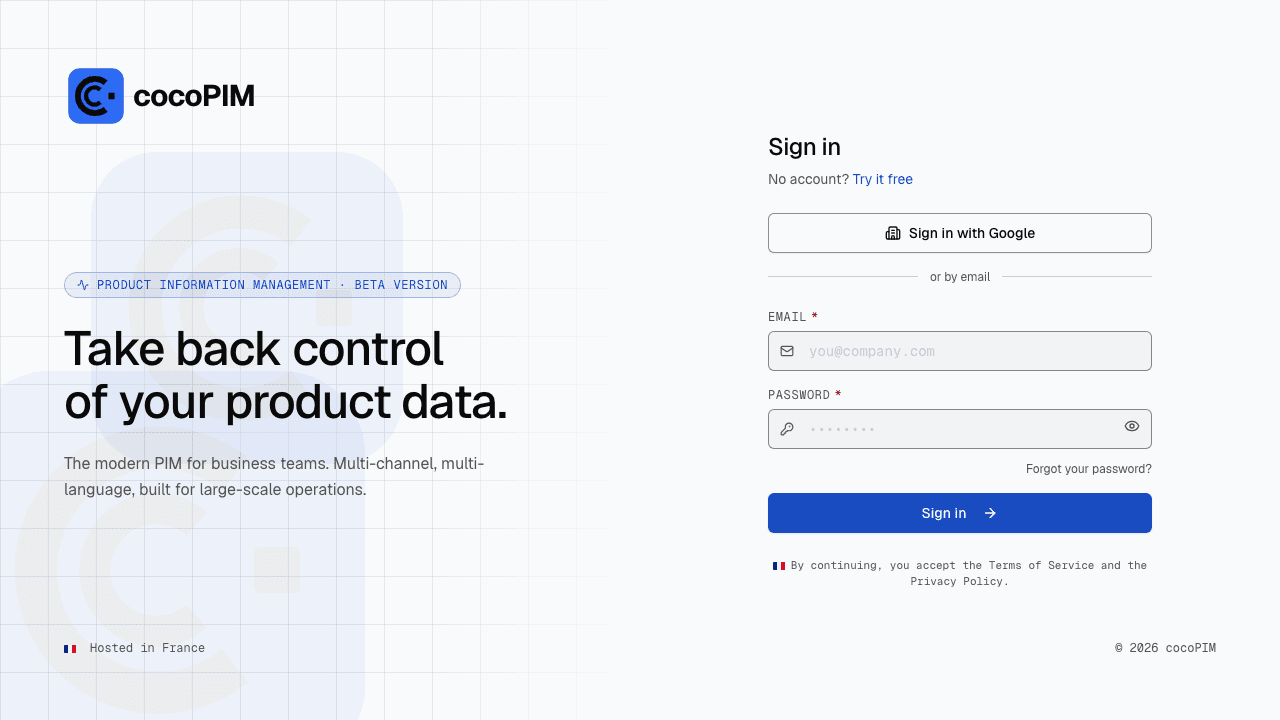
- Name shown to members: it makes up the button on the sign-in page; “Google” will give Sign in with Google;
- Default role for new accounts: the role given to anyone signing in for the first time. Choose a low-privilege role (read only): you will adjust case by case;
- Redirect URI: shown by cocoPIM, with a copy button; it is this address, and this one only, that must be registered in the directory.
Step 3: Test, then activate
The configuration goes through three states, shown on the card:
- Draft (untested): saved, but nothing is offered to your members yet;
- Tested, not activated: Test connection reached your directory and checked the ID and the secret. Only then does the Activate button unlock;
- Active: the “Sign in with…” button immediately appears on your organization’s sign-in page. The password stays available.
Two failure messages to know: “Unable to reach…” means that the issuer address is wrong or not reachable from the Internet; “The IdP refused the connection” means that the ID or the secret is wrong. And any later change to the configuration sends it back to draft: you have to test again before reactivating (a protection, not a bug).
Step 4: The first sign-in
Try it in a private browsing window, to start from a blank session. Depending on the email address your directory presents:
- address unknown to cocoPIM: the account is created automatically, with the default role and the first and last name provided by the directory. Nobody needs to be invited;
- address of a member of the organization: SSO sign-in is linked to their existing account: they keep their role, their name and their history;
- address of an account outside the organization: refused, with the message “This account cannot sign in through this provider”. cocoPIM never automatically links an existing account to an organization that is not its own.
Going all the way to mandatory SSO
As long as the SSO required for members setting is on “No”, SSO coexists with the password. On “Yes”, the password is no longer offered: your directory becomes the only way in. Disabling an account in the directory cuts off access to cocoPIM right away.
The safeguards
- cocoPIM refuses to turn on the requirement as long as no break-glass account is designated: an account that keeps its password no matter what, to take back control if the directory goes down or the configuration breaks;
- a default role must be set;
- changing the configuration lifts the requirement at the same time as it goes back to draft: an organization cannot lock itself out;
- if your plan no longer includes SSO, it is disabled and your members get their password back; the configuration is kept for later.