
Move your data · Module 8
Importing your data
Your catalog already exists: in Excel files, exports from your old store, supplier files. This module teaches you how to bring it into cocoPIM cleanly, without retyping anything, and how to understand each step of the import wizard.
16 min read
What cocoPIM can take in
The Catalog → Import → Products screen accepts your products as CSV, Excel (XLSX) and JSON. For table files (CSV, Excel), one row = one product, one column = one attribute: exactly the shape of your current files.
The import wizard, step by step
1
File
CSV · Excel · JSON
2
Preview
separators, accented characters
3
Column mapping
“Shade” → Colour
4
Value mapping
“TERRA” → Terracotta
5
Mode + report
create / update
Drop the file
cocoPIM analyzes it and shows you a preview of the first rows: you check that the file is read correctly (separators, accented characters) before going further.
Map the columns
“Mapping” means matching: your “Item name” column → the “Product name” attribute, your “Shade” column → the “Colour” attribute. cocoPIM suggests automatic matches when the names look alike; you adjust the rest. A column can be deliberately ignored.
Map the values if needed
For selection attributes, the values in your file must match the options of your lists. If your file says “Rd” and your list says “Red”, value mapping does the translation, once and for all.
Decide what happens to existing products
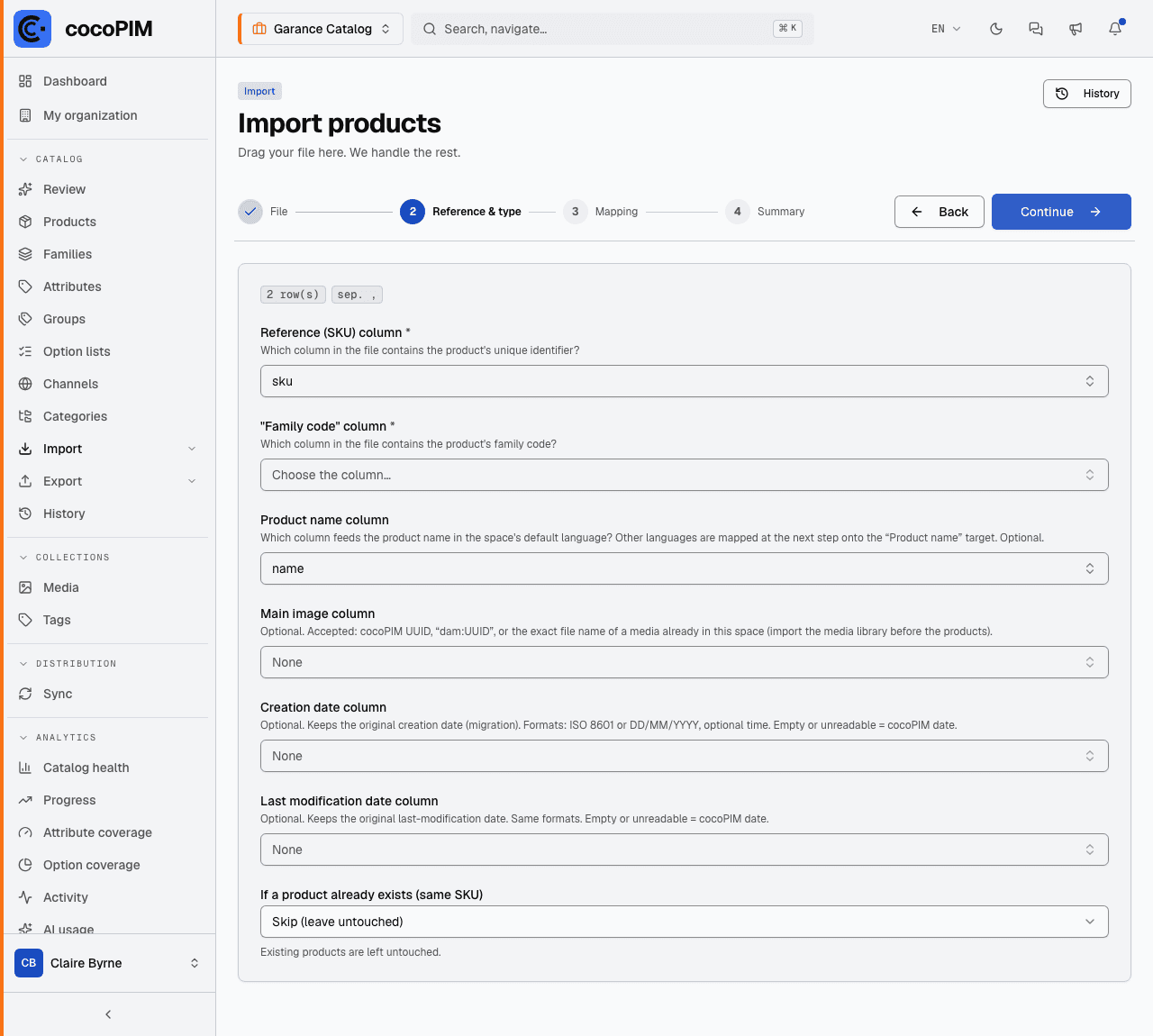
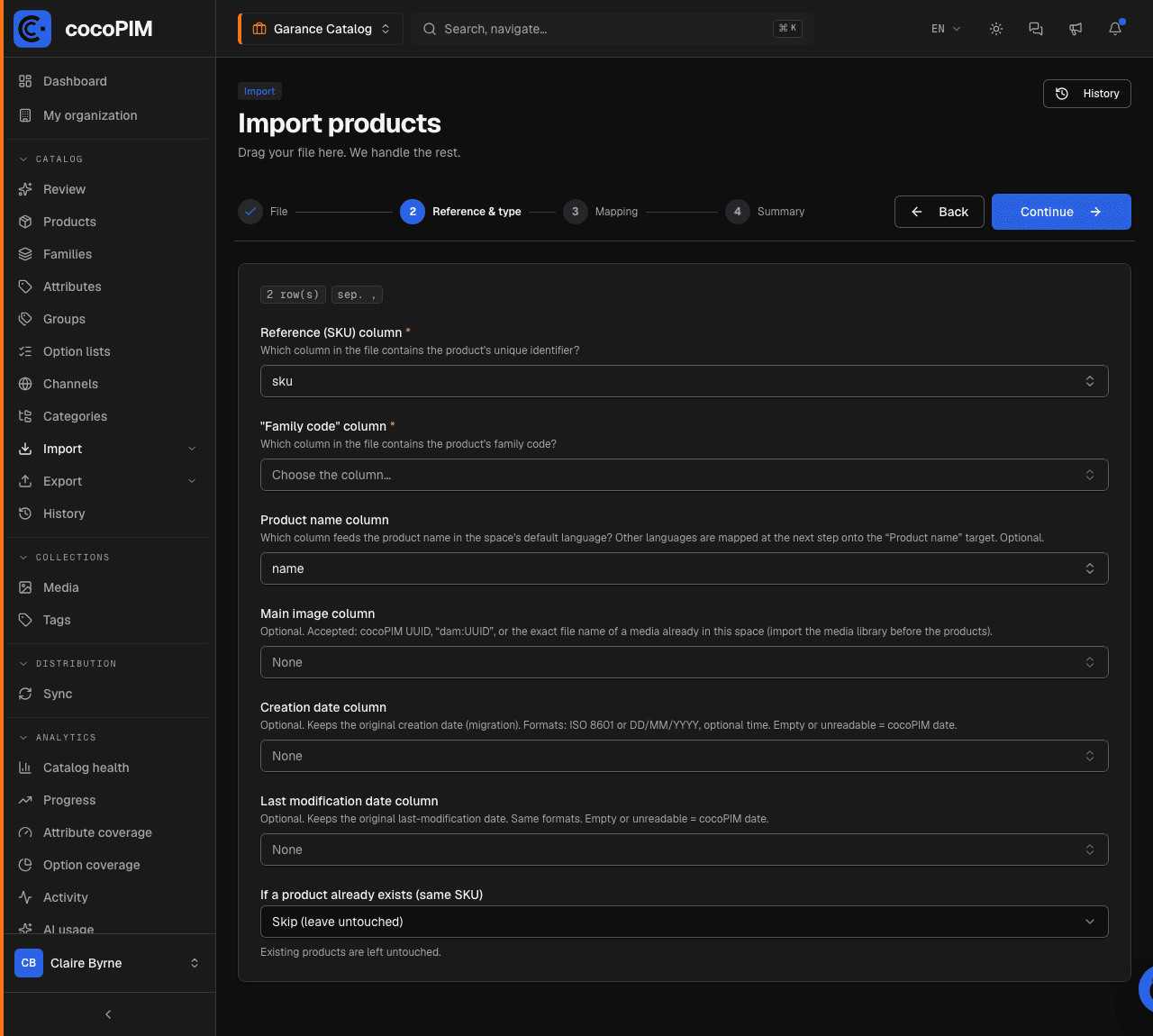
You set this as early as the “Reference & type” step of the wizard, before column mapping. Unknown SKUs always create new product sheets. For SKUs already in your catalog, the “If a product already exists (same SKU)” setting offers three behaviors: Skip (leave existing sheets untouched, the default choice), Update (merge the file’s values into the sheet) or Flag as error (duplicates appear in the report, without any change). It is your safeguard against accidental overwrites.
Launch it, then read the report
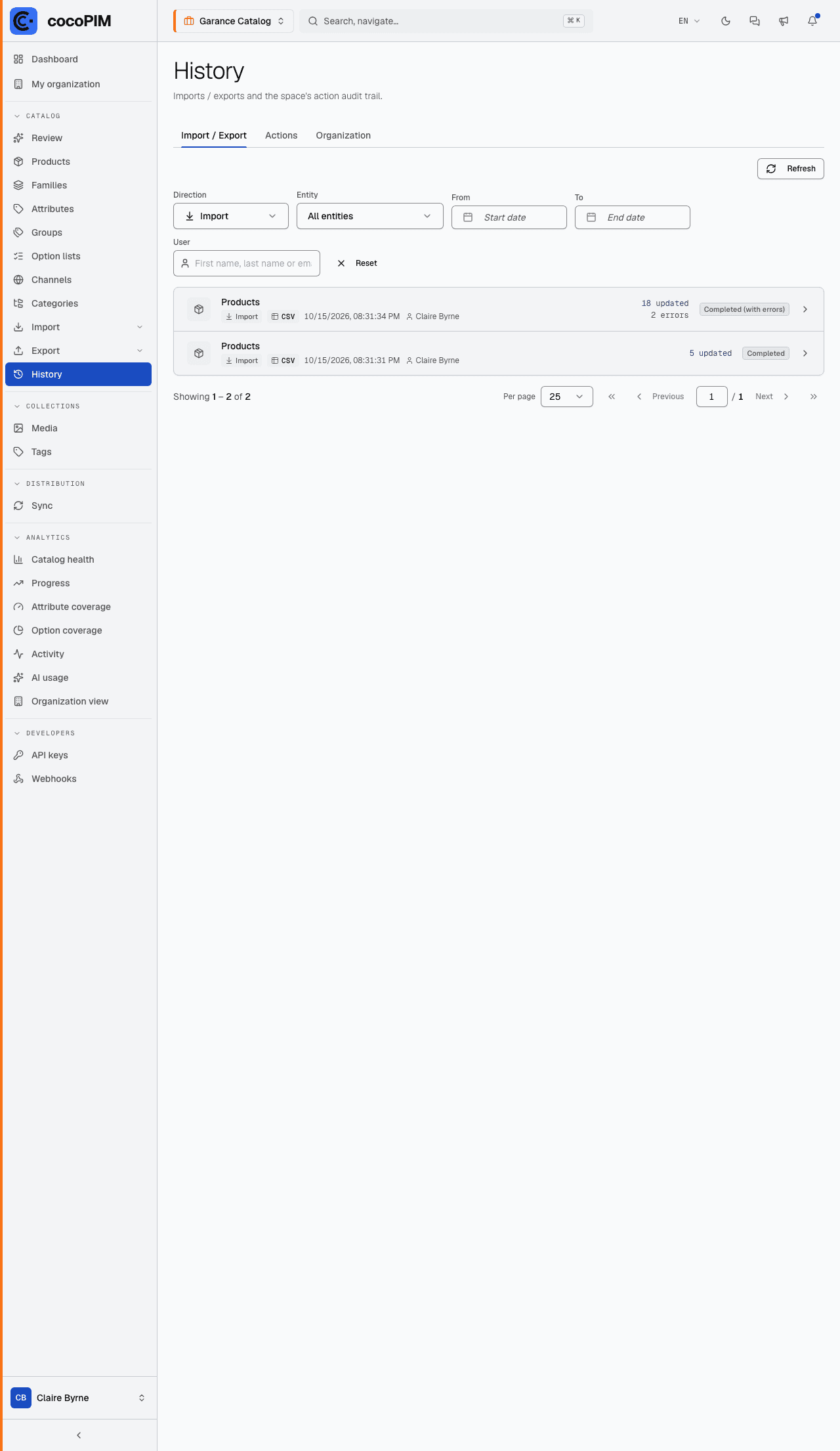
The import runs in the background: the notification bell lets you know when it is done. The report details each rejected row and why: unmapped value, unknown family, duplicate SKU… Fix the file, re-import: only the corrected rows change.
Templates: map once, reuse forever
Your supplier sends you the same file format every month? Save your mapping as a template (Catalog → Import → Templates, one tab for products, one for structures). On the next import, apply the template: no more columns to map again. Headers shaped as code-locale-channel (“META_KEYWORD-en_GB-web”, the export format of other PIMs) are recognized right away, with locale and channel adjustable column by column. The SKU, the family, the name, the main image and the creation and modification dates are mapped at the “Reference & type” step of the wizard; a relationship between products accepts “SKU|quantity”.
Importing the structure itself
Less known but very useful: the configuration import (Catalog → Import → Structures) brings in not products, but the structure (families, attributes, groups, option lists, categories, channels). For a measurement attribute, the dimension and the default unit are mapped too, and the vocabulary of other PIMs (“Weight”, “KILOGRAM”, “LITER”, “CELSIUS”…) is recognized without value mapping. Combined with the configuration export (next module), it lets you copy the structure of a test space to the production space, or prepare your whole structure in Excel and import it in one go.