
Go further · Module 15
Administering your space
Working as a team without stepping on each other’s toes: invite your team, give everyone exactly the rights they need, connect sign-in to your company directory if you have one, and keep an eye on your plan and quotas. It all happens in My organization, just below the dashboard.
15 min read
Inviting your team
In My organization → My users, invite a colleague by email: they receive an invitation, set their password and land directly in the space with the role you gave them. The number of users is not limited: invite your whole team, whatever your plan.
Roles: who is allowed to do what
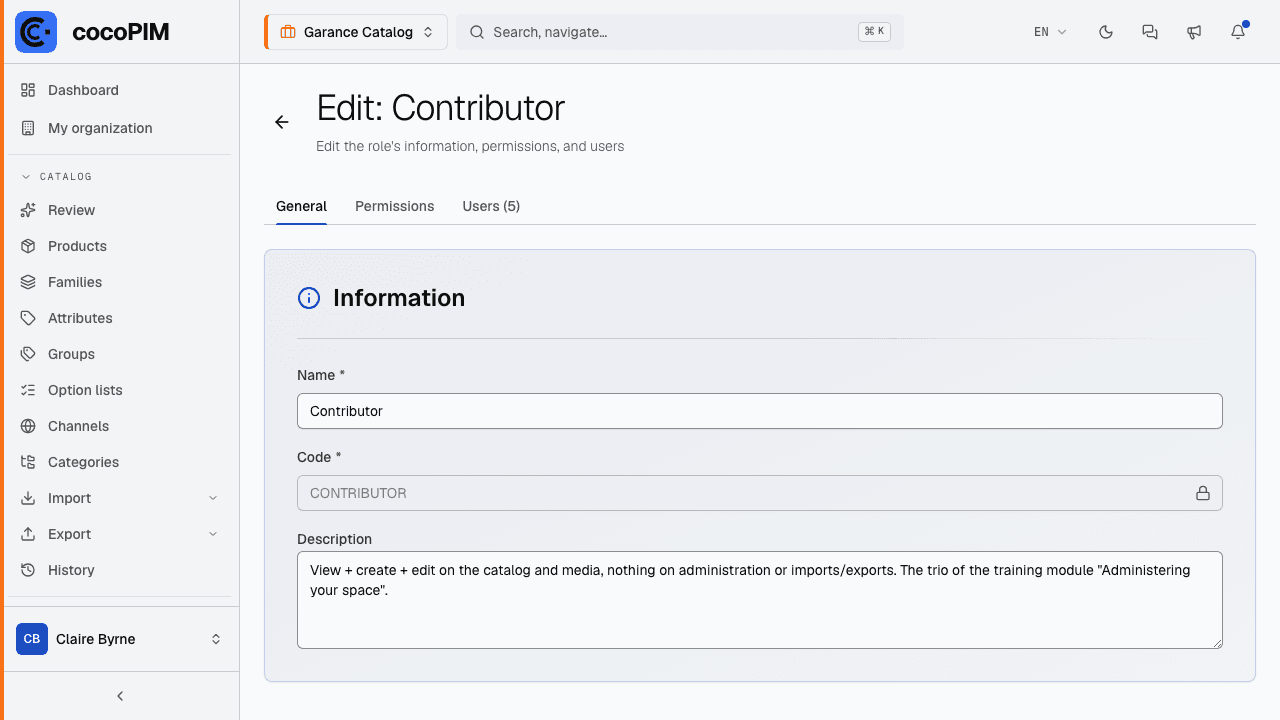
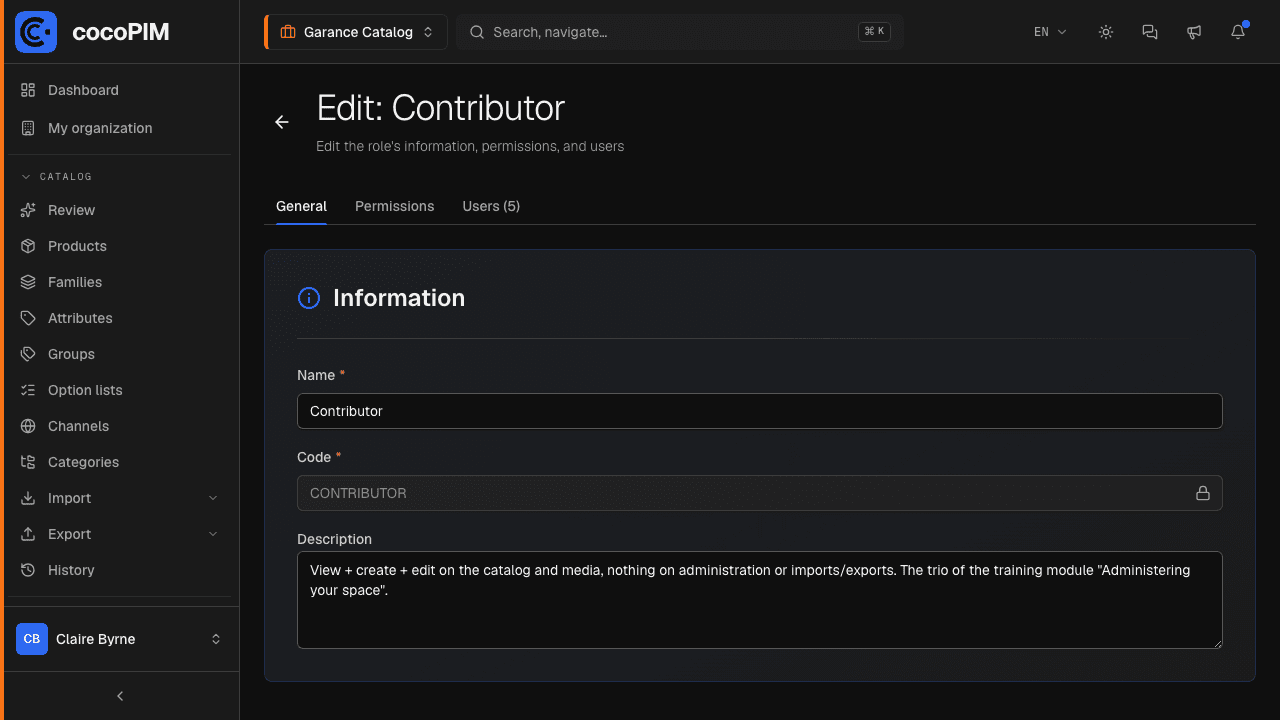
A role is a named set of permissions (“Catalog editor”, “Read only”, “Distribution lead”…) that you assign to users, space by space: Emma can be an administrator of the France space and a mere viewer of the Germany space.
Permissions are set in detail in My organization → My roles: for each type of data (products, families, attributes, media, imports…), four levels (view, create, edit, delete). The role editor looks like a matrix: one row per entity, four checkboxes.
The organization: plan, billing, spaces
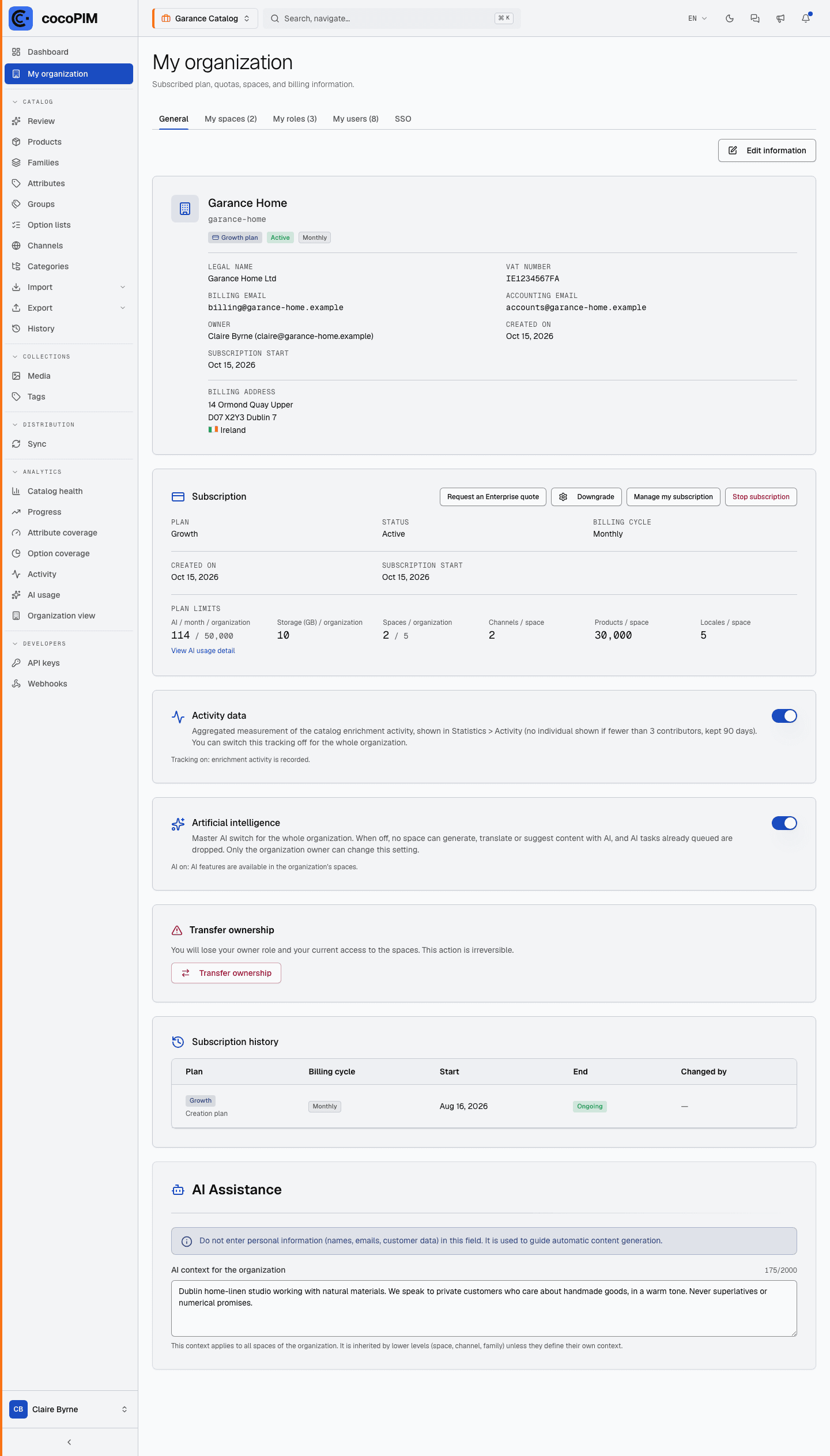
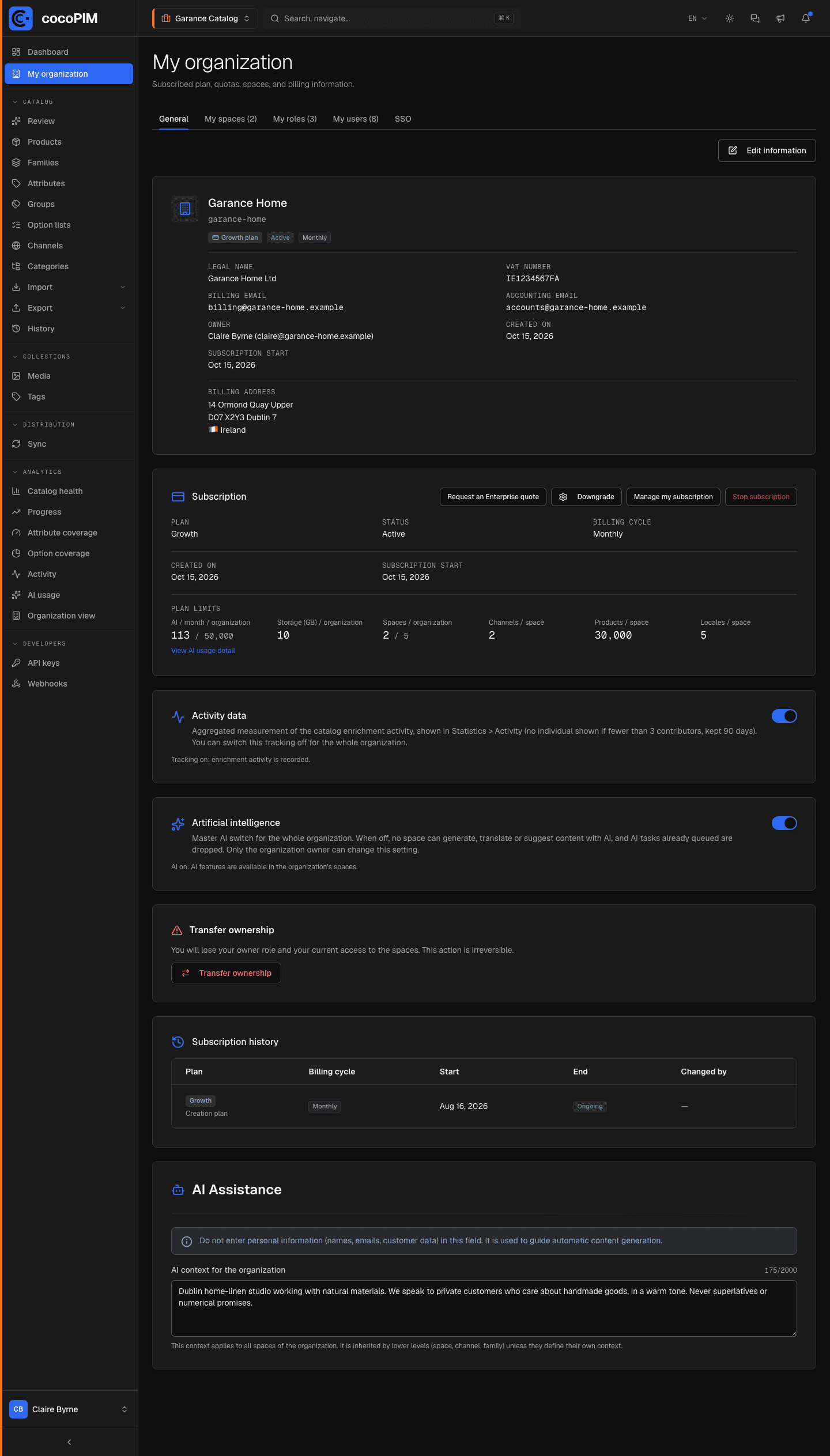
The My organization screen brings all the admin together:
- your plan and its usage: products per space, AI generations this month, channels, languages and spaces. You see where you stand on your quotas;
- billing: the subscription is self-service (plan change, invoices, payment methods) through a secure Stripe payment portal; self-service paid plans start with a 14-day trial, no credit card required;
- your spaces: create a new space (depending on your plan), in the My workspaces tab.
Beyond quotas, your plan also decides which features are visible. cocoPIM follows a simple rule: what your plan does not include does not appear, rather than greyed-out buttons that tease you. Below the Pro plan, the Developers group simply does not exist in the menu; webhooks only appear from Growth upward. And the roles grid only shows the permissions that make sense for your plan.
If you move to a lower plan, cocoPIM guides you instead of breaking things: as long as webhooks are active or a Shopify store is connected, the self-service downgrade is blocked, with direct links to what needs to be disconnected first. Nothing is ever deleted: your data, your keys and your roles’ permissions are kept, and everything becomes active again if you move back up to a higher plan.
Tracking AI usage and informing your teams
The AI assistance quota is shared by the whole organization. The Analytics → AI usage screen, reserved by default for the organization owner, shows where it goes: pace of the month and projection, AI functions, most active users, spaces and request detail. A link leads there from the subscription card in My organization.
This tracking is per person: it is personal data about your employees, for which your company is responsible. cocoPIM limits its scope (no text sent to the AI appears in it, names are erased after 90 days, every viewing is recorded in the audit log), but it is up to you to inform your teams and not to use it to assess anyone’s work. The right to view it can be withdrawn like any other, role by role.
SSO sign-in: connecting your company directory
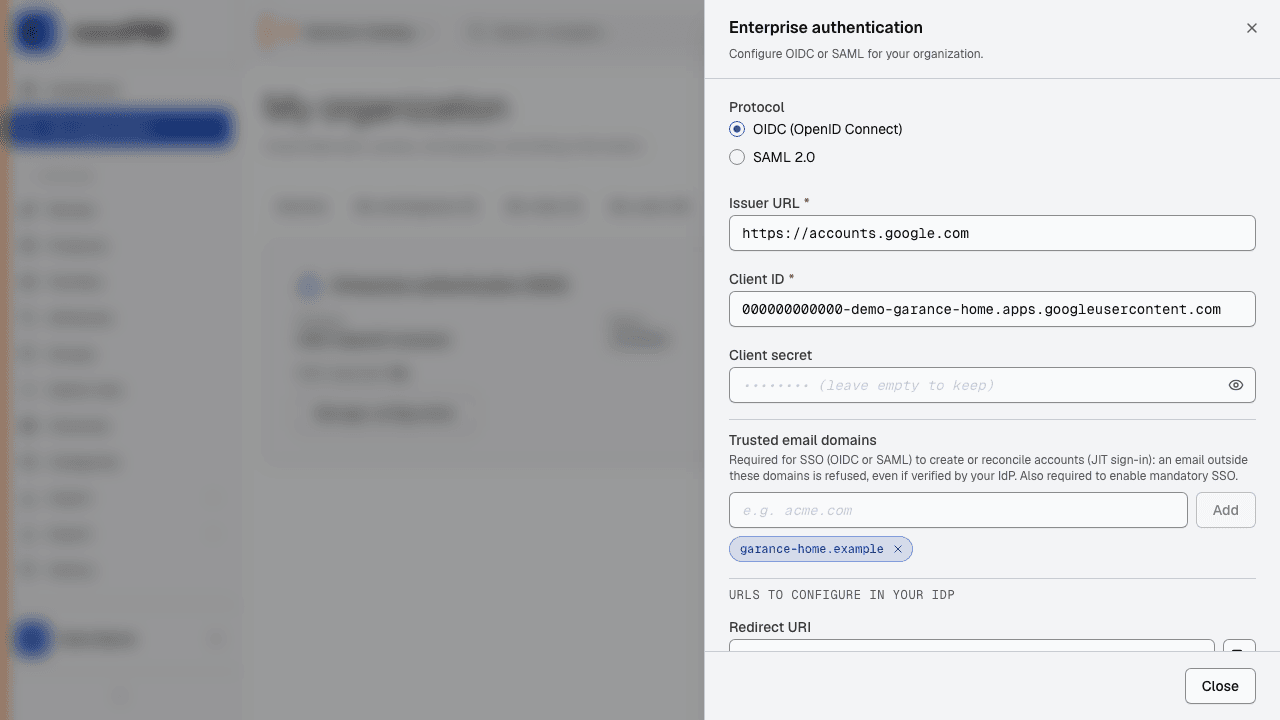
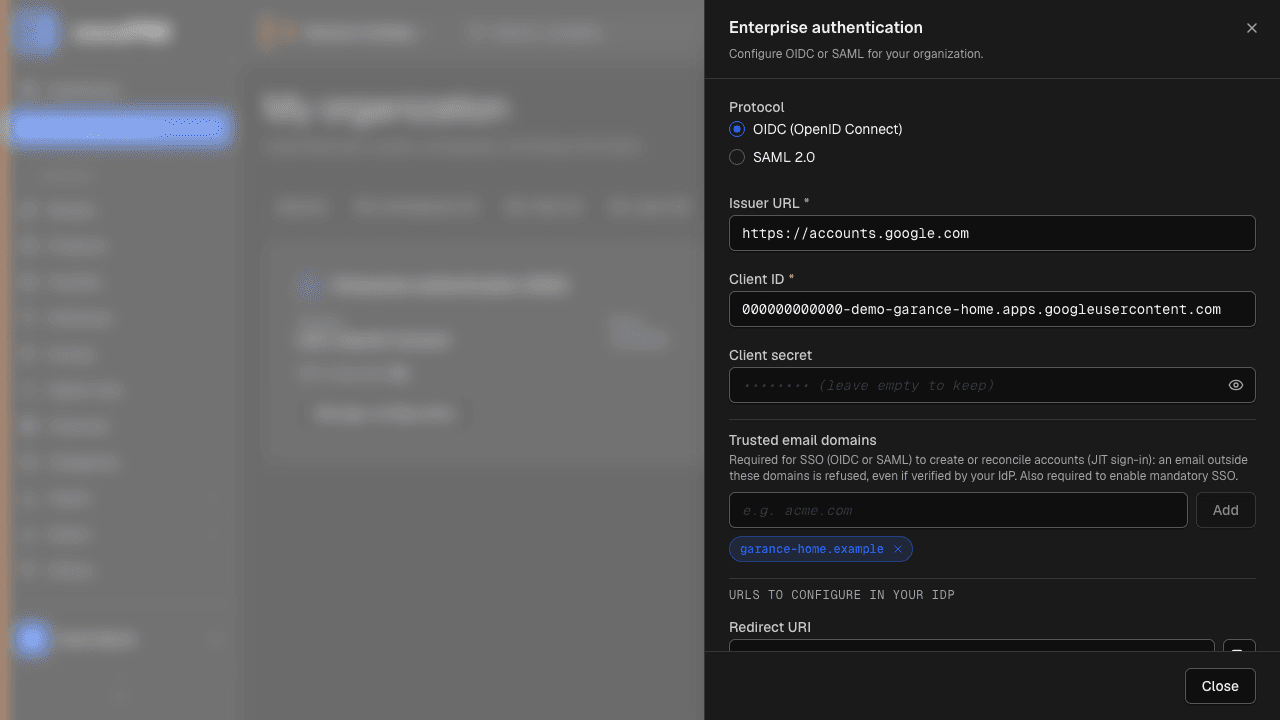
By default, everyone signs in to cocoPIM with their password, confirmed by a one-time code sent by email. If your organization already centralizes its access in a directory (Microsoft Entra ID, Google Workspace, Okta or any provider compatible with SAML 2.0 or OpenID Connect), you can connect cocoPIM to it: your team then signs in with their usual company credentials, and cocoPIM stores no password.
- Setup: in My organization, the owner enters your directory’s details (SAML metadata or OpenID Connect settings) and tests the connection before activating it. The “Sign in with…” button (followed by the name you chose) then appears on your organization’s sign-in page.
- Automatic onboarding: a colleague authorized in your directory does not need to be invited; on their first sign-in, their account is created automatically with the welcome role you chose. You adjust their rights afterwards, as for any user.
- Mandatory SSO mode: once sign-in is proven, you can make SSO exclusive; sign-in by password and email code is then disabled for your members. cocoPIM first requires a break-glass account, which keeps its password no matter what.
The complete walkthrough (Google Workspace example, security settings, first sign-in) is in the guide Setting up SSO.
Two-factor authentication, without a directory
No company directory? Everyone can still strengthen their account with two-factor authentication (2FA): a 6-digit code generated by an authenticator app (Google Authenticator, Microsoft Authenticator…), requested in addition to the password at sign-in. Each user turns it on themselves from their Preferences, with backup codes to keep safe so as not to get locked out if the phone is lost. A good habit to encourage as soon as several people work in the catalog. Available with every plan.
In practice: getting ready for the team’s arrival
Create your roles
The Admin / Contributor / Viewer trio, in My organization → My roles.
Invite with the right role
Principle of least privilege: start with the most restricted role that lets the person do their work. Widening it later takes ten seconds.
Check the audit log
After a few days, a look at History confirms that everyone works within their scope.