
Build your catalog · Module 3
Categories, channels, languages & currencies
The same product isn’t presented the same way on your website, on a marketplace and in a printed catalog. This module teaches you how to file your products into their categories, declare these destinations (the channels) and activate the languages and currencies your catalog speaks.
12 min read
Categories: one tree per channel
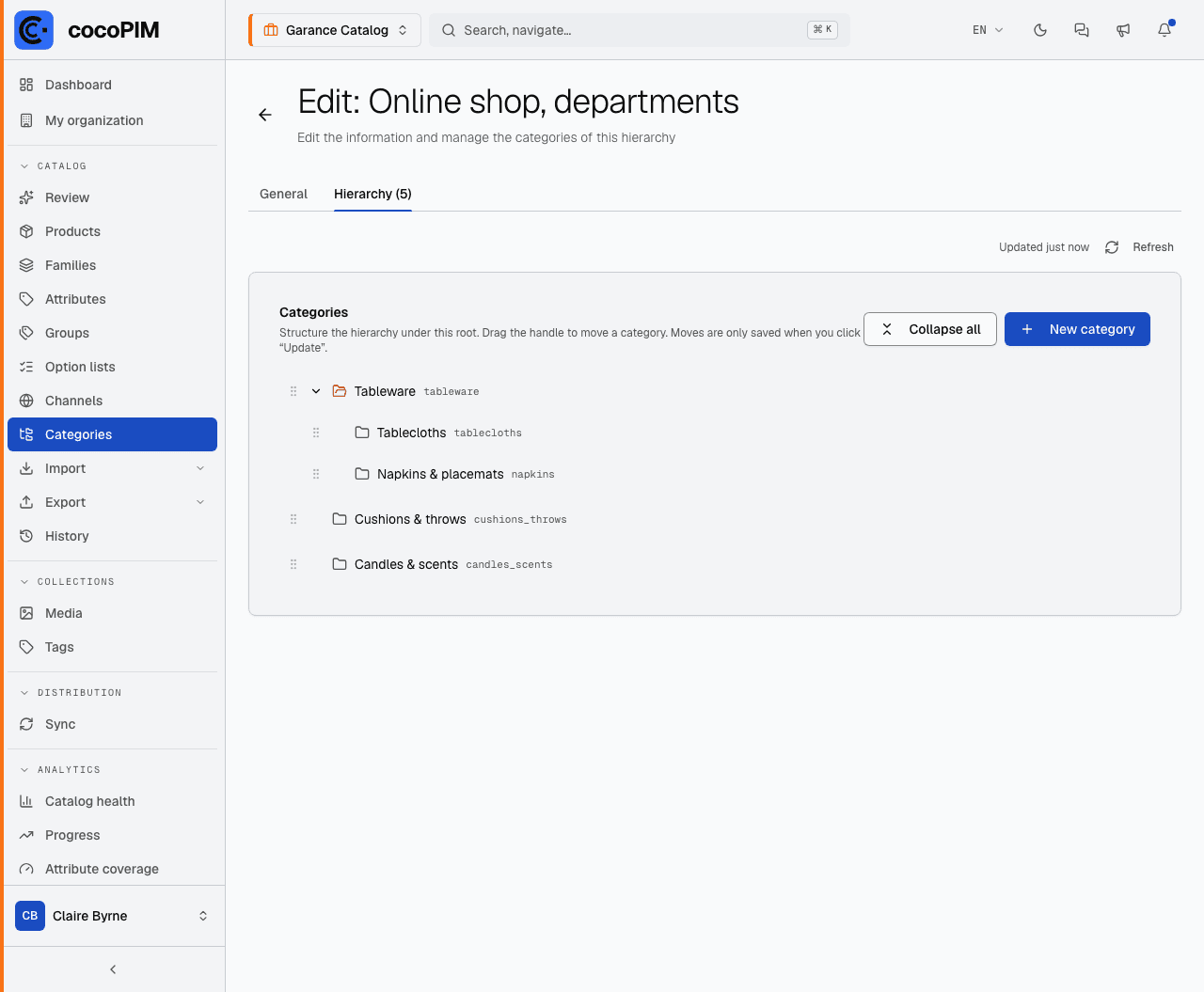
Categories (Catalog → Categories) file your products into a tree: Home > Kitchen > Small appliances. The cocoPIM subtlety: a product can be classified differently depending on the channel (the distribution destination, presented just below). On your website, the blender lives in “Small appliances”; on the marketplace, in “Kitchen & home”, because that’s the tree this channel expects.
Each channel relies on a root category, chosen when the channel is created and not editable afterwards: so the tree comes before the channel. The same root can serve several channels that share the same organization.
The channel: a distribution destination
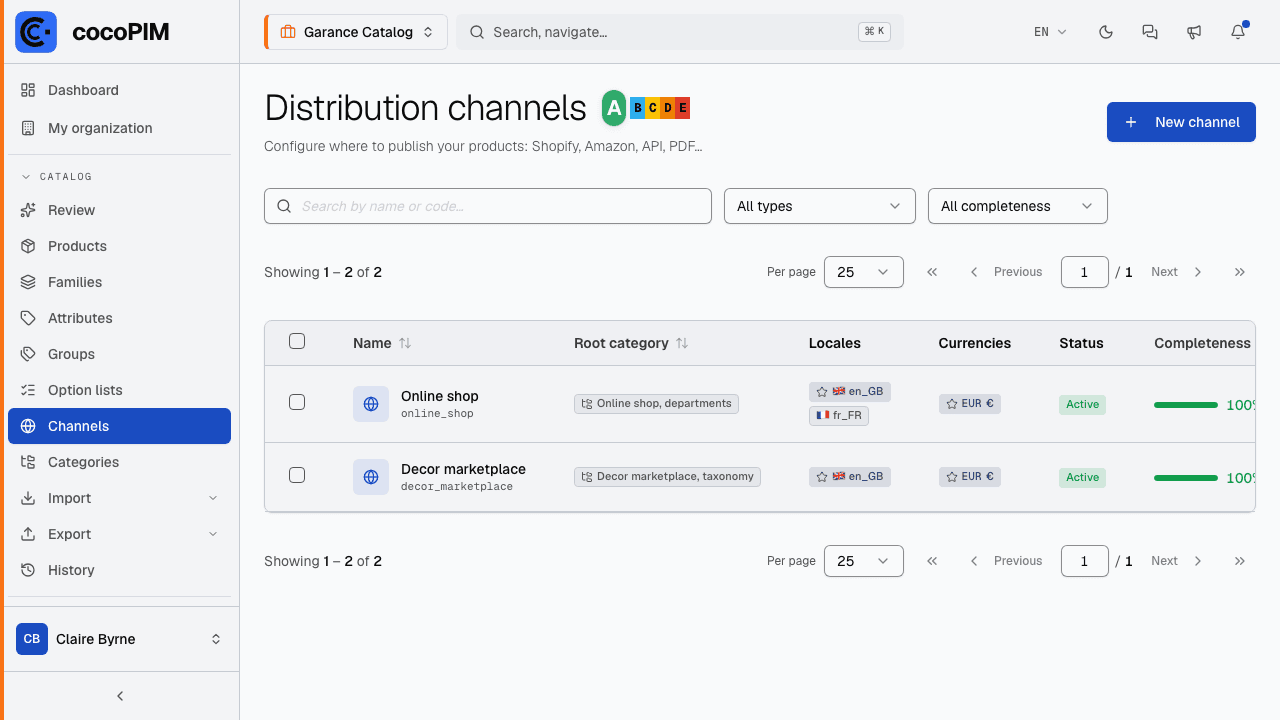
A channel is a place where your products are distributed. cocoPIM distinguishes five types: e-commerce site, marketplace, API (to feed an application), print (printed catalog) and other. Each channel has its own languages, its own currencies and its own category tree.
Why is this powerful? Because the channel determines:
- what is required: the family can require an HD photo for the website, not for print;
- completeness: each product has a completeness score per channel and per language. A product can be 100% ready for the English website and 64% ready for the marketplace (the diagram below shows it on a real case);
- channel-specific values: “per channel” attributes can carry a different value on each channel (a long title here, a short title there).
| Garance Tablecloth | English | French |
|---|---|---|
| Online shop | 100% | 82% |
| Decor marketplace | 64% | — |
Languages and currencies: at the space level, then the channel
It works in two steps:
- The space activates the languages (French from France, English, German…) and the currencies available for the whole catalog.
- Each channel then picks, among them, the ones that concern it: your website in EN + FR, the German marketplace in DE only.
One last setting, discreet but structuring: the space, like each channel, designates a default language and currency. The space’s default language is the one used for the “reference” names of your structure (families, attributes, categories), the one used as a fallback when a translation is missing. Choose it from the start: it is almost always your team’s working language.
The unit system: inches for your English-speaking readers
A measurement is a single fact: 45 cm and 17.72 inches are the same piece of data. So cocoPIM never asks you to enter it twice: each measurement attribute stores a single value, in its reference unit, and conversion is a simple display setting.
In the space’s Languages & currencies tab, each active language carries a unit system: Metric (by default) or Imperial. Switch your English to Imperial, and the product sheet shows the converted value under each measurement: “≈ 17.72 in” under a 45 cm field, “≈ 1.32 lb” under a 600 g weight. The “≈” signals a display rounding; the stored data, for its part, stays intact, and it is always what your exports and your API receive.
Who decides what? Three simple rules
- The attribute sets the reference unit. It is the measurement attribute’s Default unit setting (Catalog → Attributes): the unit in which the value is actually stored. This choice belongs to the attribute, never to a language.
- The language being viewed decides the display. A language set to Imperial shows the conversion under the field (“≈ 17.72 in”); a language set to Metric shows the reference value as is, without conversion.
- Exports, API and calculated fields always receive the reference unit. Conversion is a shop window: it never changes the data that flows.
In practice: declaring your first channel
Check the space’s languages and currencies
In the space settings, activate the languages and currencies you need today.
Set up the category tree
In Catalog → Categories, create the root category of the future channel, then its subcategories. Keep it simple: 2 to 3 levels are more than enough to get started.
Create the channel
In Catalog → Channels, create for example “Online shop” of e-commerce type, choose its root category (it can no longer be changed) and assign its languages and currencies.
Write down the channel’s requirements
List what is essential for this channel to consider a product ready: you will declare it in your families in the next module.